Docs  |  User Guides

User Guides

Step-by-step walkthroughs of every Invert feature — from scheduling experiments to building reports.

Open in full page

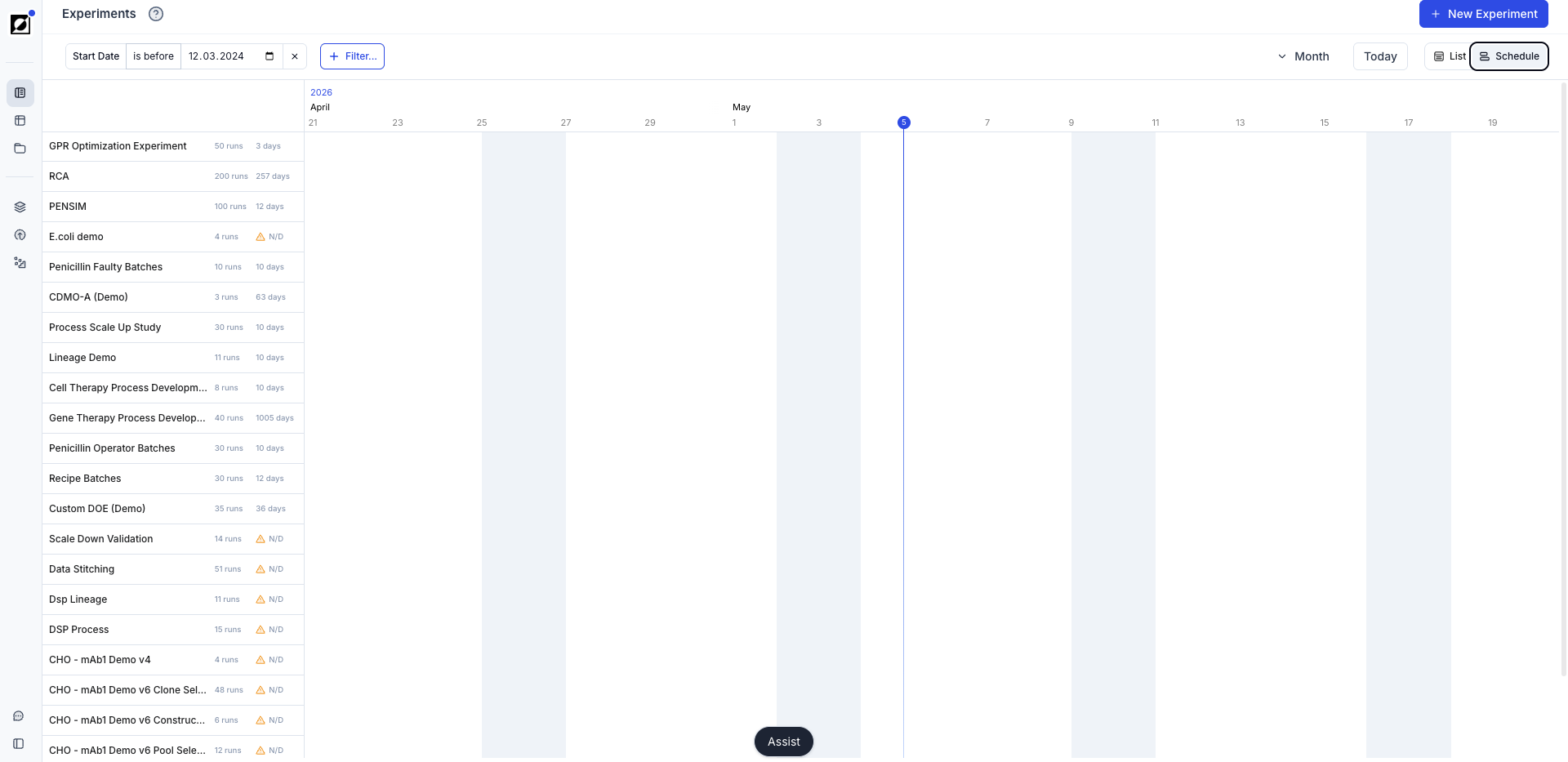
The Schedule page allows you to manage experiments in Invert. From here, you can review past and ongoing experiments, presented in either list or calendar view. Create a new experiment as necessary or navigate to a given experiment details page for a close-up view on a specific experiment.

Creating a New Experiment

To create a new experiment, simply click the "New Experiment" button. This action will direct you to the 'New Experiment' view, where you can enter the experiment name and edit experiment properties, such as status, start date, end date, and more, as needed. Navigate to the Runs tab to create runs you wish to associate with the new experiment. Once you've filled in the necessary details, the newly created experiment will appear in the experiment list on the Schedule page.

Experiment list

The experiment list on the Schedule page gives you an overview of all your experiments whether past, ongoing or future experiments. Navigate through the list and apply filters to narrow down the view based on experiment status, start date, or end date.

The calendar view provides a visual representation of your experiments, allowing you to see them in a calendar format. Use the arrow buttons for quick navigation.

Clicking on an experiment in the list or calendar view will direct you to the respective experiment summary page.

Open in full page

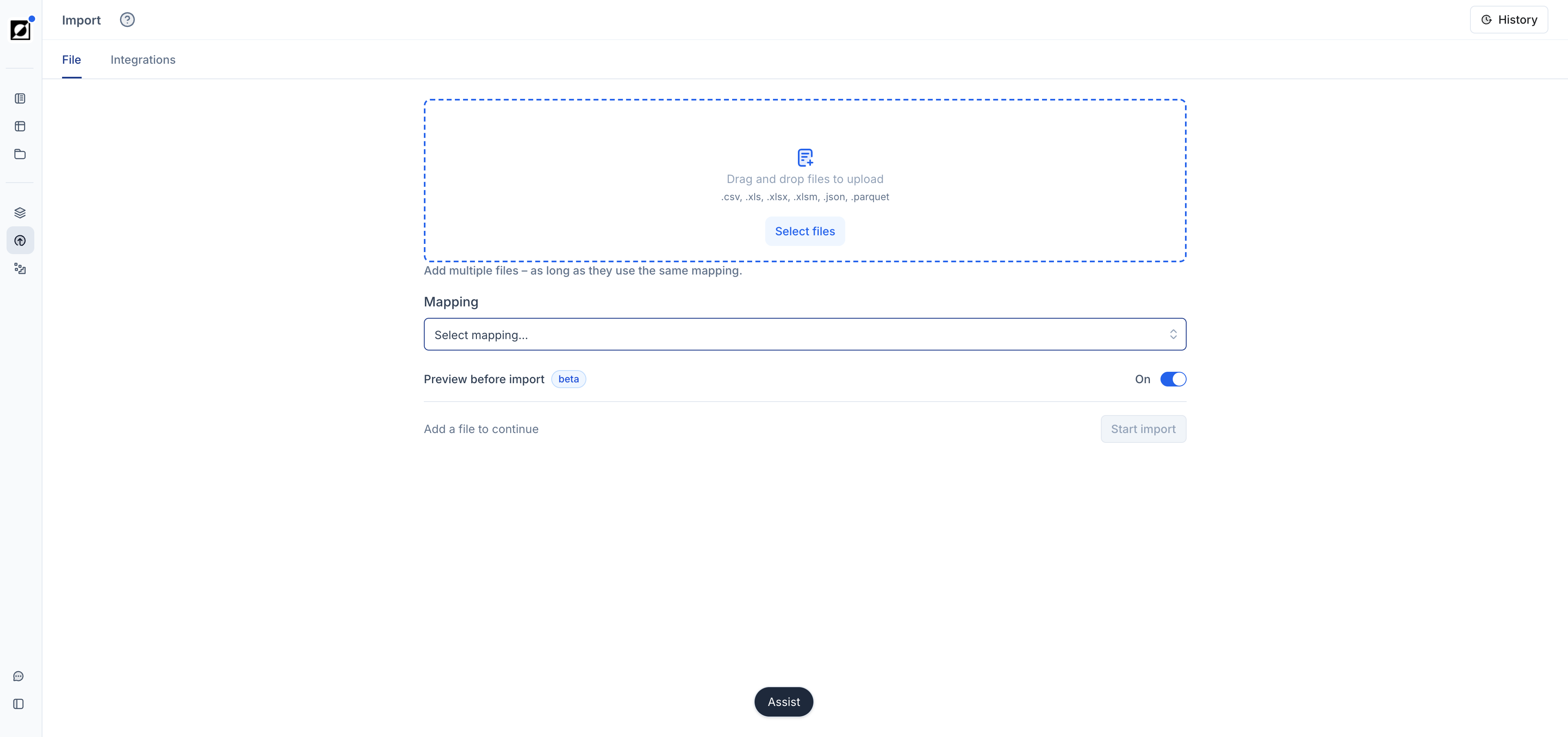
The Import page is your gateway for bringing data into the app. Whether you're importing timeseries data, run data, event notes, or file attachments, the tools provided here allow you to upload files, making them available for your analysis. Navigate to the 'View History' page for a detailed view of historical file uploads.

Option 1: Data from File

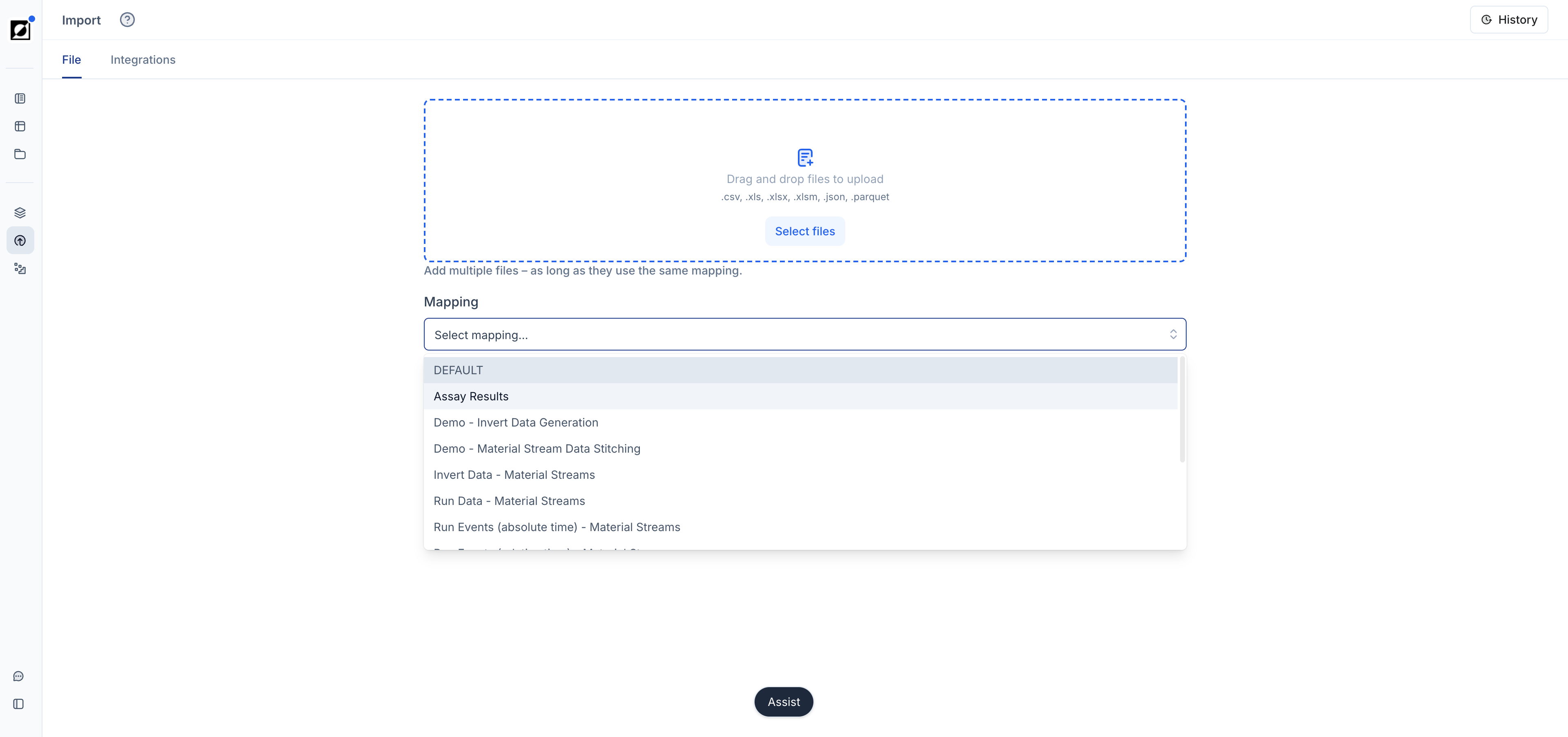
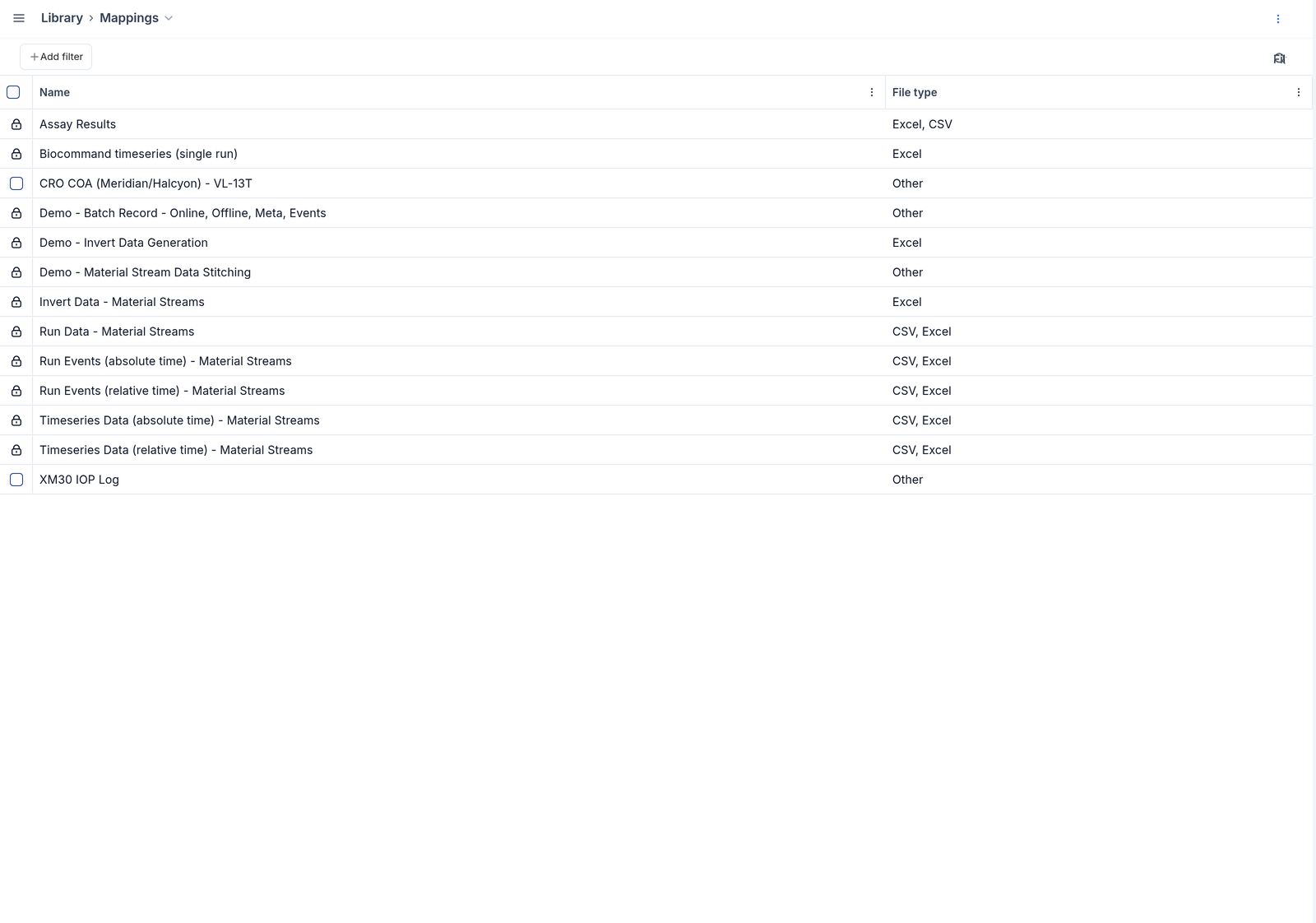
This is the primary method for uploading bioprocess data from files. Pick a file and choose a mapping template from the list that supports the structure of your data. The mapping ensures that your data is imported correctly into the app. Press 'Start Import' to initiate file ingestion.

  • Step 1: File Picker

    Select a file from your computer using the File Picker. Supported file extensions include .csv, .xls, and .xlsx. You can upload multiple files at once, as long as they share the same file structure. It is recommended to carefully review each file before ingestion to avoid ingestion of faulty data.

  • Step 2: Mapping Picker

    Select a mapping template that best fits your data structure. Several mappings are available to support the following data types: Run Data, Timeseries Data, or Run Events. Custom mappings can be added to list upon request. Refer to the mapping example in the top right corner of the screen or consult the Mapping Guide below for more information on a particular mapping.

  • Step 3: Settings (Timeseries Data Only)

    When importing timeseries data, you have the option to either 'merge' or 'replace' existing datasets. Choose 'merge' to update an existing dataset by either overwriting or appending data. Alternatively, select 'replace' to discard the existing dataset for a given metric and replace it entirely with the imported data.

  • Step 4: Start Import

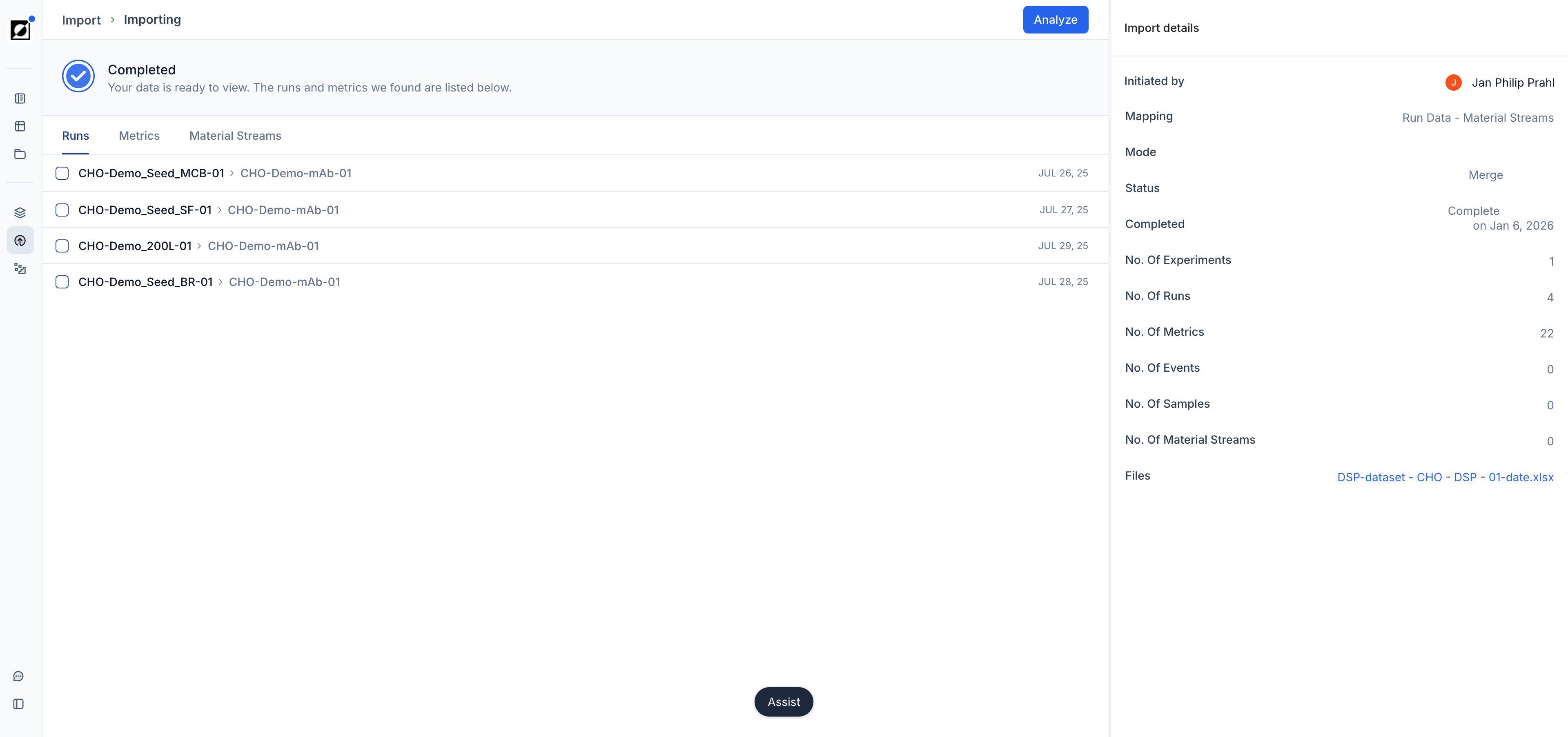
    Click the 'Start Import' button to initiate file ingestion. This will direct you to the 'Importing' page where you can review 'Import details' for more information on ingestion status. Depending on the file size, file ingestion may take up to several minutes to complete.

  • Step 5: Ingestion Evaluation

    • Step 5.1: Successful File Uploads

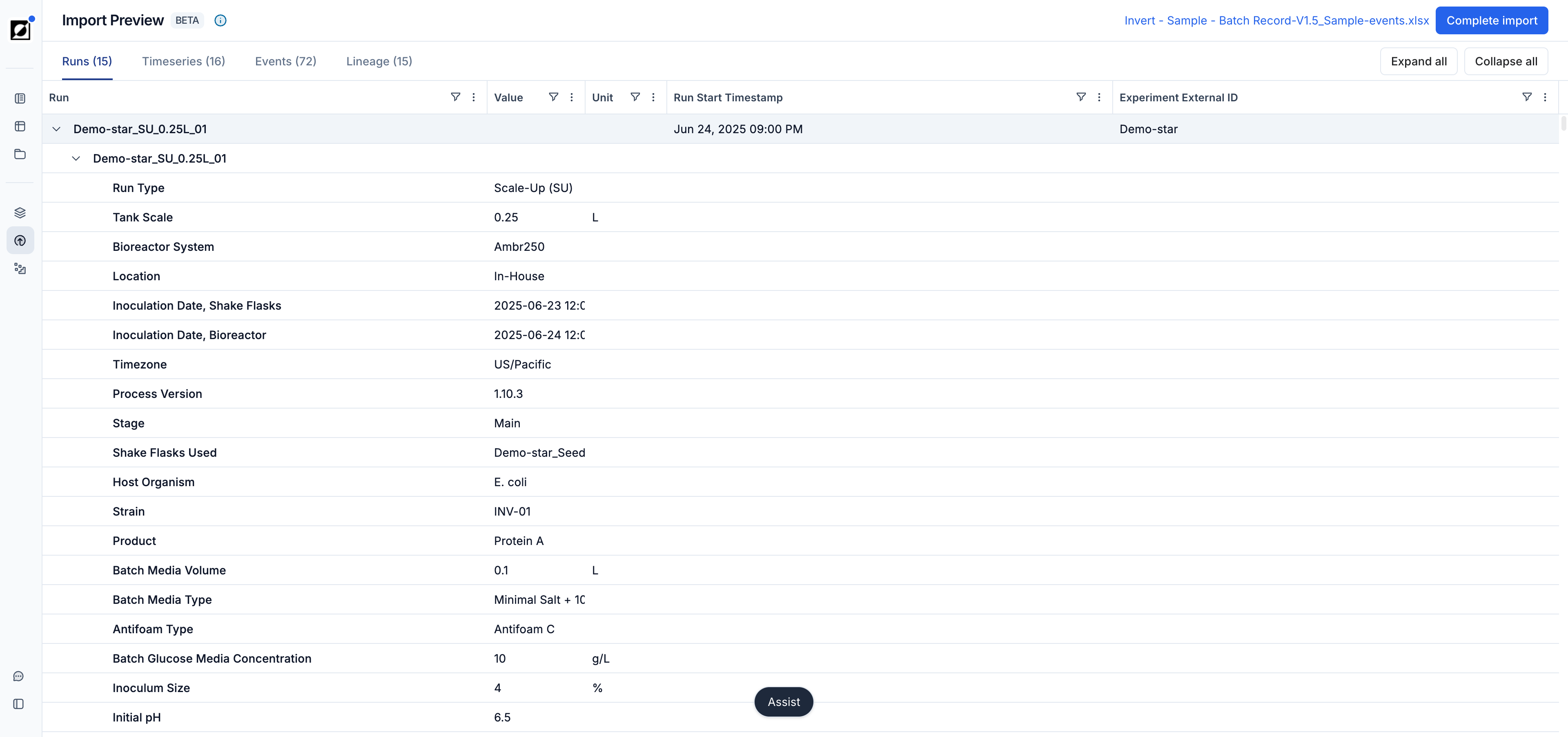
      Upon file ingestion, ensure data imported into Invert meet your expectations. Click 'Runs' or 'Metrics' for a comprehensive overview on the imported data. Consider editing and re-uploading files to update or replace data inside the app as needed.

    • Step 5.2: Failed ingestion attempts

      Failed file ingestions may occur if the source file contains unexpected incomplete data or the file structure is not supported by the selected mapping. Consult the error log on the 'Importing' page for more details and ensure the file meets the mapping criteria. Consider reaching out to Invert staff for additional support.

Mapping Guide

  • Run Data
    • Description: Metadata associated with a run
    • Example: LOT#, Reactor ID, Site, Operator
    • Mapping: 'Run Data'
      • Required Columns:
        • Run
        • Metric A (unit)
      • Recommended Columns:
        • Experiment
  • Timeseries Data
    • Description: Time-based metrics
    • Example: Time (h) versus Temperature (**°**C)
    • Mapping:
      • Timeseries Data (absolute time)
        • Required Columns:
          • Run
          • Timestamp
          • Metric A (unit)
      • Timeseries Data (relative time)
        • Required Columns:
          • Run
          • Time (h) or Time (min)
          • Metric A (unit)
  • Run Events
    • Description: Notes associated with a run.
    • Example: Reactor Foaming @ 24h EFT
    • Mapping:
      • Run Events (absolute time)
        • Required Columns:
          • Run
          • Timestamp
          • Metric A (unit)
      • Run Events (relative time)
        • Required Columns:
          • Run
          • Time (h) or Time (min)
          • Metric A (unit)
  • Invert Data
    • Description: Import data from an Invert export file
    • Example: Time (h) versus Temperature (**°**C)
    • Mapping:
      • Invert
        • Required Columns:
          • Export file structure generated by Invert

Option 2: Other Files

The second option allows you to upload files as run attachments. Use the file picker to select the file you wish to upload, and then choose the relevant run from the dropdown menu. Once uploaded, the file can be accessed from the Run summary page, providing easy access to additional documentation or resources related to your runs.

Option 3: View History

Navigate to the 'Import History' page to get an overview on historical file ingestions. Select a upload from the list for more details on a specific file upload task. Review imported 'Runs' or 'Metrics' and download a copy of the file

Open in full page

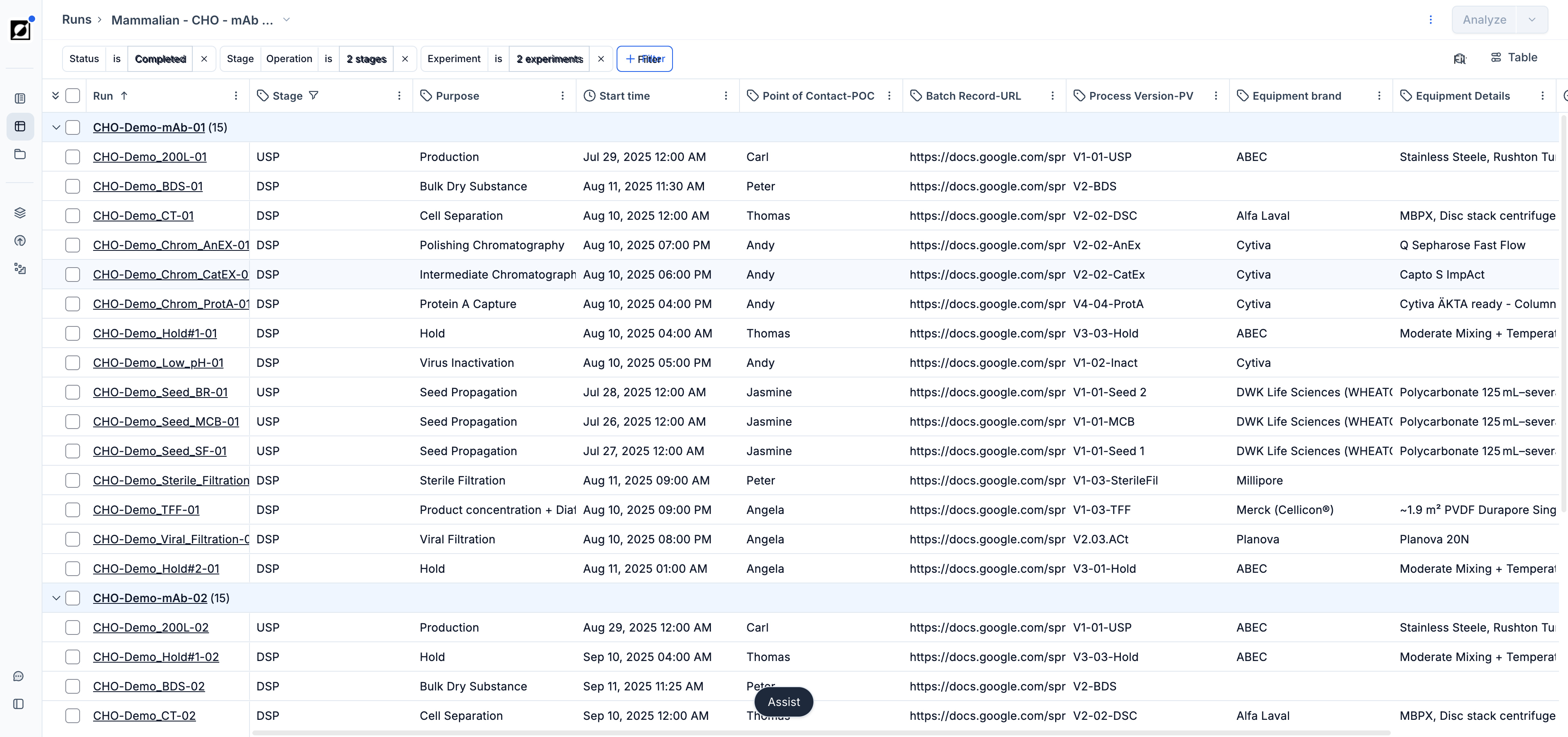
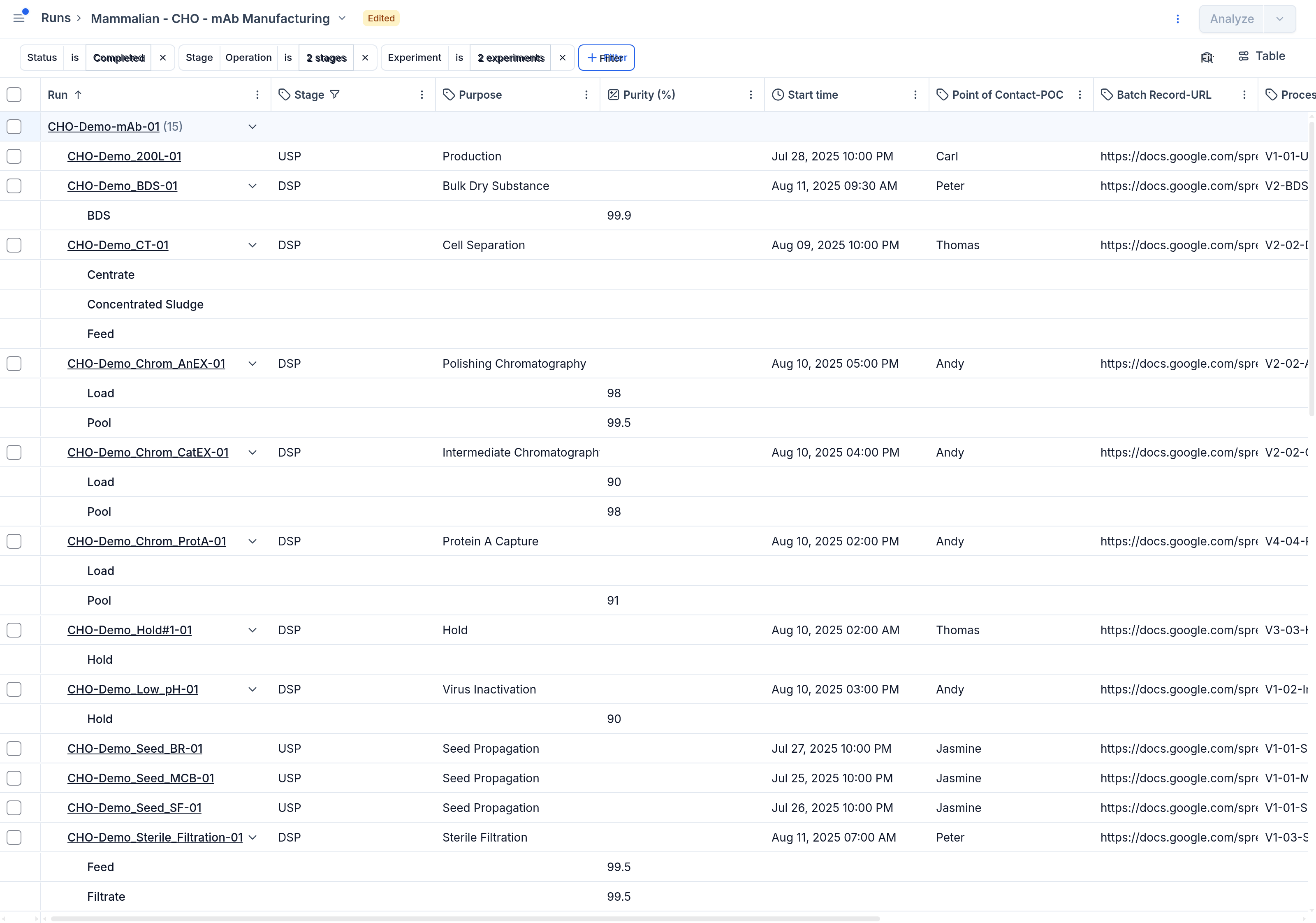
The Runs directory is your hub for managing all your bioprocess runs. Here, you can view, filter, group, and sort your runs in a table format. Whether it's shake flask, bioreactor or any other type of run, this page helps you keep track of your data and serves as a starting point for your analysis.

Get Started

Begin by exploring your runs in the run directory. Use the filtering option to tailor your view to include relevant runs for your analysis. Customize the layout by adding or removing columns. Select runs for bulk editing or timeseries analysis.

Key Features

  • Filtering: Narrow down your view by applying filters based on different attributes like experiment, organism type, or any other relevant metadata associated with your runs.
  • Sort: Sort your runs alphabetically in ascending or descending order depending on your needs. Click on the arrow down icon inside any of the column headers and select 'Sort A to Z' or 'Sort Z to A'.
  • Grouping: Group your runs by specific criteria for a clearer overview. Choose from options like operator, site, strain, or other any run data from the list. Bulk select grouped runs by clicking the checkbox next to the group label.
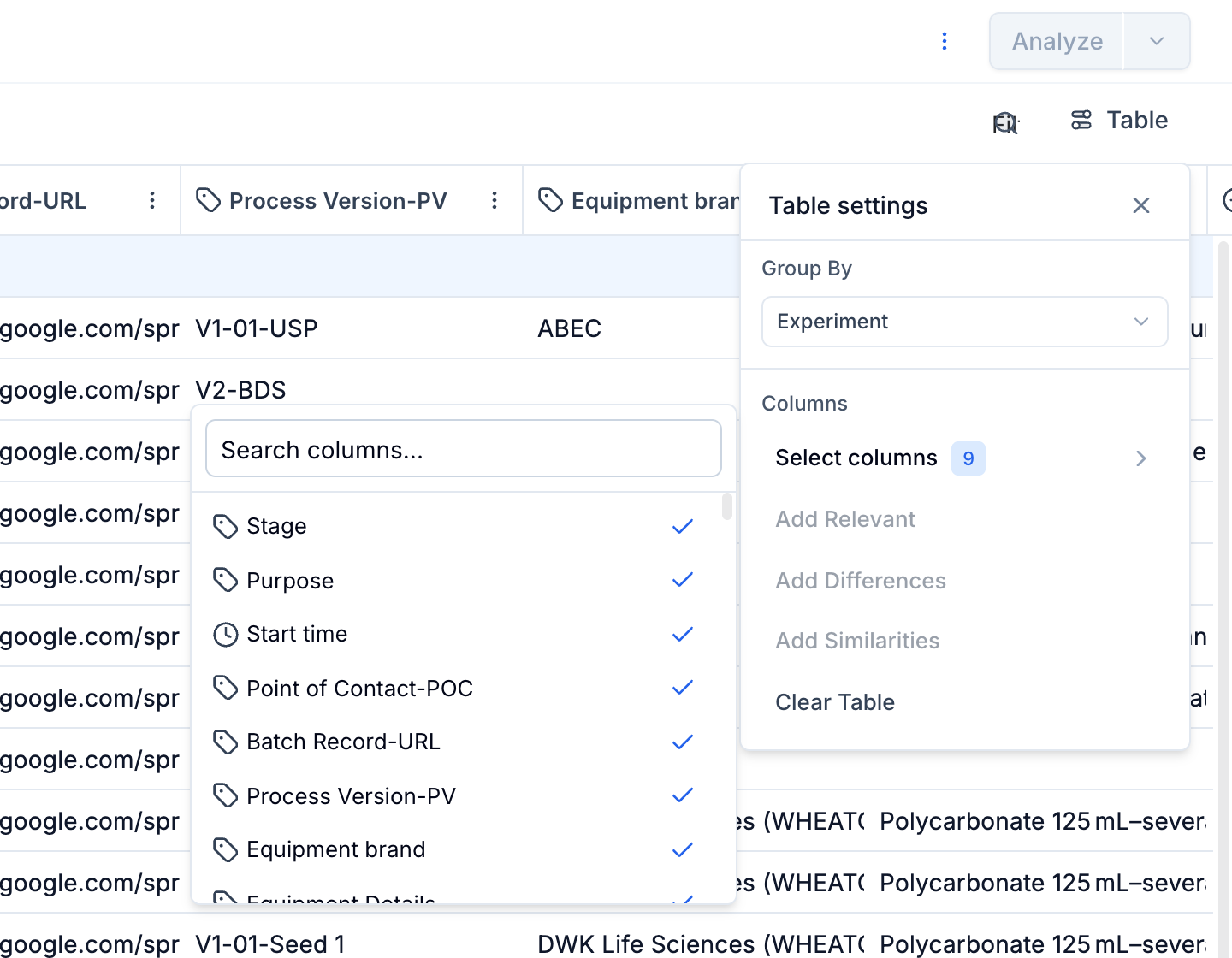
  • Table Layout: Tailor your run directory view by adding or removing columns. Change the column order by dragging-and-dropping. Take advantage of the 'Add Similarities'/'Add differences' feature to quickly compare run data across highlighted runs.
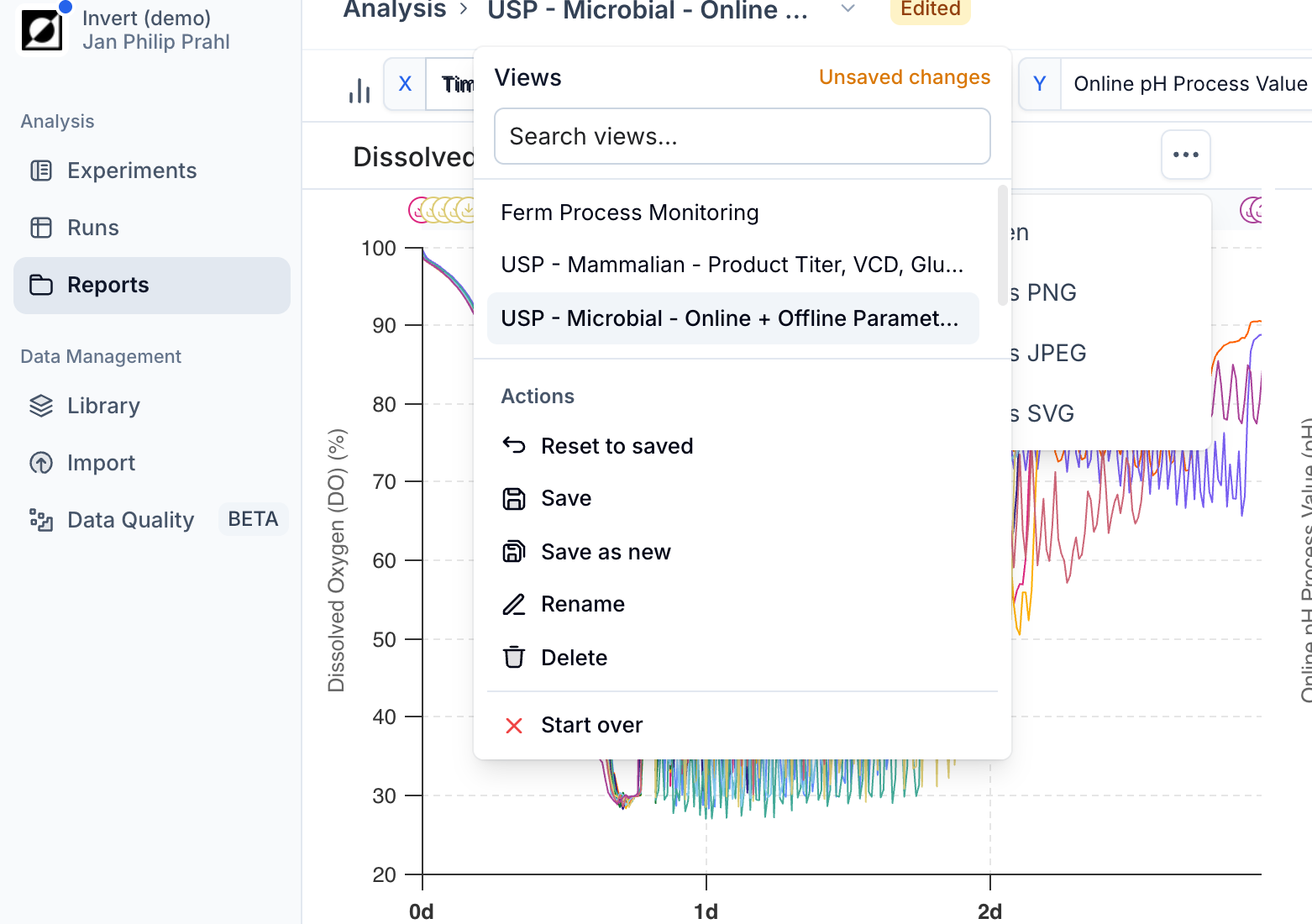
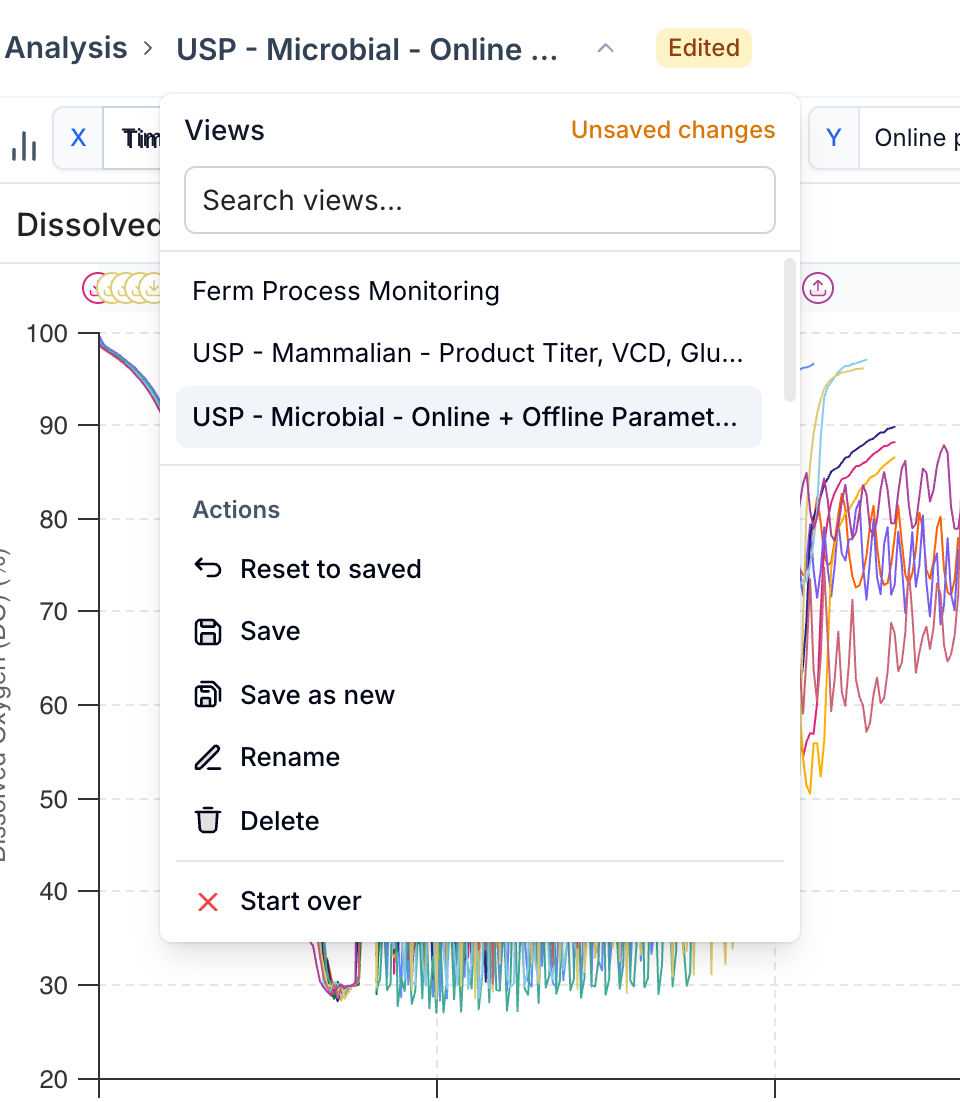
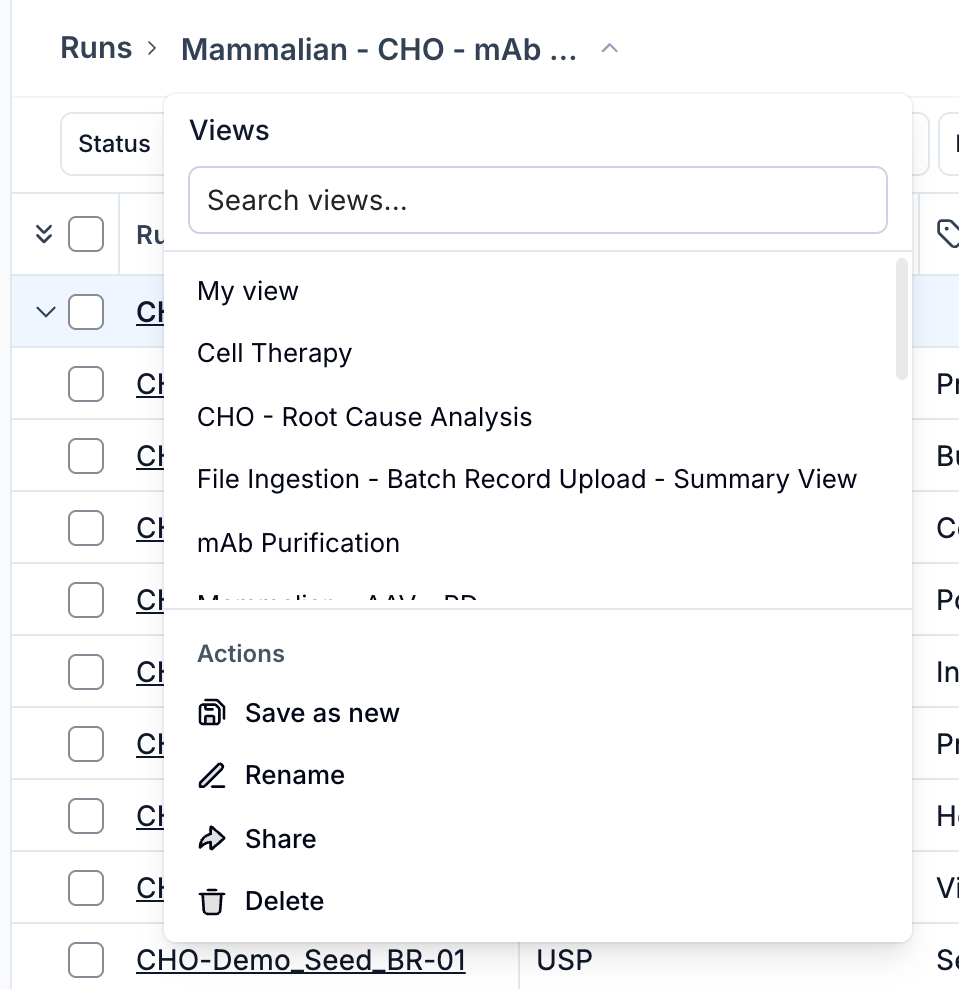
  • Saved Views: Save your run directory configuration for a more streamlined and reproducible data analysis experience. Apply filter settings and adjust the table layout followed by pressing 'Save'. Select a profile from the dropdown menu to restore a previously built view. Run directory profiles are available for the entire organization.
  • Aggregations and Units: Choose between a variety of aggregation settings for timeseries metrics (e.g. Mean, Last, Maximum, Minimum, etc.). Use the built-in unit conversion tool to quickly change between available unit options (e.g. mL/min to L/h).
  • Search: Use the search feature to quickly identify relevant runs in the current run directory view. Search for run names or any other metric entry, like NH4OH or Process development.
  • Experiment planning: Take advantage of the 'Status' property to organize runs by its status. Use the 'Status' filter and select 'Completed', 'In-progress', 'Scheduled' or any of the other options to further customize your view.
  • Quick access to Summary page: Runs and Experiments are clickable entities, allowing you to quickly access the associated Summary page for detailed information related to a particular entry.
  • Editing: Select a run and make edits to its associated metadata. Use our bulk editing feature to streamline editing across multiple runs simultaneously. Use shift-click feature for quickly highlighting multiple cells.
  • Run merging: To merge two or more runs into a single run, select the relevant runs and click the 'merge' button accessible by through the dropdown menu in top right corner. Choose the run to keep and proceed with the run merge.
  • Transfer to Analysis: Choose a specific run or a selection of runs to carry forward to the Analysis page. This allows you to create line and scatter charts based on the selected data for deeper insights and visualization. You have the option to save the analysis as a sharable report.
Open in full page

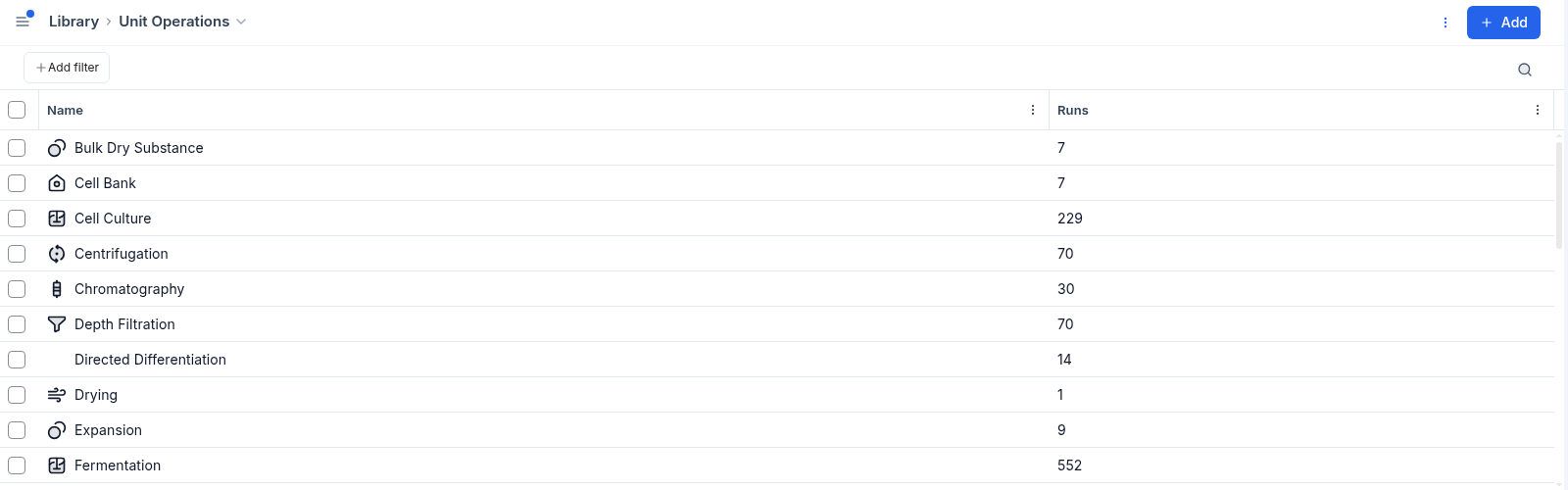
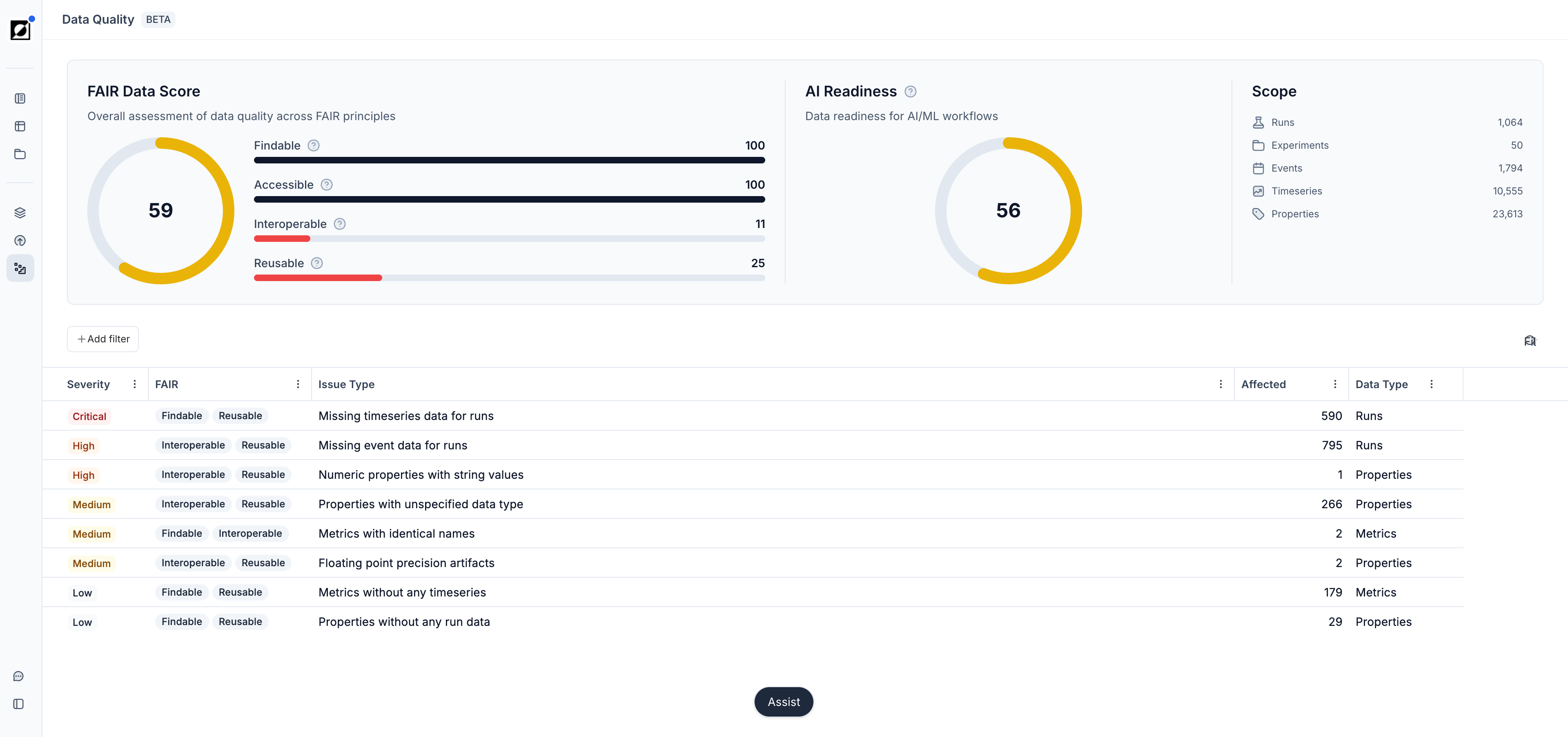
The Library page allows you to explore and manage the key components of your bioprocess data analysis: metrics and properties. You can easily add, remove, or modify library entries either through the user interface (UI) or by importing files. The page is organized into three tabs: Metrics, Properties, and Unit Operations, making it easy to differentiate between data types.

  • Metrics are entities representing time-based data with a distinct x and y value pairs for each data point. Example: Online pH time course signal coming from a bioreactor, or offline product titer concentration time course.
  • Properties are single value entities typically considered as meta data providing additional context to a run or experiment. Supported data types are numeric, text, date, among others. Examples: 'Host Organism' with a value 'E. coli' or 'Bioreactor size (L)' and '200'.
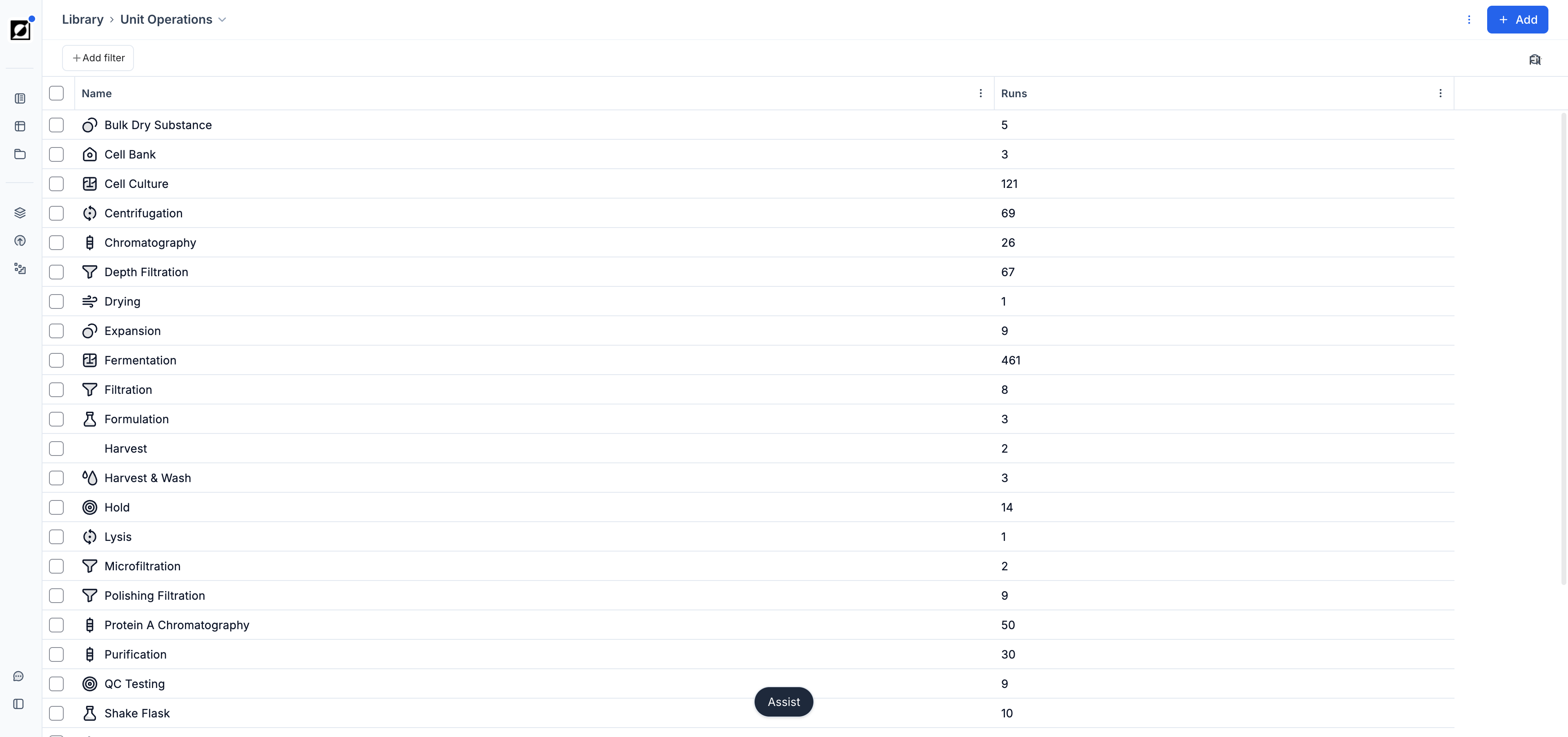
  • Unit Operations are process steps within a run or experiment that group together related metrics and properties for a specific stage of work.
  • Both metrics or properties can be used as formula inputs. Depending on how the formula is configured, formulas may qualify as a metric or property. Examples: A time series aggregation function converts a time series metric into a property (e.g. Maximum(pH) = 7.9) whereas multiplying a metric with a property results in a metric (e.g. Metric[Feed delivery volume (L)] x Property [Feed concentration (g/L)] = Metric[Substrate delivery mass (g)]).
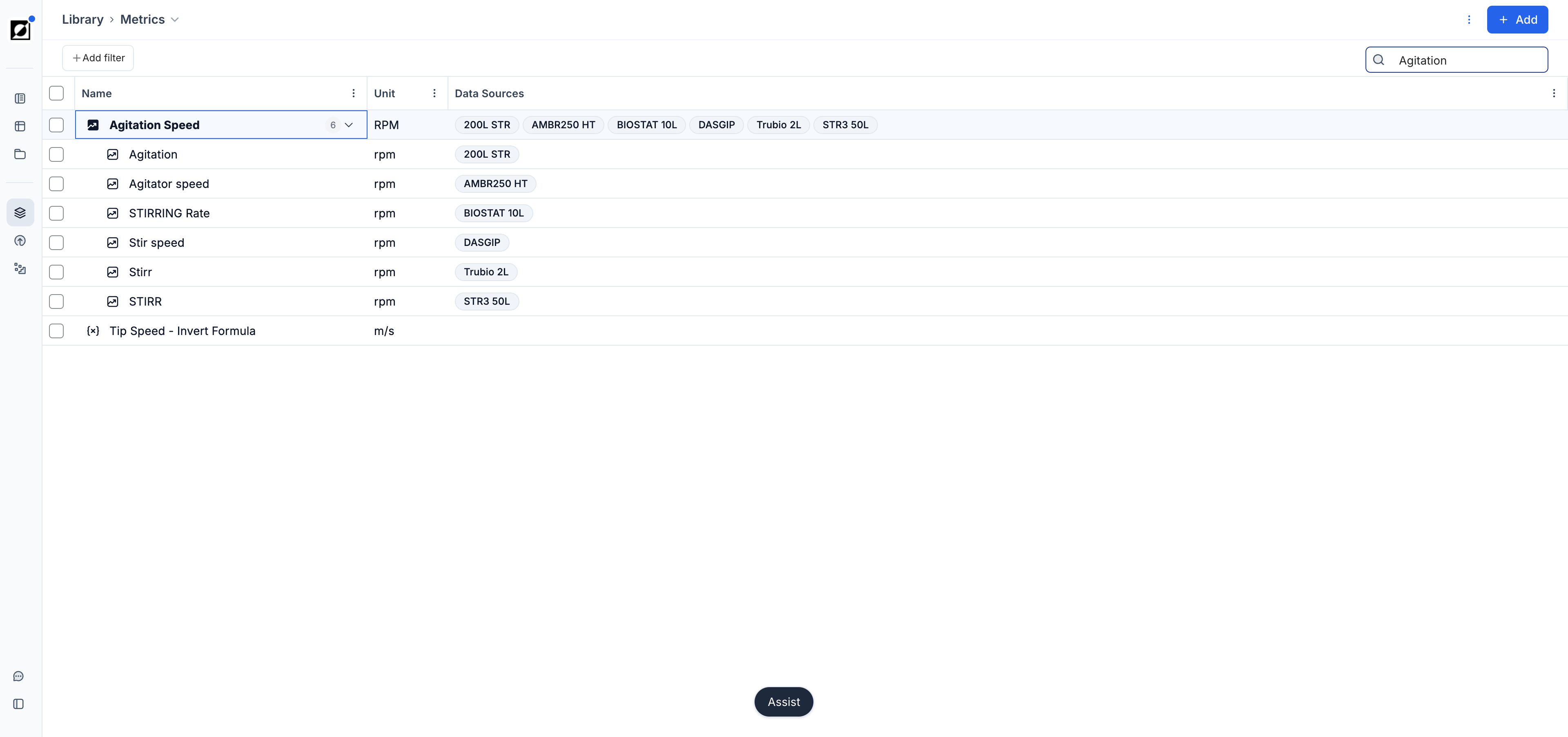
  • Parent metrics organize and consolidate data streams into groups. This is recommended because bioprocess hardware and data stream tag names can vary widely. Additionally, this enables Invert based formulas to be grouped with pre-calculated data streams from your hardware. For example, use 'Temperature (°C)' parent metric to bundle 'TP001 (°C)', 'Temp (°C)', and 'T_PV (°C)'.

Navigation

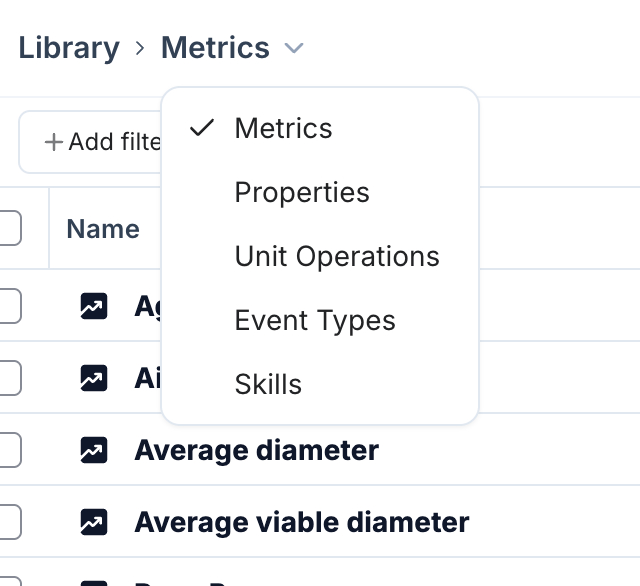
Move between Library sections using the selector in the top left:

Metrics

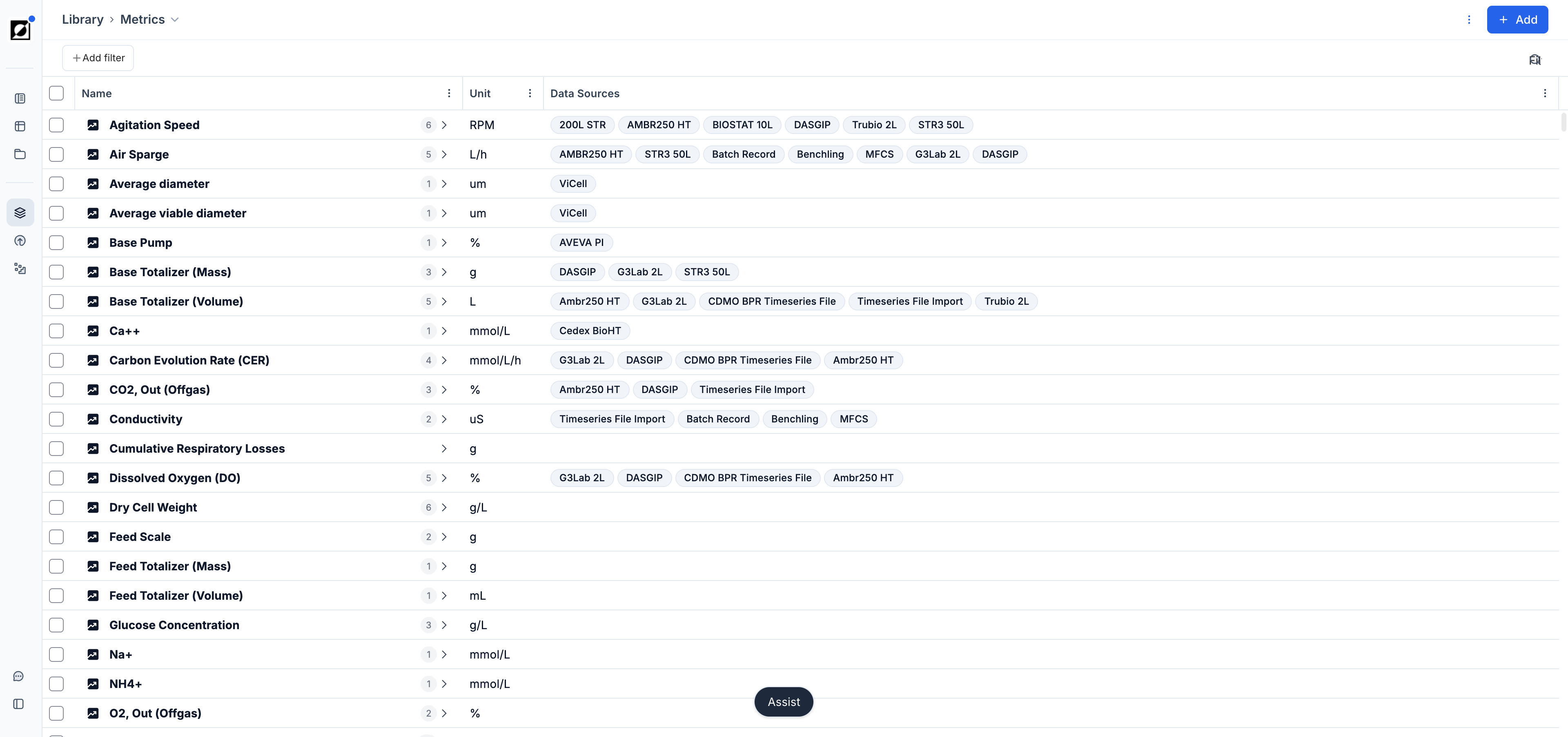
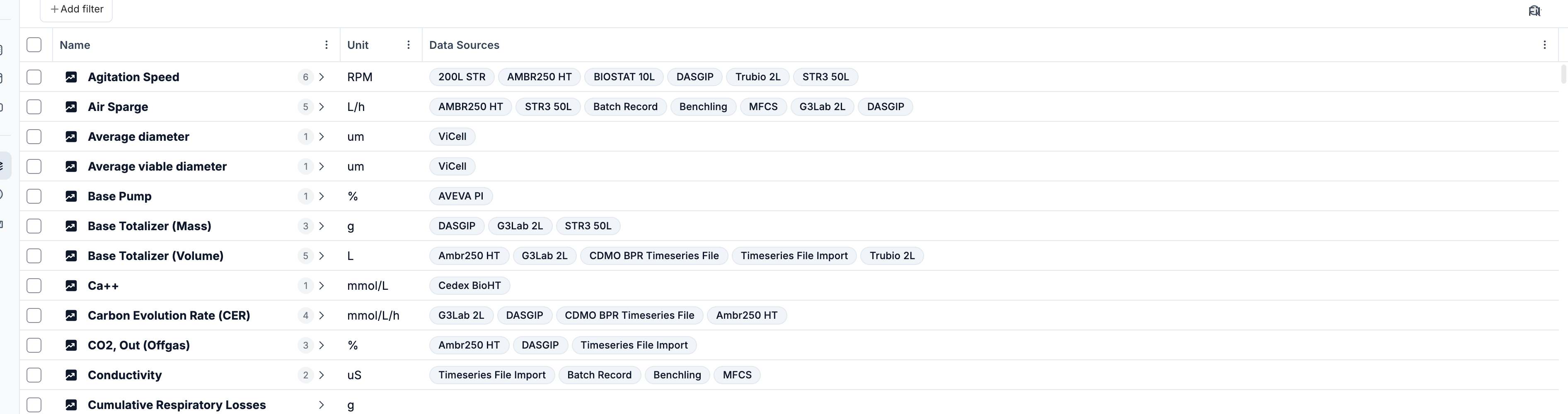
The Metrics tab provides an exhaustive list of all timeseries metrics currently in Invert. This list includes time series data uploaded by the user or hardware agent - as well as formula-derived time series data. Each entry is a clickable link navigating to individual metric details pages with additional information and editing options.

Properties

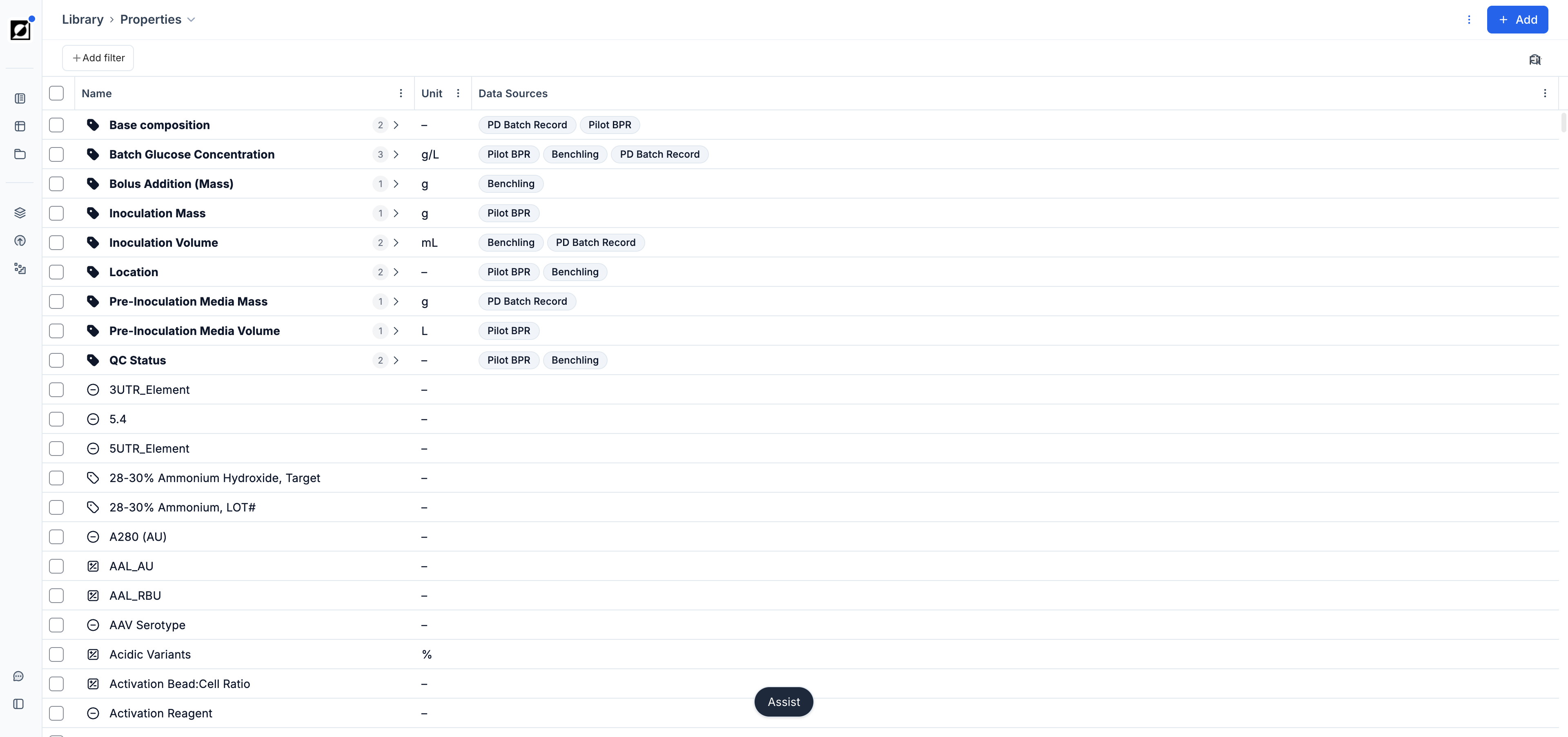
On the Properties tab, you'll find a collection of single-value properties. Similar to the Metrics tab, this tab presents entries in a table layout and each linking to the respective details and editing pages.

Unit Operations

On the Unit Operations you'll find a collection of process steps. Similar to the Properties tab, this tab presents entries in a table layout and each linking to the respective details and editing pages.

Key Features

  • Data Sources
    • Data Sources column provides insights into the origin of a metric or property. The displayed value is automatically generated and cannot be changed by the user. Example: Time series metric 'Aeration' uploaded via file ingestion - mapping name is used for Data Source value. Similarly, metrics imported via hardware or ELN Integration will automatically derive their label from the respective ingestion agent. Quantities can have multiple Data source labels.

  • Adding a new metric
    • Create a new metric by clicking the 'Add' button on the 'Metric' tab. Enter a metric name and adjust metric properties as needed. The newly created metric will show in the metric table view.
  • Archiving a Sub or Parent metric
    • To archive a metric or parent metric from the library, click on the metric name to access the details page. Then, click the 'Archive' button in the top right corner to remove the metric.

Bundling 'Sub metrics' into 'Parent metric'

  • Bundle one or multiple sub metrics into a parent metric to streamline metric management across bioreactor platforms. Select relevant sub metrics and click 'Change Parent'. In the modal, select 'Add new parent' from the dropdown and confirm with 'Change Parent'. Specify name and display unit - optionally you can update the sub metric list as needed. Once saved, you may select runs and transfer to analysis page or wait until 'State' updates to 'Ready'. Sub metric<>Parent metric relationships are reversible. Parent metrics can be archived and recreated at any point in time.

Updating Units

  • You can update the unit associated with a metric from the metric editing view, either by updating the Default Display Unit or Default Ingestion Unit (see Metric Property Guide). For that access the metric details page by clicking on the metric name in the metric table. Proceed to the metric editing view to modify the unit. Press 'Save' when done.

Adding a Formula

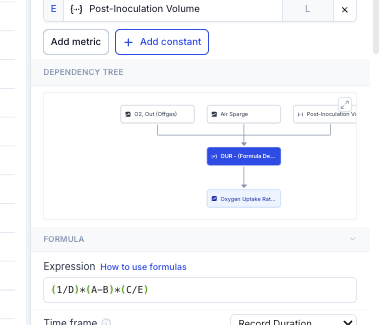
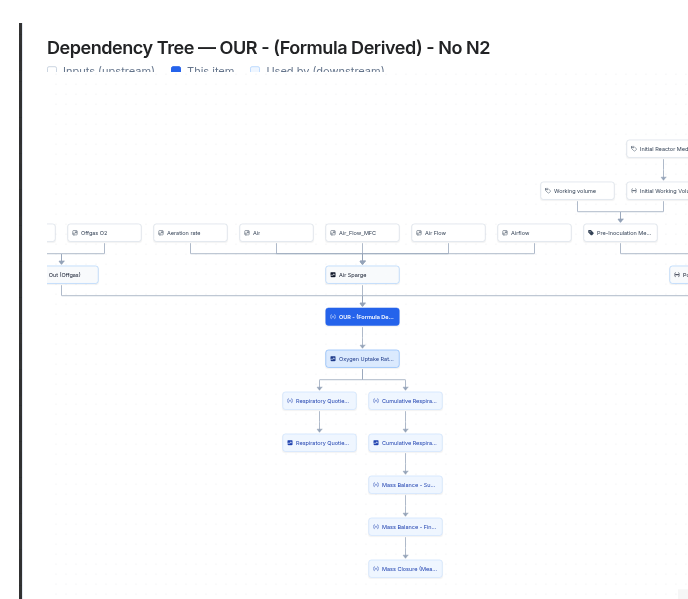
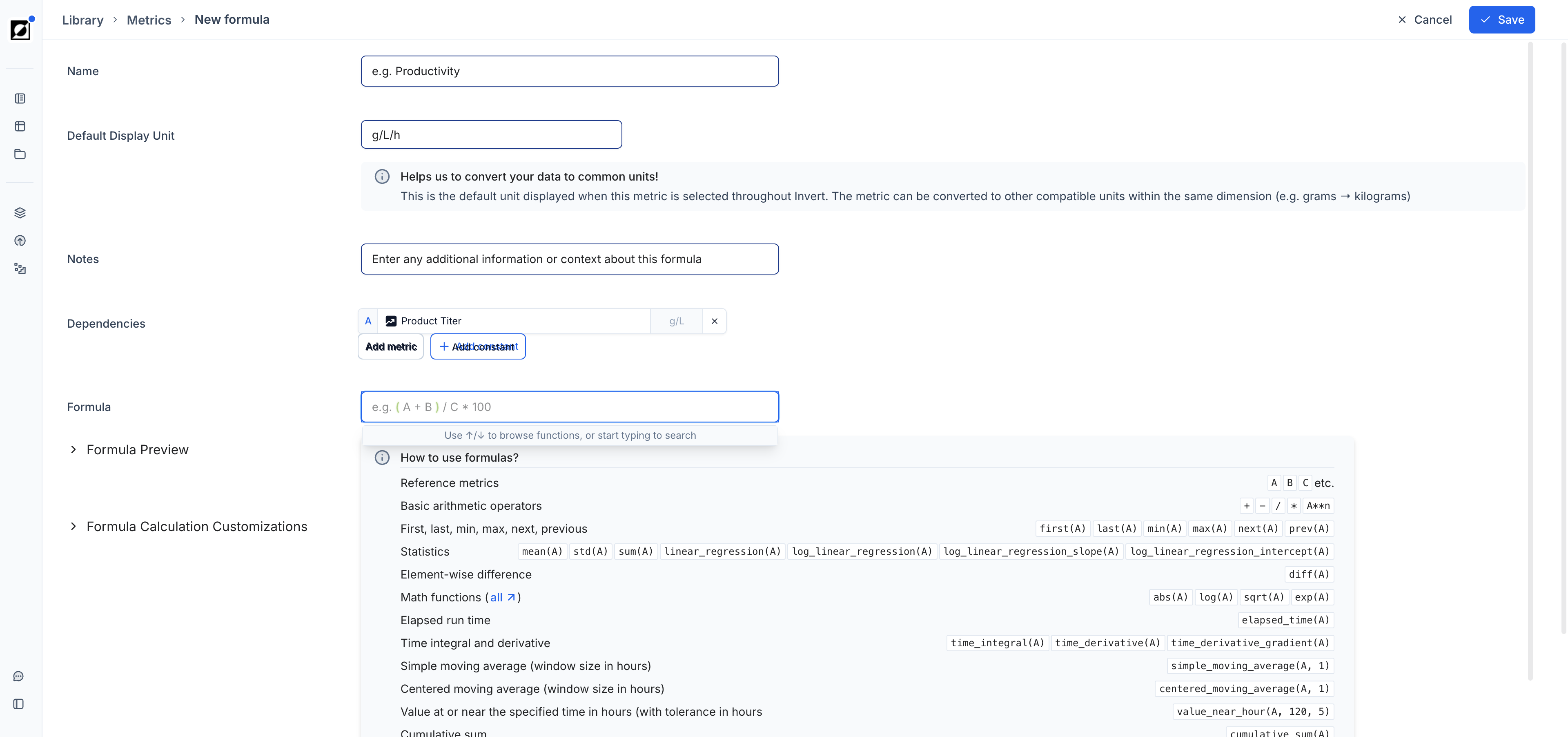
  • You can calculate derived-quantities in a streamlined and automated fashion using Invert's formula feature. Formula use cases include KPIs (e.g. Yield, Productivity), mass balance (e.g. reactor volume over time) or signal noise reduction (e.g. moving average). Refer to the 'How to use Formulas?' info box for more information on supported mathematical operations. Formulas accept both properties and metrics as input variables. Depending on the formula configuration, the formula output could either be a time series metric or a single-value property.
    • Example: f(x) = centered_moving_average(DO) = Timeseries metric
    • Example: f(x) = last(Product titer) = Single-value property
  • Once a formula is configured, Invert automatically calculate results for runs that meets the formula criteria. Formula calculation triggered upon file ingestion or after changing the formula configuration via formula editing page.

Adding a Constant into an existing Formula

  • Enter a formula name and set your dependencies. Press 'Add constant' and pick a constant from the list or create a new constant. Ensure the units of the constants is compatible with the mathematical operation. Proceed with formula creation.
Adding a Notes

  • You can annotate metrics by adding a note. Notes are accessible from Line charts via tool tip hover. Simply open the metrics editing page and update the 'Notes' section and press 'Save' when done.

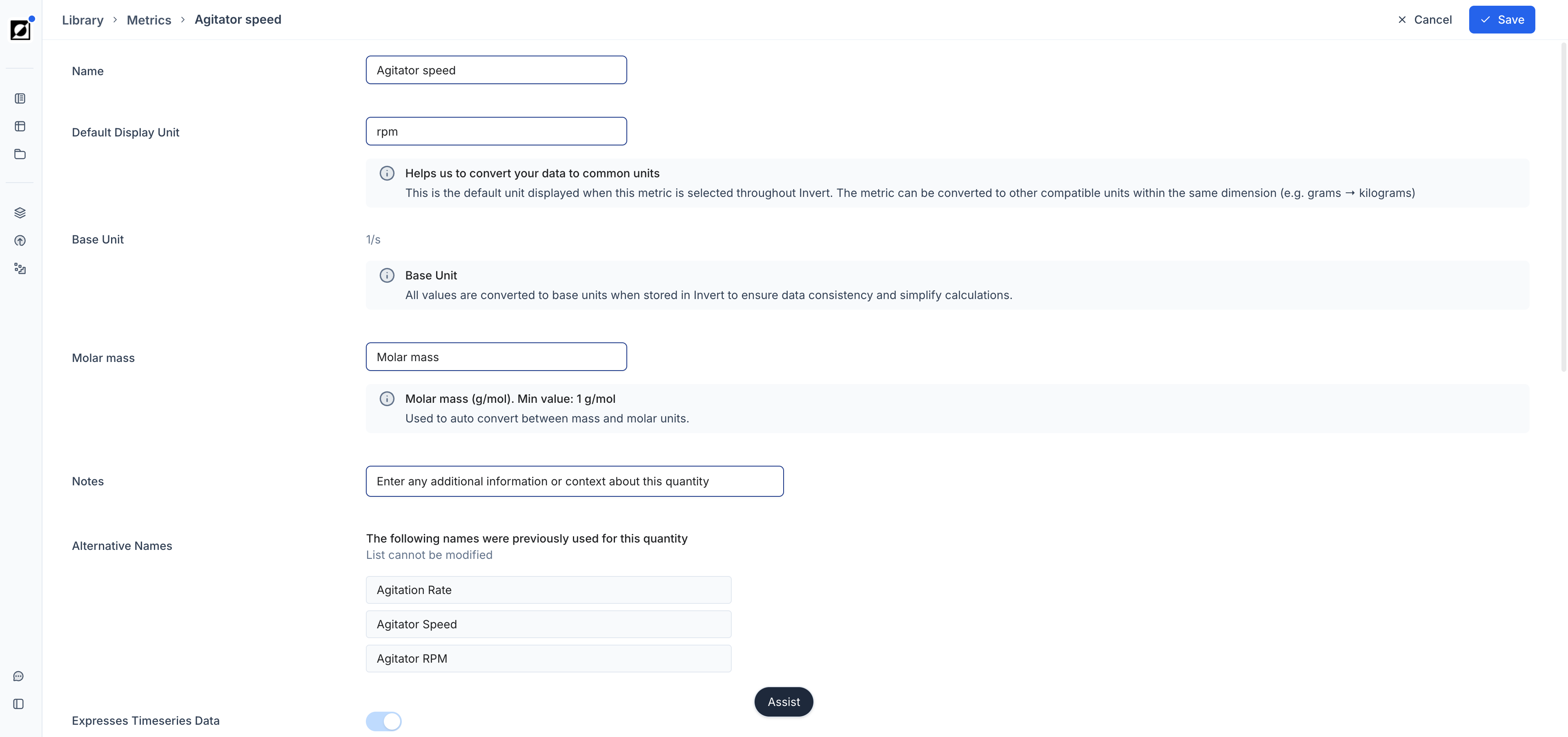
Metric & Property Editing Page - User Guide

Name

Description: Name of the metric

Impact: Changing the value will update the metric name.

Example: Oxygen Uptake Rate or Final OD.

Type (Property only)

Description: Indicates the metric data type is timeseries data or run data.

Impact: Changing the data type has implications on the types of analysis the metric can be used for. For instance, only numeric metrics can be used for formulas.

Example: Number, Text, Timeseries, Date, etc.

Default Display Unit

Description: Default unit in which the metric is displayed across the app.

Impact: Changing default display unit converts the metric value into a different unit in accordance with the base unit when displayed in Invert. The value is not altered.

Example: mg/L or g/L

Base Unit

Description: The SI unit in which the metric is stored inside the app.

Impact: Unit conversions and other unit related features require metric units to be unambiguous and defined so that it can be stored in SI unit. E.g. Yield in 'g product/g biomass' should be represented as 'g/g' (kg/kg in SI Unit).

Example: K or kg/m^3

Molar mass

Description:

Impact:

Example:

Notes

Description: Text field used for capturing notes

Impact: Text shows when hovering over a metric/formula name in Line charts.

Example: Primary Nitrogen Source | Measured via Thermo Gallery Analyzer

Expresses Timeseries Data

Description: Converts a metric with an 'Unknown' data type into timeseries data. Only applies to metrics that were not classified correctly upon ingestion.
Impact: Once a metric is expressed as timeseries data, this action cannot be reversed.

Uses Log Scale

Description: Enables Log Scale for a specific metric.

Impact: Metric show on a logarithmic Y-axis when feature is turned on.

Disable Interpolation

Description: Disables linear interpolation for a specific metric.

Impact: Interpolation affects the way data sets are shown in line charts. When disabled, data show without connecting lines when feature is turned off.

Resampling Method

Description: Determines how data is aggregated when condensing time series data into manageable intervals. You can select either 'Mean' to smooth data trends by averaging values, or 'Max' to capture the highest value within each interval.

Impact: Choosing 'Mean' provides a clearer view of overall trends by reducing noise, while 'Max' emphasizes peak conditions, making it useful for identifying extreme events or anomalies in the data.

Example: For temperature data, selecting 'Mean' will show the average temperature over each hour, whereas 'Max' will highlight the highest recorded temperature for that period.

Default Ingestion Unit

Description: The unit in which the metric is ingested into the app.

Impact: Changing default ingestion unit alters the metric value. E.g. changing the default ingestion unit to g/L for a metric originally ingested as mg/L will result in a 1000x multiplication of the base values. E.g. 1 mg/L will change to 1 g/L.

Example: mg/L or g/L

Screenshot 1: Example metric editing page

Screenshot 2: Example property editing page

Open in full page

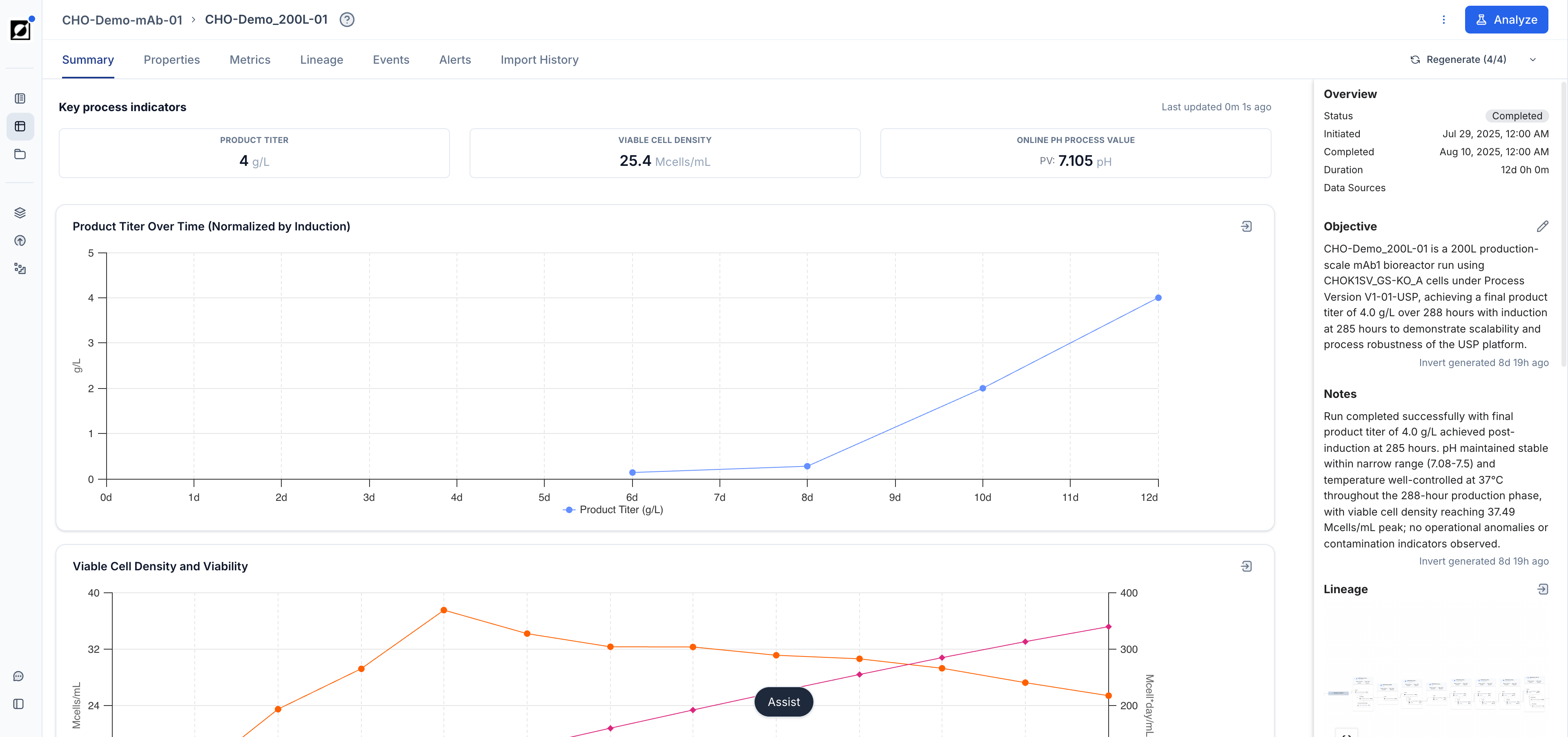
The Run Summary page contains all the information associated with a given run. It covers every aspect of your bioprocess including run data, file attachments, lineage or event notes. Switch to the editing view for run editing and archiving or plot your data by clicking the Analysis button.

Navigation

To access the Run Summary page, double-click on a run in the run data table on the Runs page. This action will direct you to the Run Details page, where you'll find seven tabs: Properties, Metrics, Lineage, Events, Attachments, Import History and Reports.

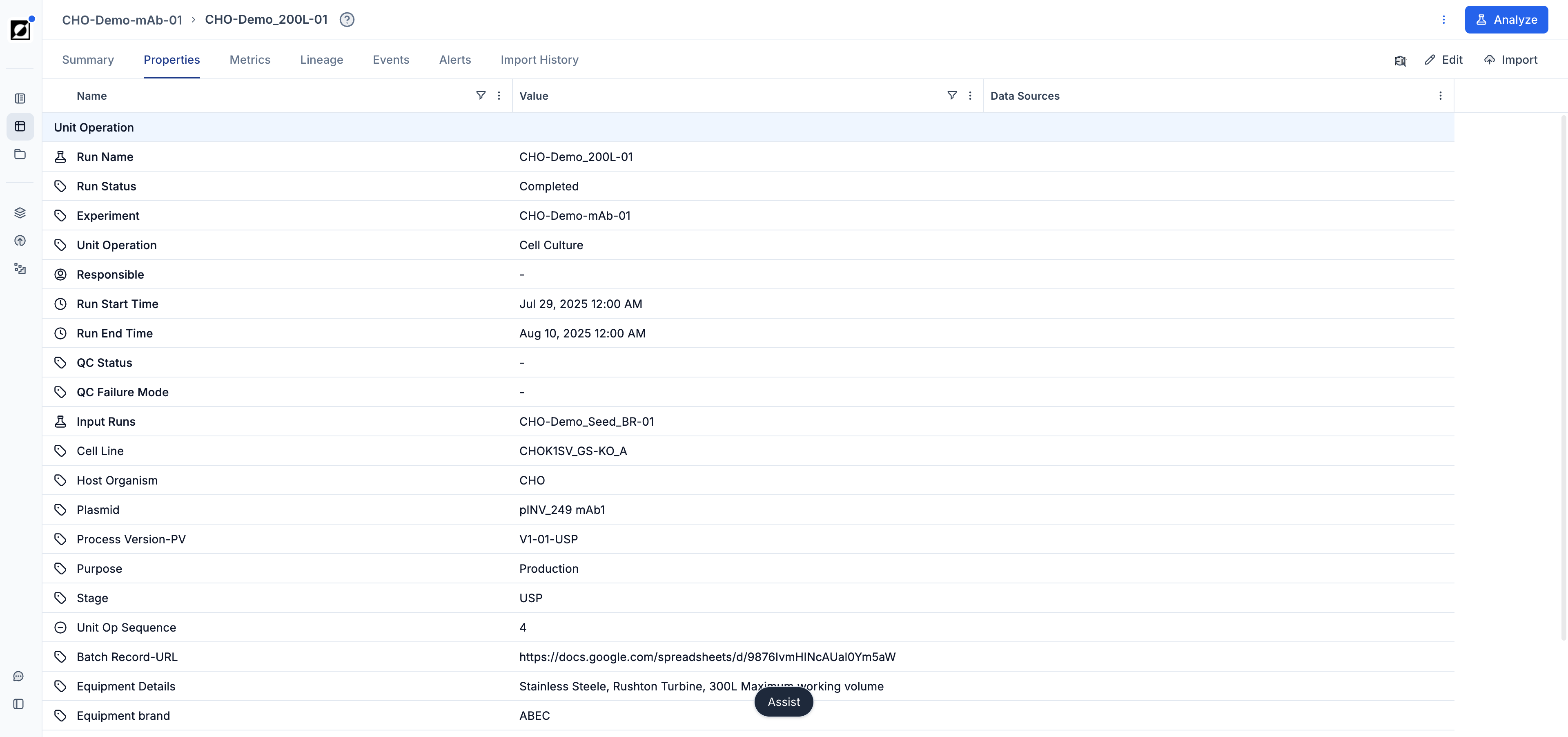
Properties

The Properties tab presents a list of the run meta data, including Run Start, Run End, and any other custom property that was previously associated with the run through file ingestion or manual editing. Navigate to the 'Edit' page to switch to the editing view for run archiving and property editing. Data Sources labels provide insights into the origin of a property. Labels are automatically generated upon ingestion.
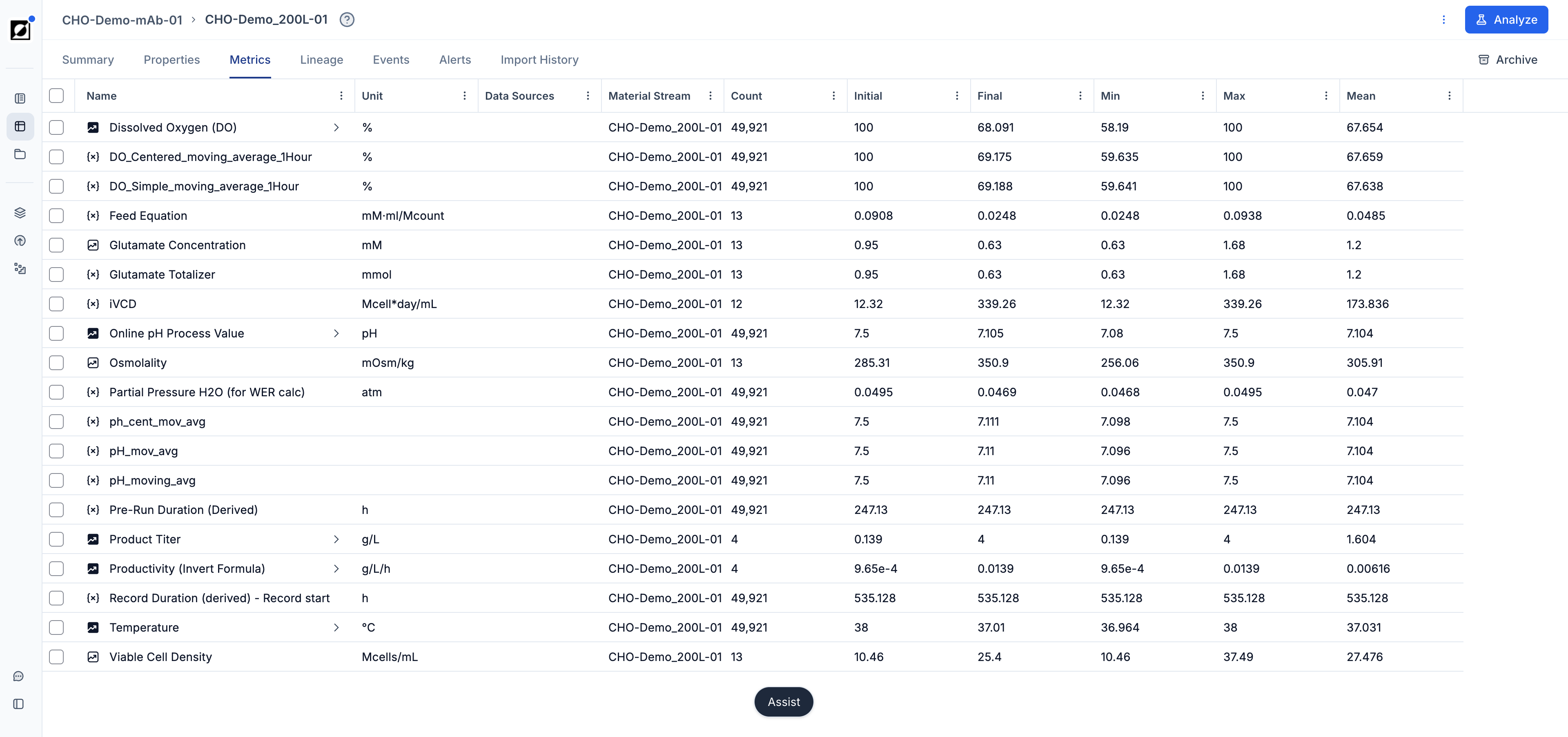
Metrics

In the Metrics tab, users can access an overview of the time series data associated with a given run. This tab displays a list of time series metrics and formulas, along with useful aggregations and metric units for easy reference. Metrics are categorized into parent and sub-metrics, allowing users to quickly understand the structure and relationships of the data (See 'Library' Article for more details). From this view, users can navigate directly to the metric details page for more information or archive a specific metric from the run without removing it from the overall metric library. This feature provides a centralized place for exploring and managing time series data efficiently. Data Sources labels provide insights into the origin of a metric. Labels are automatically generated upon ingestion.
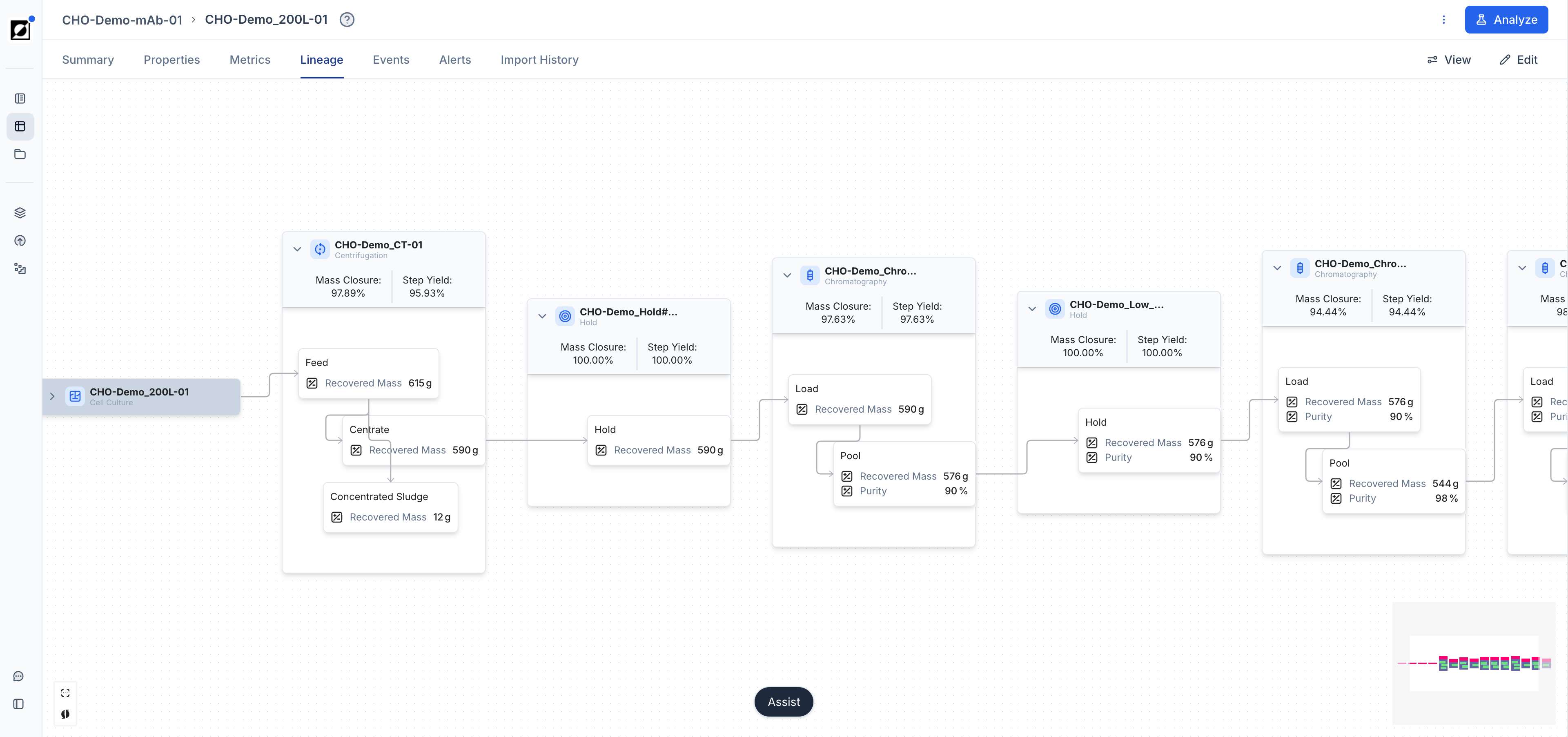
Lineage

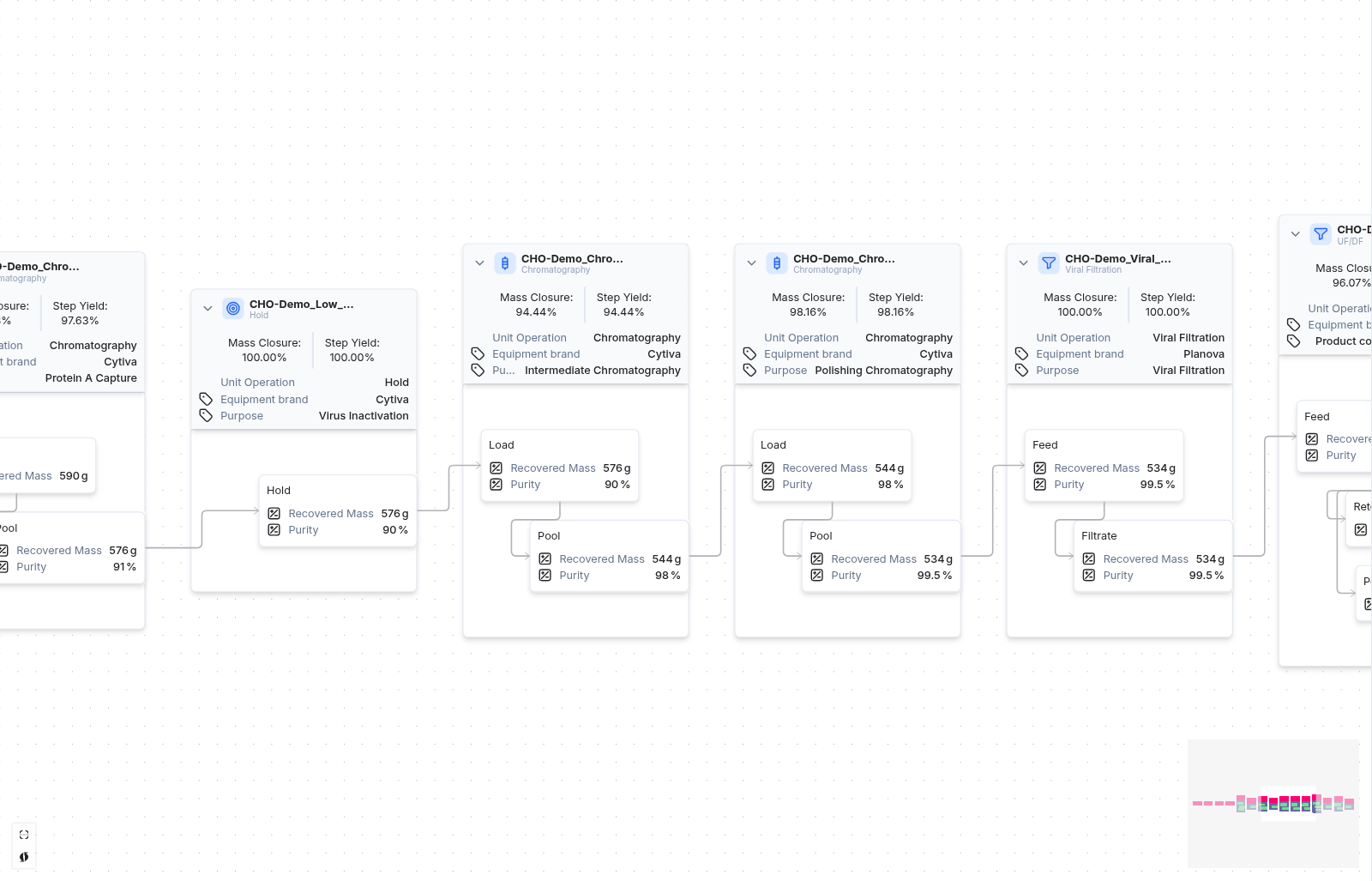
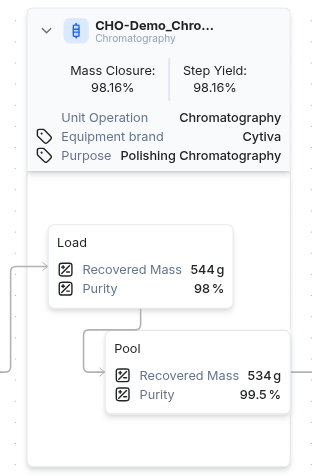
In the Lineage tab, users can access the process flow diagram that tracks the relationships between individual runs. This functionality is particularly useful for understanding the lineage of a run, such as identifying which seed flask was used to inoculate a certain bioreactor or tracing the bioreactor run used for downstream processing testing. To use this feature, enter a valid run name into the 'Input Run' property and navigate to the Lineage tab. Click 'Add property' to provide additional context to the blocks.

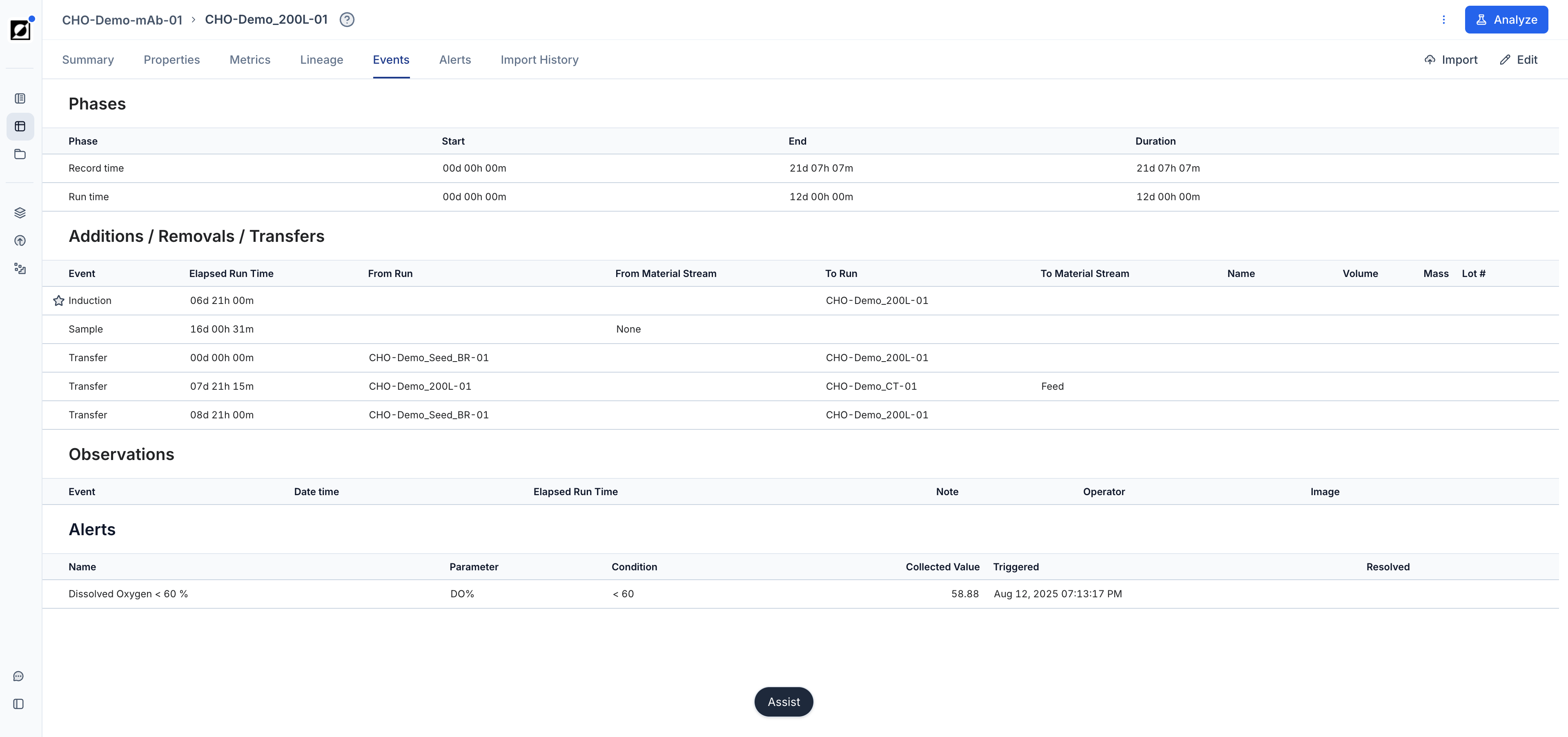
Events

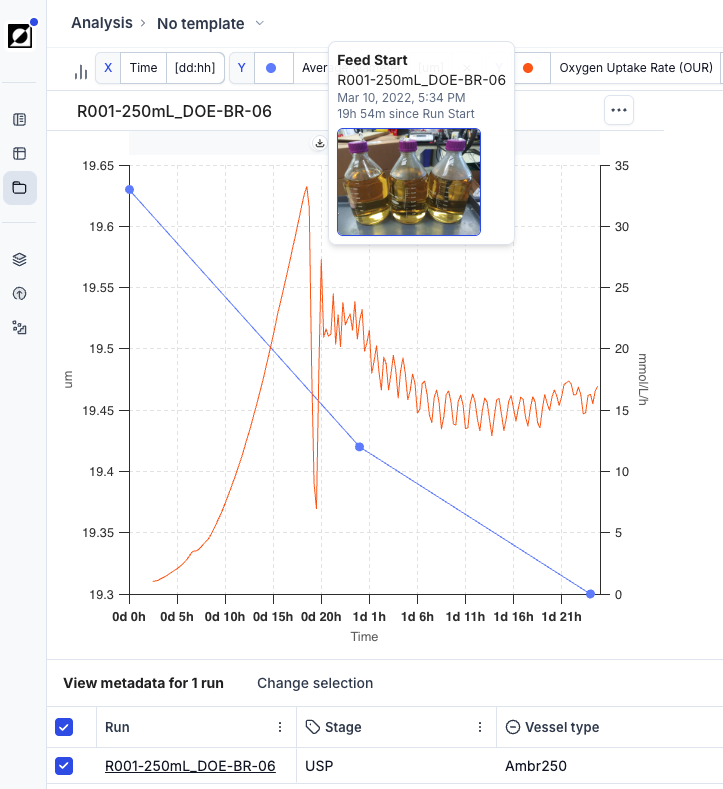
The Events tab facilitates the annotation of timestamped event notes. Users can document important process annotations such as Inoculation, Feed Start, or any other observations or milestones associated with the run. Event notes show in Line Chart enhancing your analysis by providing context to understanding of the bioprocess workflow.
Alerts

The Alerts tab allows users to manage alerts. An alert is a service that is available to users with data streaming into the app in real time via hardware integration. Users can opt into the service and have Invert sent automated notifications emails and create events when condition is reached. Example: Dissolved Oxygen <60 %.

Import History

The Import History tab shows the file upload history for a given run providing insights on the origin of data at a single glance. Each entry in this table links to the relevant page on the Import History tab for additional insights on mappings used, metrics uploaded, etc.

Reports

The Reports tab offers a quick overview and easy access to all reports associated with a specific run, helping you efficiently review and navigate related information.

Open in full page

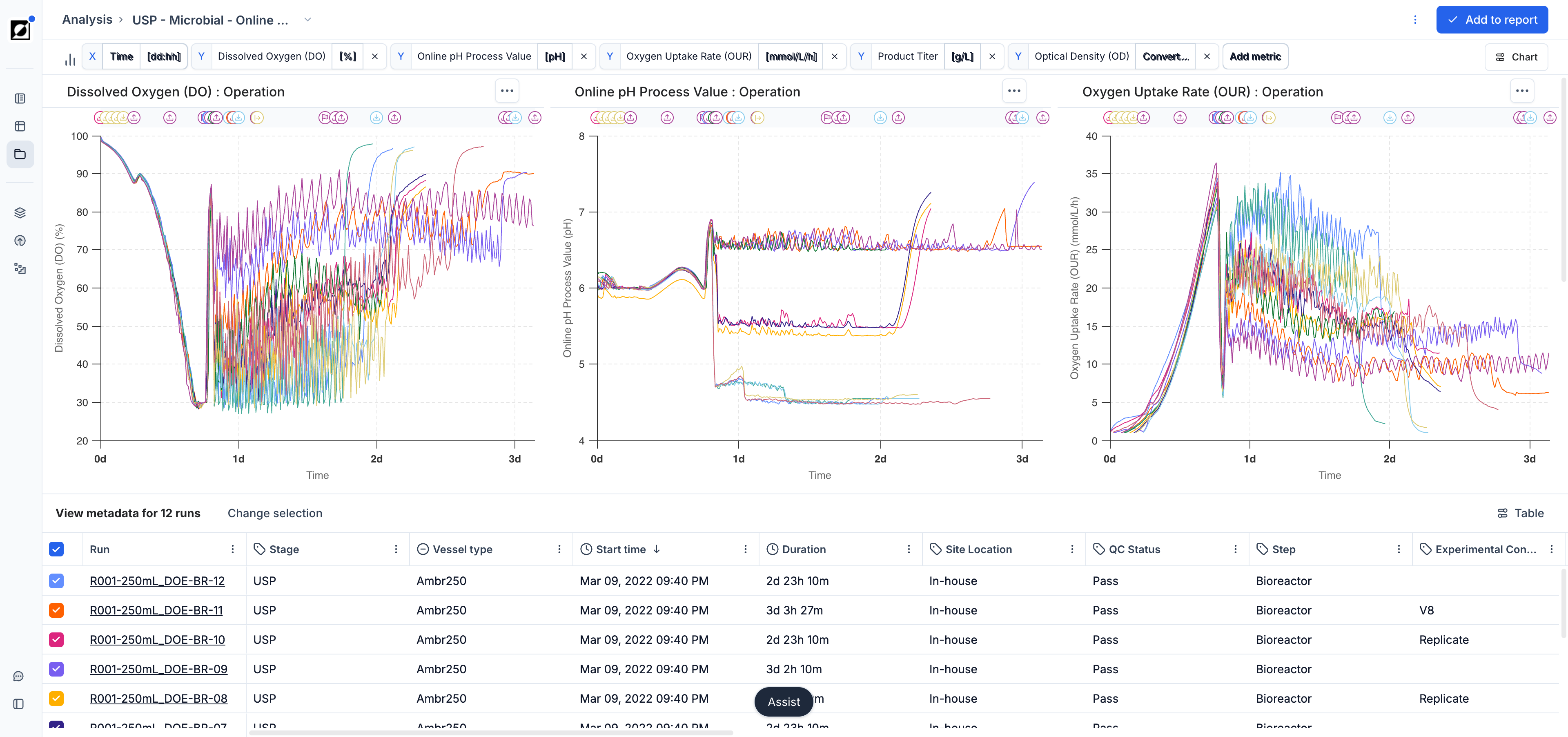
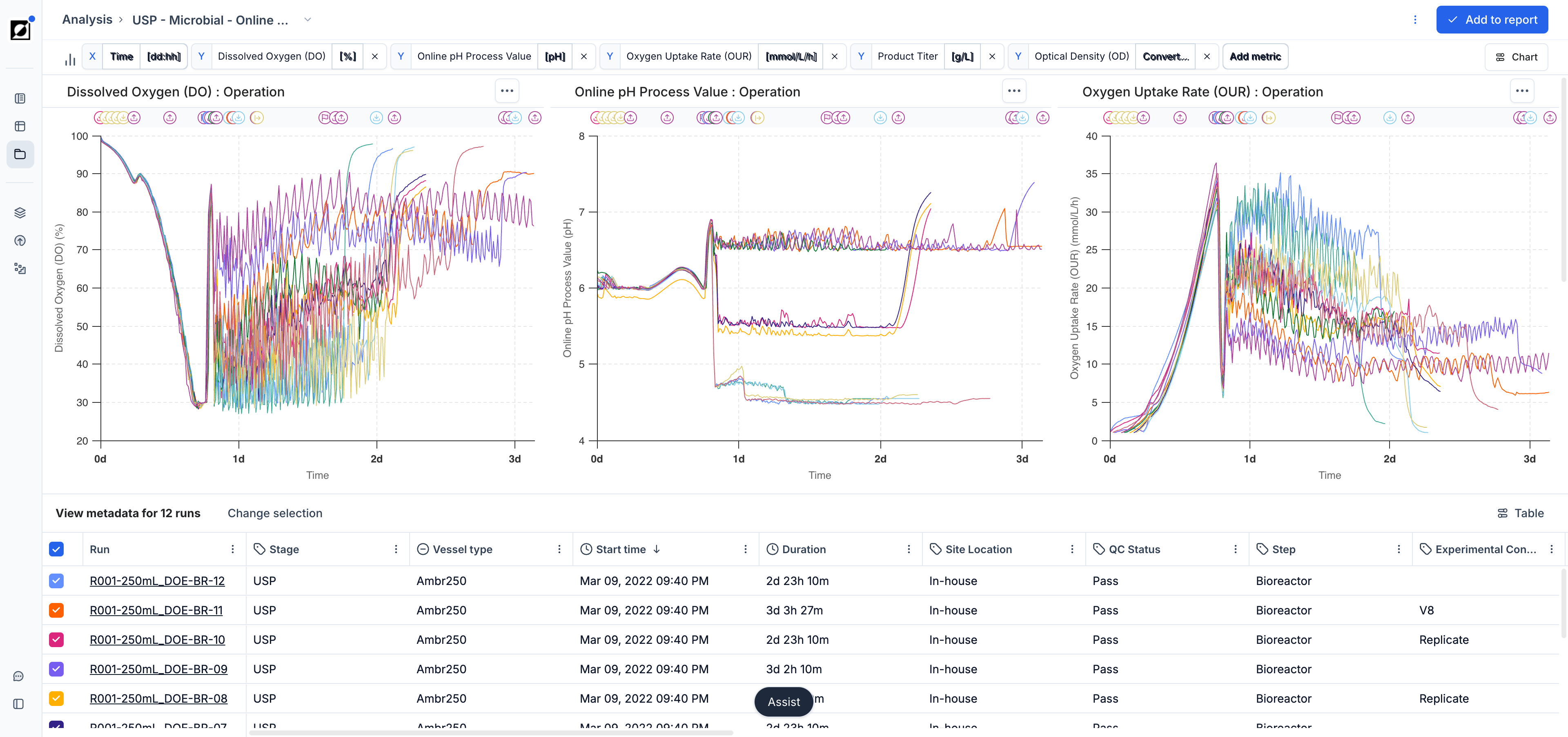
The Analysis page is your go-to destination for visualizing and analyzing your bioprocess data. Here, you can choose between line charts and scatter charts, providing you with the options you need to tell the story behind your data. Use line charts for timeseries data, customize the view and add process annotations using the event feature. For a more quantitative analysis use scatter charts to take advantage of aggregations and non-time based analysis.

Navigating to the Analysis Page

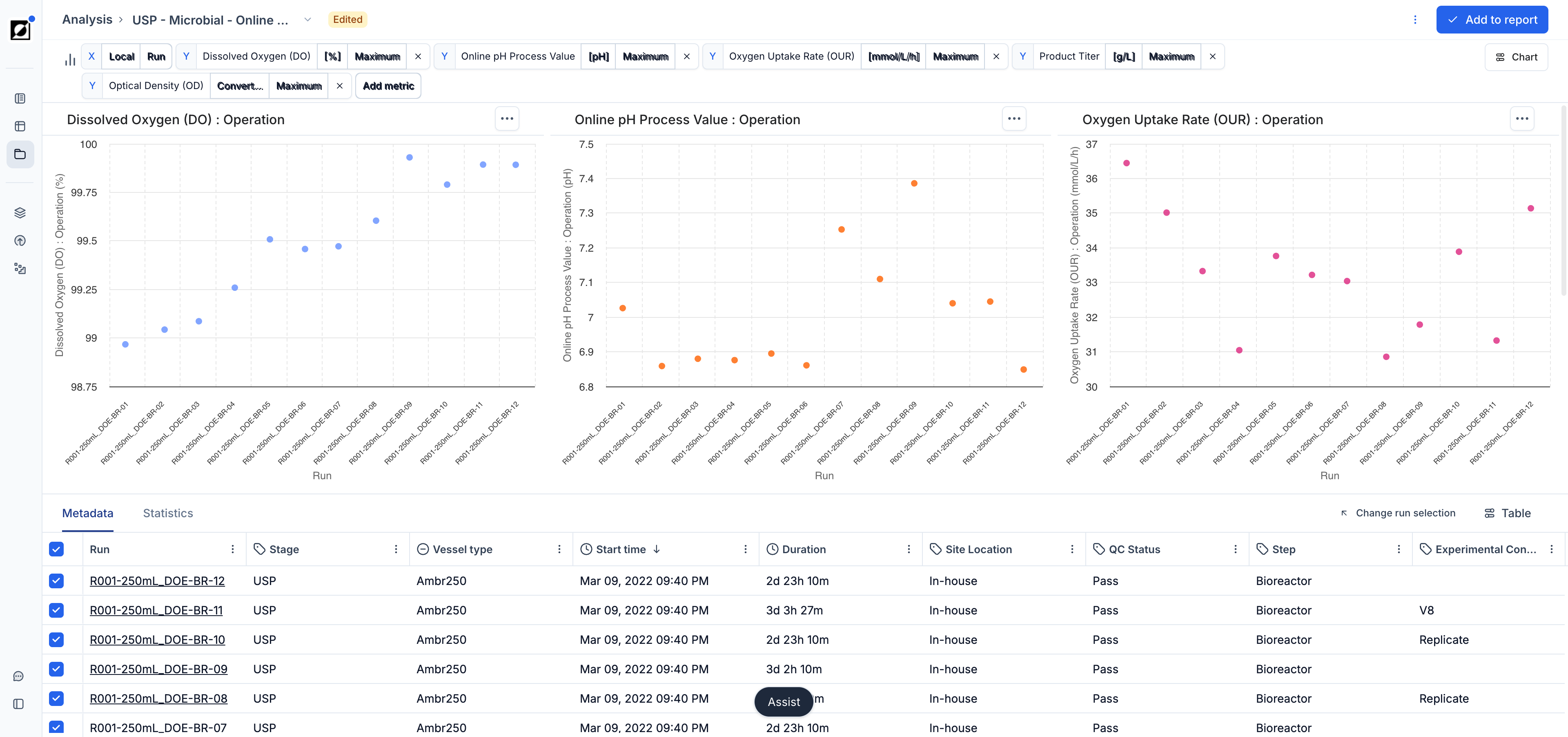
To access the Analysis page, start by navigating to the Runs page and selecting a set of runs you wish to analyze. Press the 'Analyze' button in the top right corner of this view to transition to the Analysis page. The line chart view is the default option for visualizing timeseries data. To switch to scatter chart view, choose 'Scatter Chart' under Chart Type in the 'View' sidebar menu.

Workflow

  1. Graph customization

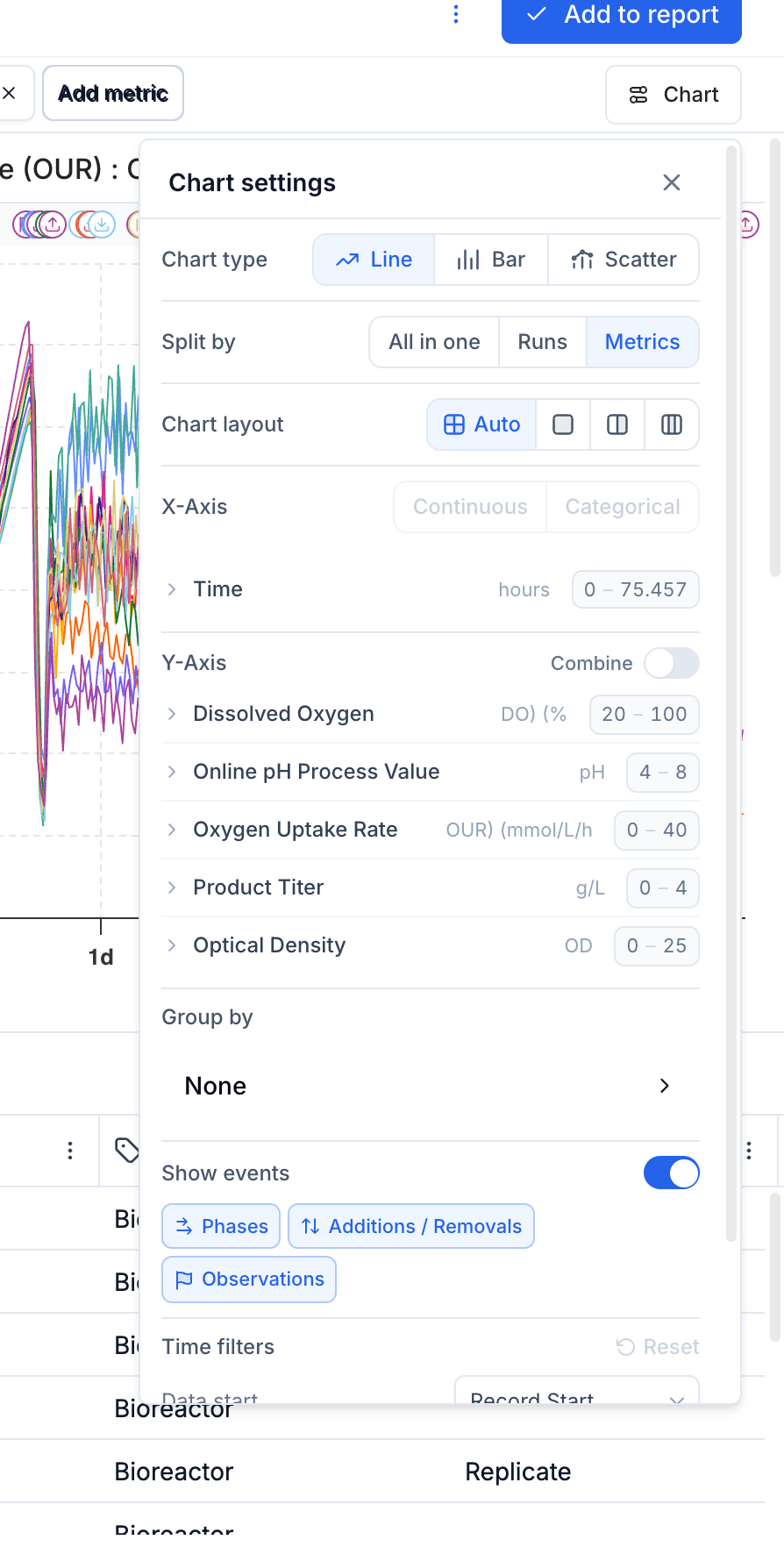
    Select one or multiple metrics from the dropdown list. Open the 'View' sidebar and make changes to Chart Type selection or viewing options (e.g. Split By > Metric)

  2. Run selection

    Update Run selection as needed by checking/unchecking run checkboxes in the table underneath the graph. Optionally, click 'Run selection' for altering the list of runs included in the analysis.

  3. Full Screen view

    Switch to Full Screen view for a close-up view of the graph.

  4. Export

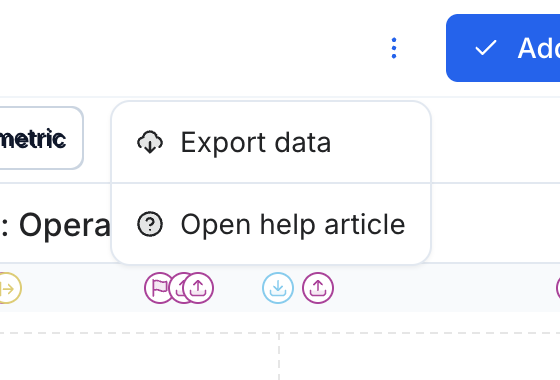
    Export graph as an image (.PNG) or export displayed data as an Excel file.

  5. Save Analysis

    Save analysis as a report by creating a new report or appending the analysis to an existing report.

Line Charts

Visualization of Timeseries Data

The line chart is a powerful tool for visualizing timeseries data, providing flexibility in layout to support various views. This includes a close-up view of individual runs or metrics, as well as side-by-side comparisons of multiple runs or metrics.

Viewing Options

Customize your line chart with viewing options such as 'Split By' and 'Chart Layout'

  • Split By:
  • Separate: One graph per run and metric.
  • Split runs: One graph per selected run. Close-up view of an individual runs..
  • Split metrics: One graph per metric. Compare a single metric across multiple runs.
  • All-in-one-graph: Summary view with all runs and all metrics in a single graph.
  • Chart Layout:
  • 1 Graph: One graph per line
  • 2 Graphs: Two graphs per line
  • 3 Graphs: Three graphs per line

X-Axis Zoom

Zoom into specific areas of the graph to gain a closer look at the data, allowing for detailed analysis and insights. Click into the graph, highlight the area and release to zoom in. The updated bounds are available in the top right corner under "ERT" (Elapsed Run Time).

Y-Axis Custom Range

Overwrite the default Y-axis range using manually entered, custom values for a more tailored viewing experience. Open the 'View' sidebar and navigate to the 'Y-Axis settings' section. Select the Y-metric in the dropdown menu and enter in values for 'Start range', 'End range' and optionally 'Interval'. Press the 'Apply' button to proceed. Undo the zoom filter in the top right corner to revert to the default settings.

Removing Zoom Configurations

Cancel the zoom setting by clicking the "x" on the zoom annotation in the top right corner of the plot to revert to the default settings. Please note the zoom configurations are stored on a per axis basis. Enabling or disabling "Combined Y-Axis" will change the available set of displayed axes, but the zoom setting will still be stored.

Formulas

Create derived, custom metrics using the built-in formula editor. Type the custom metric name into the metric dropdown field and click 'Add'. Enter formulas name, dependencies and formulas into the formula editor. Use the formula preview feature for troubleshooting as needed. For more information on formulas, see Library article. In the example below, air flow rate (L/h) and reactor volume (L) are used to calculate VVM, a scale-independent air flow metric to enable comparison of the aeration regime across different bioreactor sizes (0.25L to 100.000L).

Events & Phases

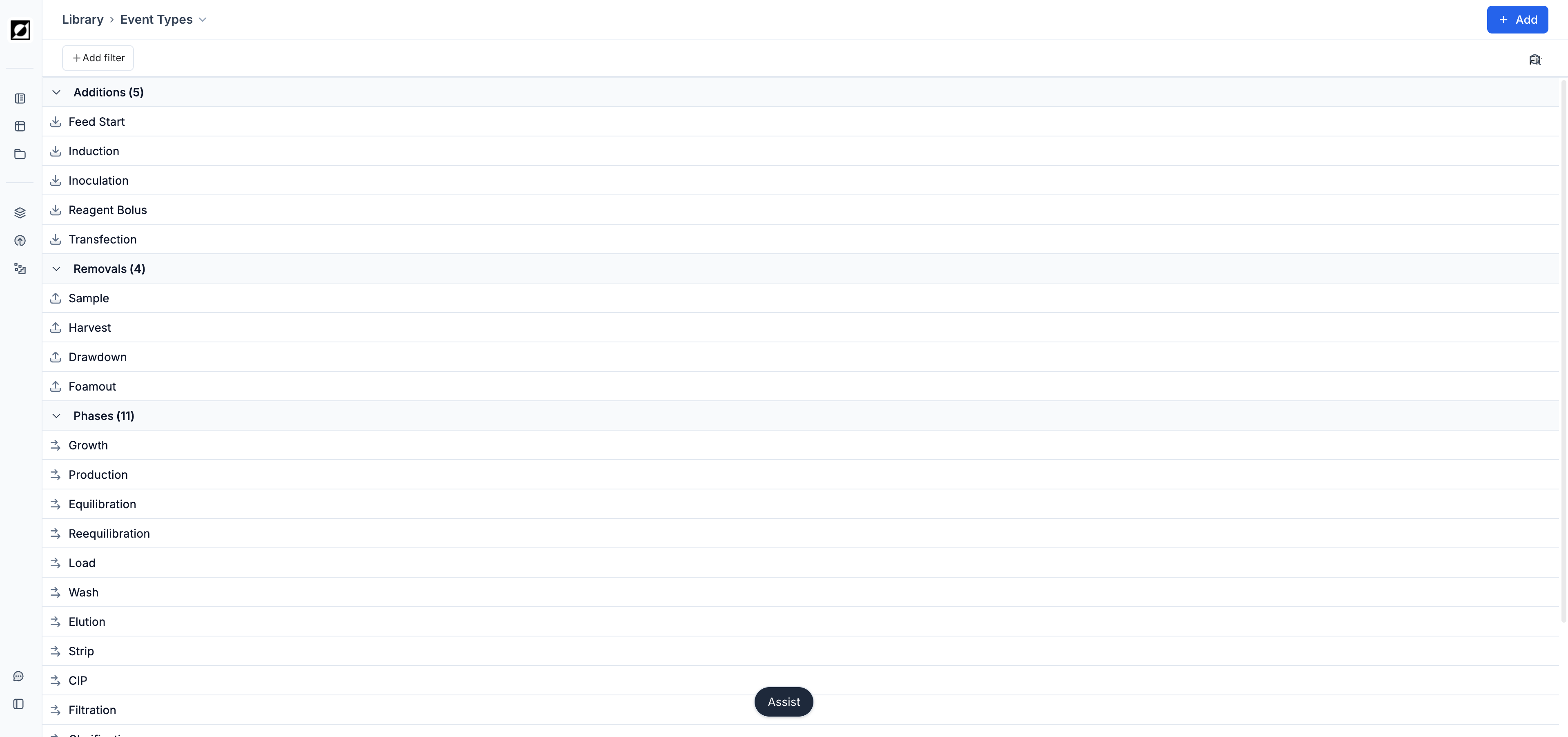
Utilize the event annotation feature to create time-stamped and interactive event notes, enhancing your analysis. Supported event types are: Inoculation, Induction, Transfection, Sample, Harvest, Drawdown, Feed Start, Foamout, and Observation. Optionally, upload an image to provide additional context to your data. Limit the number of events shown on the graph as needed using the Event filter functionality in the View sidebar.

Phase markers are useful visual indicators for differentiating between different process segments (e.g. Growth or Production phase). When used in a Formula context, a phase is can be used in the 'Applied Time Frame' dropdown menu in the Formula customization section allowing for more control over formula input bounds. For instance, Specific Growth Rate formula with Applied Time Frame limited to 'Growth phase' or Productivity formula with Applied Time Frame limited to 'Production phase'.

Time Filters

Use the Data Start and Data End dropdowns to narrow the X-axis view to specific segments of your process. These filters help you zoom in on relevant timeframes of your data. The Normalization Basis dropdown lets you define the reference point for time normalization on the X-axis. This controls how relative time is displayed. Invert uses Run start as the default. Click the 'Reset' button to restore the default view. Common use cases are:

Data Bounds

  • Run - Start/End: 'Run Start' & 'Run End'
  • Pre-Run - Start/End: 'Record Start' & 'Run Start'
  • Post-Run - Start/End: 'Run End' & 'Record End'

Time Normalization

  • Run: 'Run Start'
  • Events: 'Feed Start'
  • Phases: 'Production Start'

Grouping

Use the "Group by" functionality to aggregate and compare related runs based on specific attributes, such as "Experimental Condition", "Strain" or "Alias". When runs are grouped, it enables the analysis of variability (shaded regions representing 16th and 84th percentiles) and central tendencies (median) within those groups. Run IDs in run tables and chart legends are replaced by the attribute name enabling users to assign custom run names.

Metric/Formula Notes

Provide additional context to your analysis by adding notes to your metrics or formulas (Library>Editing page). On the analysis page. hover over the relevant quantity name for quick accessing the note via tool tip hover.

Run Data Table Customization

Customize the run data table to provide additional context to the timeseries graph. This includes displaying relevant metadata such as strain ID, run ID, bioreactor size, and more, enhancing the interpretability of the visualized data.

Scatter Chart

Aggregation

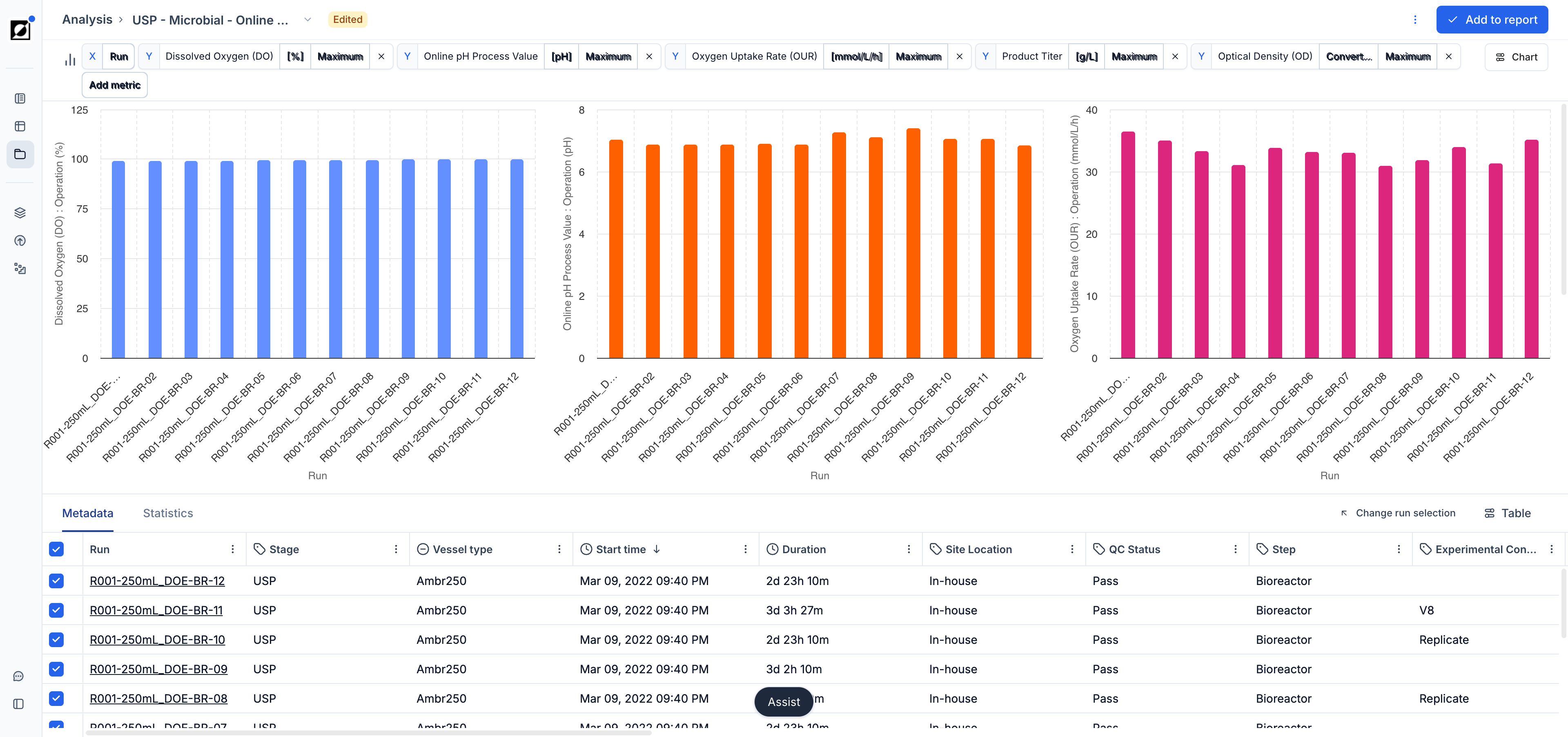
Use scatter charts when you want to explore relationships between two variables in your data. They are particularly useful when the input variable for X is non-time-based (e.g., Strain ID, Run ID). You have the option to choose between a variety of aggregations for the Y input variable, such as mean, standard deviation, sum, count, minimum, maximum, last value, etc. For example, compare 'Product (Last)' versus 'Run ID' or 'OD (Maximum)' versus 'Strain ID'. Use this tool to Identify trends, clusters, outliers, or other patterns in your data, facilitating data-driven decision-making and analysis.

Statistics Calculation

Scatter chart automatically calculates statistics when using X variables with multiple entries providing insights into the distribution of the dependent variable across different categories of the independent variable. The available statistics are mean, standard deviation, standard error, count, and lower/upper 95%. For example, plot 'Biomass concentration (Last)' versus 'Strain ID' where Strain ID has three unique values (Strain ID#1, Strain ID#2, StrainID#3), to get a deeper understanding of how the Biomass concentration varies across each of the unique strain IDs.

Open in full page

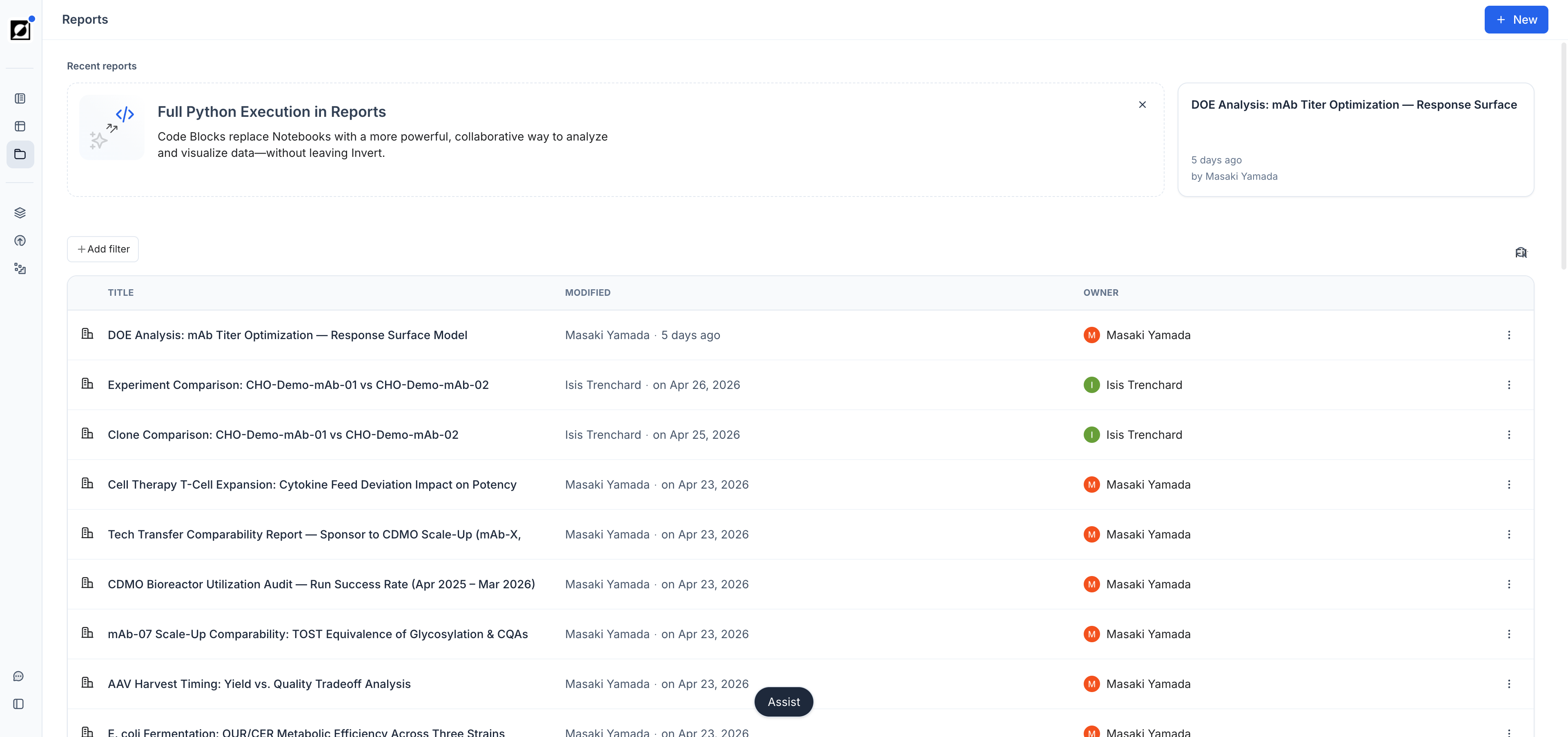
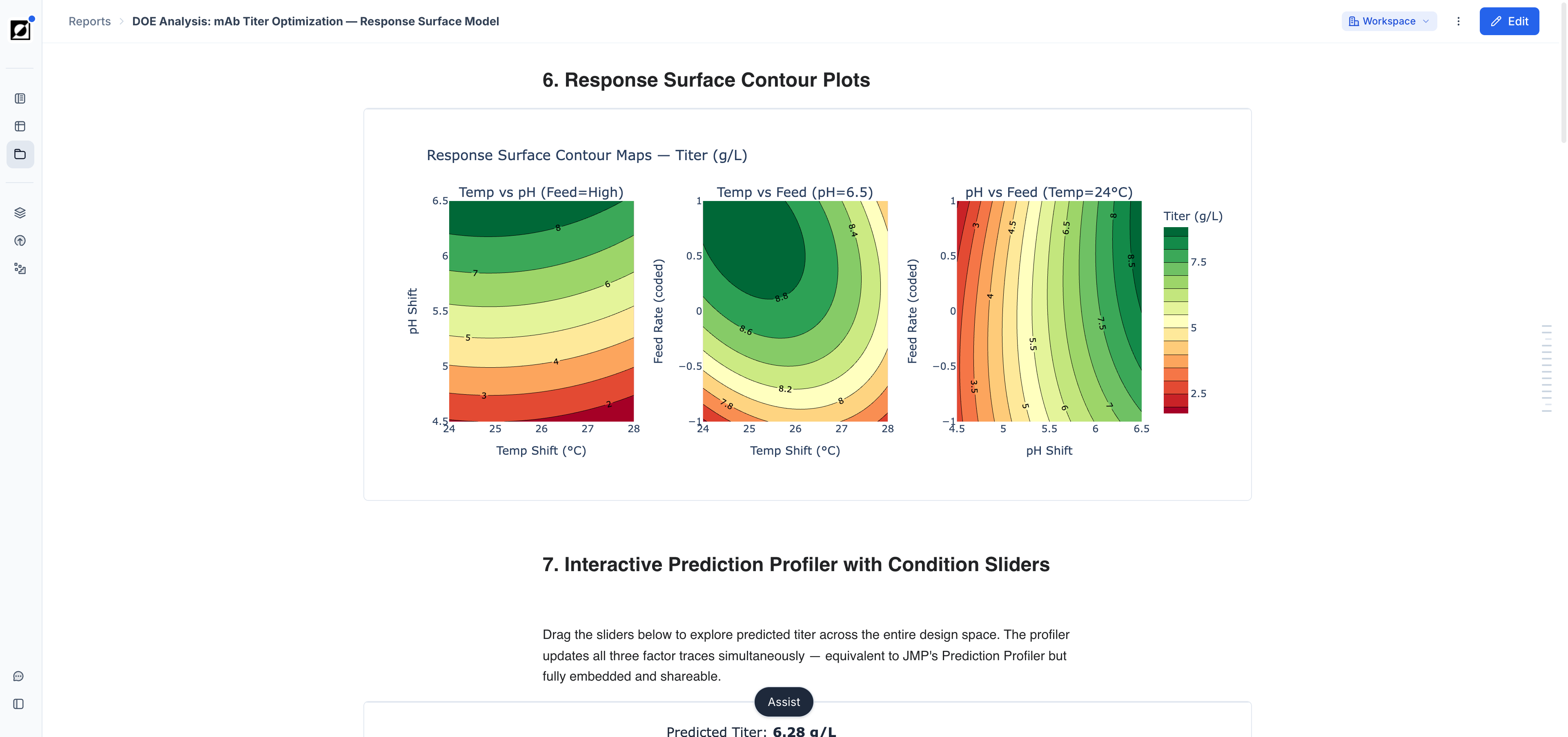
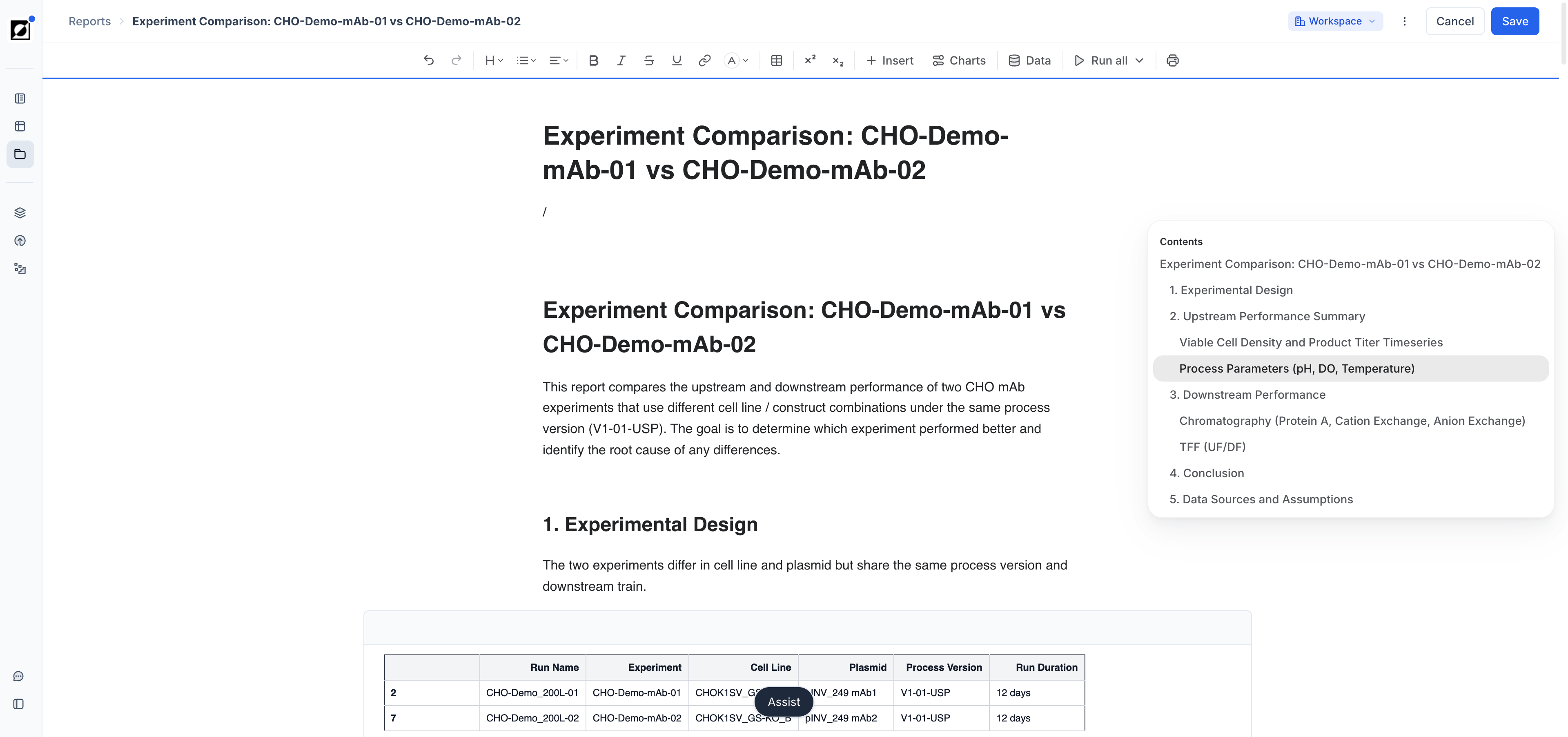
Compile your bioprocess data analysis into standardized, reproducible summary reports using our Reports functionality. A report allows you to bring together charts, run tables and text blocks, also known as plot blocks, allowing you to showcase your data in a clear and structured manner. You can include as many plot block entities as you need to tell the story behind your data. Once complete, reports can be shared with collaborators for data review, or duplicated and used as template for streamlined report editing.

Plot Block

  • A Plot Block entity consists of a text entry field for title and description, a chart (line or scatter), and a run data table. Plot blocks can be added, edited, or duplicated within a report, allowing for flexible and comprehensive data presentation. For more information on chart editing and features related to data visualization, see Analysis article

Workflow

  1. Add New Report:

    Navigate to the Reports page and click 'Add new report' to create a blank report. Give your report a descriptive title.

  2. Plot Block Editing:

    Begin by entering a title and description for your first plot block. Click 'Select Runs' and choose the relevant runs from the Runs selection table. These runs will serve as the basis for your charts and tables.

  3. Chart Customization:

    Choose a chart layout and metric(s) to create line or scatter charts. Tailor the view settings to your specific needs (See Analysis page for more details on graph customization). Press 'Done' when you're ready to proceed. You can always come back to this editing view by clicking the 'Edit Plot' button inside the plot block if needed.

  4. Further Report Customization:

    Customize further by adding additional plot blocks using the 'Add Plot Block' button or by duplicating an existing plot block. Duplicated plot blocks maintain the settings for run selection and chart view which streamlining the editing process.

  5. Save and Share:

    Once your report is complete, save it by clicking the 'Save' button. Share the report with collaborators by selecting the 'Copy Share Link' option after pressing the 'Share' button. Sharing reports outside the organization requires Invert support staff to get involved.

  6. Report Archiving:

    To remove a report from the list, press the 'Archive' button accessible in the top right corner of the report.

  7. Additional Actions:

    Duplicate a report to create backups or use it as a starting point to streamline the analysis of related experiments. For bulk editing run selection across all plot blocks within a report, press 'Run selection' in the top right corner of the screen and modify run selection.

Alternative Workflow

  1. Start Analysis from Runs Page:

    Alternatively, you can begin your analysis from the Runs. Select the runs you're interested in and transfer them to the Analysis page.

  2. Visualize Data: Visualize your data using line or scatter charts. Customize the chart view settings and run data table as needed

  3. Save to Report: Click 'Save' and choose 'Add new report' or 'Add to a report' to incorporate your analysis into a new or existing report.

Open in full page

Ask questions about your data through Invert Assist

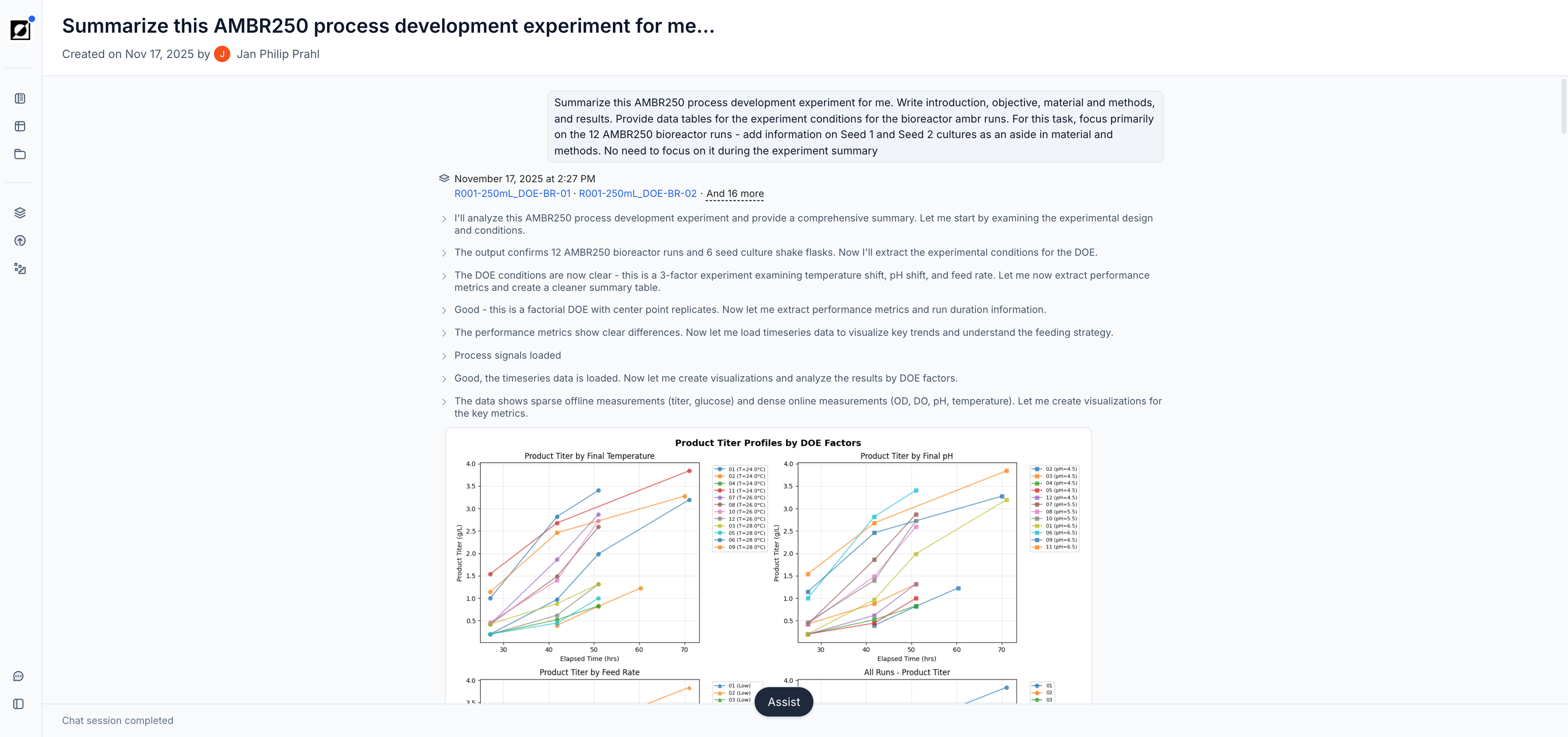
Invert Assist lets you query your data directly in plain language. Instead of manually investigating your data through plots and exports, you can ask questions conversationally and get results generated from your Invert data. Behind the scenes, Invert Assist generates and runs Python code, so every answer is reproducible and traceable.

What you can do with Invert Assist

  • Outlier Detection: Quickly process all your timeseries data to see if there were any excursions worth investigating further.
  • Root Cause Analysis: Identify drivers behind unexpected trends or deviations in your process data.
  • Experiment Summarization: Generate clear summaries of multi-run experiments, highlighting key similarities and differences.
  • Scale up: Refine your question or follow up to dig deeper - the AI chat keeps the context.

How to use Invert Assist

  1. Select your runs. We're actively optimizing the maximum data load, for best immediate performance we recommend selecting 15 runs or fewer for the time being.

  2. Open the Invert Assist chat panel using the Assist button at the bottom of your screen:

  3. Type your question—for example:

    • “What caused the excursion in Run75?"
    • "Is there any effect of pH on titer based on these runs?"
    • "What is the next experiment that might be interesting to explore?"
  4. Review the answer and trace the exploration and thought chain, along side the code that was executed for the analysis.

  5. Use follow-up questions to refine your results or switch context.

History and context in Assist

  • Your Assist queries and outputs are saved at a user-level. To view a repository of past chats, click the clock icon in the Assist modal:

  • In addition to Runs, Notebooks can also be provided as context to Assist. This allows users to leverage existing analysis templates as a reference for Assist to perform calculations. For this, navigate to the relevant notebook page, open Assist modal, and add notebook as context:

  • Workspace admins can further add context at the organizational level, which will be used in all Assist queries for your team. Use this space to provide terminology, conventions, or guidelines that should inform the assistant's responses. Organization context can be added under Settings > Assist:

Tips for better results

  • Be specific: include timeframes or phases, run names, or metrics in your question.
  • Use follow-ups: instead of repeating full queries, build on the last response.

FAQs

Will Invert Assist chat change my data?

No. Invert Assist's chat tooling is read-only. It queries and analyzes data but never edits it.

What data can Invert Assist chat access?

It has access to your structured bioprocess data stored in Invert, including runs, metrics, properties, events, lineage, and formulas but is safely secured in the Amazon bedrock infrastructure so that none of your data is available for any model development or fine tuning.

How does Invert build in robustness?

We have written and manage a suite of benchmarking evals that are run regularly to help us characterize what capabilities are performing well and to alert our staff if there are any capability regressions due to model updates or infrastructure changes.

What if it doesn’t understand my question or the result is completely wrong?

Try rephrasing with more details (e.g., specify a date range or metric name). If you still don’t get what you need, please help us make our product more robust by submitting feedback through the thumbs-up and thumbs-down icons after the chat is completed. This will help us investigate further and build out additional evals for edge cases.

👉 Still need help? Reach out to our support team via email or intercom.

Open in full page

Skills

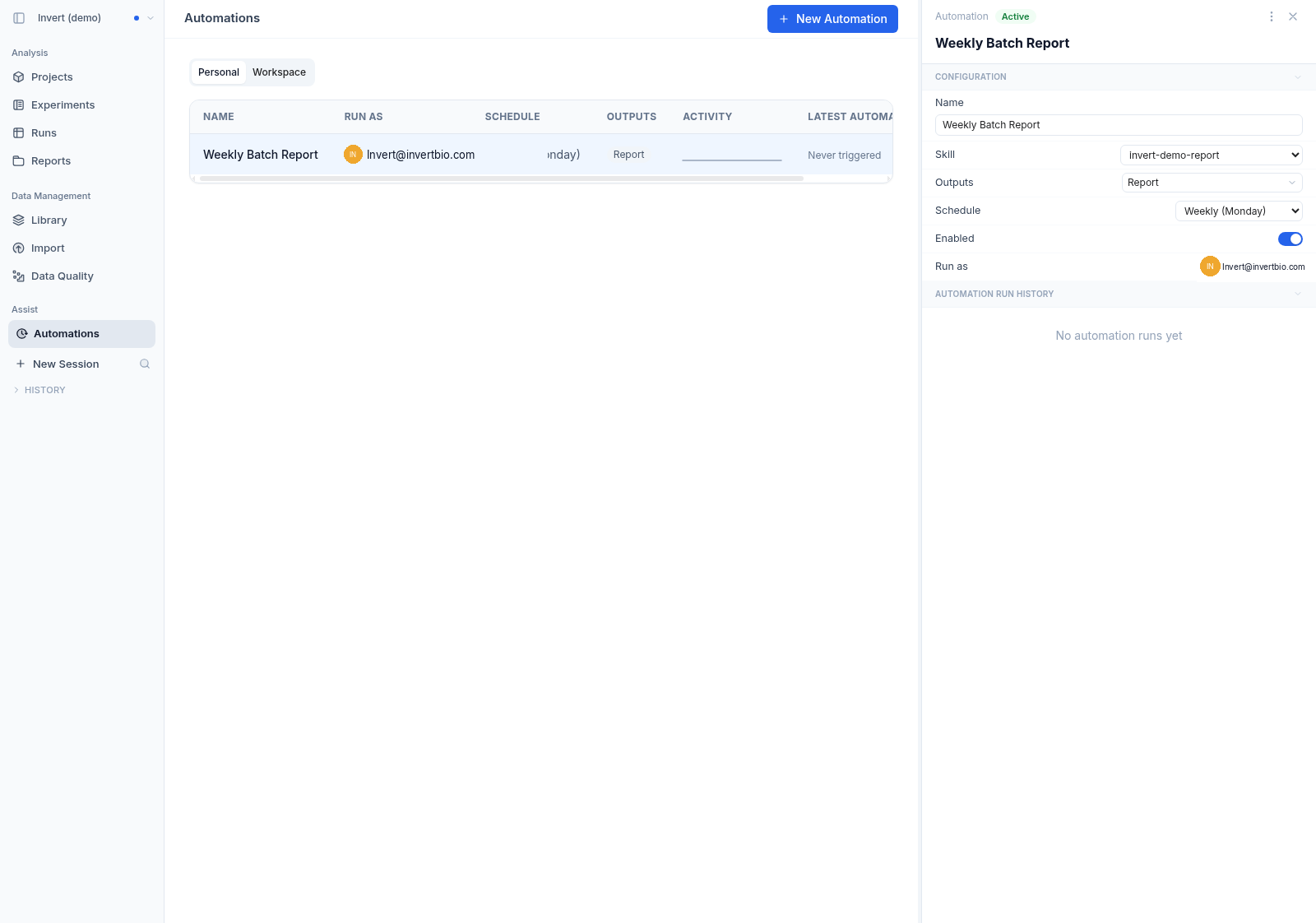
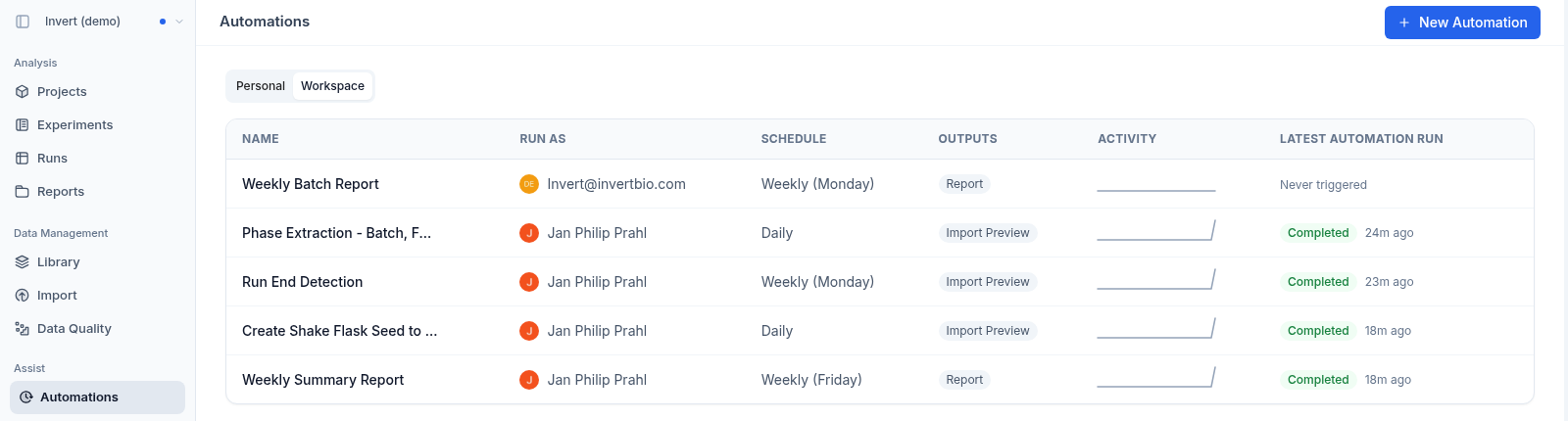
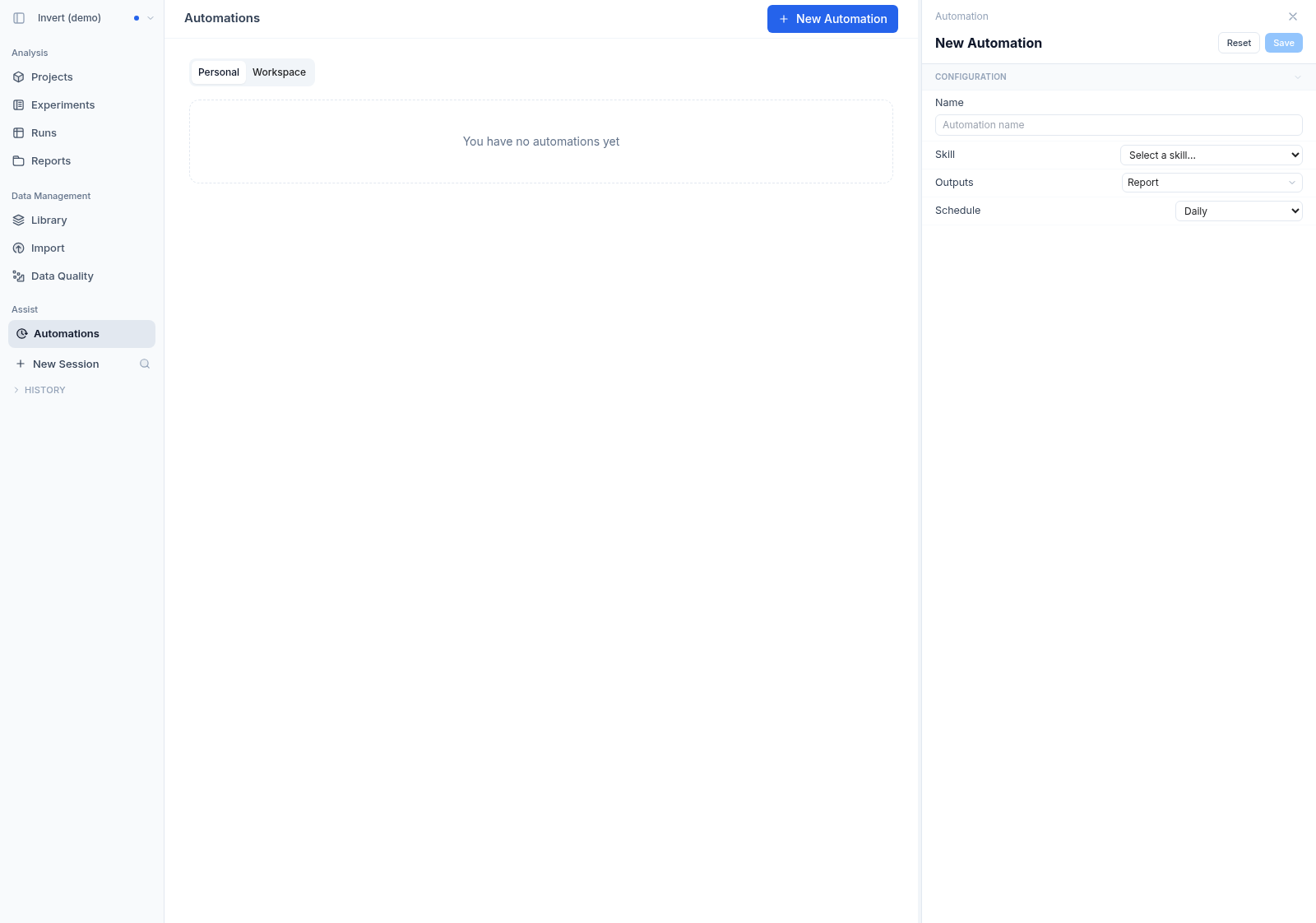
Your team has established ways of doing RCA, DoE review, regression analysis — methods refined through years of experience. Until now, that knowledge lived in people's heads or buried in SOPs. Now you can capture it directly in Invert as a Skill: a reusable set of instructions that tells Assist how to conduct a specific type of analysis, so it works the way your team works.

How it works

Create a Skill in the Library by giving it a name, description, and a body — written in plain text, code, or both. The body is your method: step-by-step procedures, statistical thresholds, decision criteria, preferred chart types, or Python snippets that define how an analysis should be done.

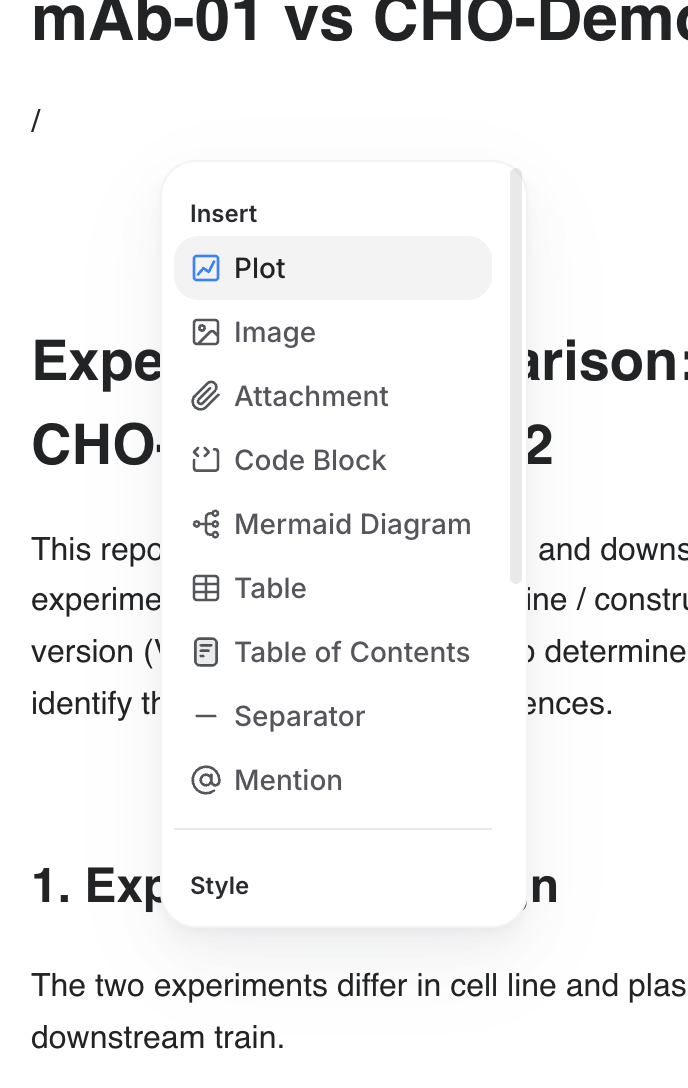
When you're ready to use it, open Assist, type @ to bring up the mention menu, and select your Skill alongside any runs or reports you want to work with. Assist reads the Skill's instructions and follows your approach — same methodology, every time, regardless of who's running the analysis.

What can you do with Skills?

  • Standardize root cause analysis: Define the steps your team follows for RCA — which metrics to check first, what thresholds flag a deviation, how to structure the final summary — and let anyone on the team run the same investigation
  • Encode DoE review procedures: Specify how to evaluate experimental results, which statistical tests to apply, and what constitutes a meaningful difference between conditions
  • Create reporting templates: Describe the sections, plots, and key metrics that should appear in a campaign summary or tech transfer package, then let Assist generate it
  • Capture domain-specific calculations: Include Python code for custom analyses — growth rate calculations, metabolite ratios, yield corrections — so Assist executes them consistently
  • Compose multiple Skills: Reference more than one Skill in a single conversation. Combine a "Growth Phase Analysis" skill with a "Metabolite Profile" skill to build a complete picture

Example Skills to get started

Skill nameWhat it does
Fed-Batch RCAWalks through a structured root cause analysis: check feeds, DO, pH, temperature, then correlate deviations with titer impact
Campaign SummaryGenerates a standardized report with VCD/viability overlay, titer bar chart, and key observations per condition
Scale-Up ComparisonCompares matched parameters between bench and pilot scale, flags any that fall outside defined equivalence bands
Harvest TimingEvaluates viability trend and titer plateau to recommend optimal harvest window

Available now for all Assist-enabled organizations.