Navigation
To access the Run Summary page, double-click on a run in the run data table on the Runs page. This will open the Run Details page. Available tabs are: Summary (when enabled), Properties, Metrics, Lineage, and Events. The actions menu in the page header holds the run-level actions: Export the run data, Show related reports, Show related alerts, and Show related imports — which open the Reports page, the Library's Alerts section, and the Import History page filtered to this run — and Archive.
Summary
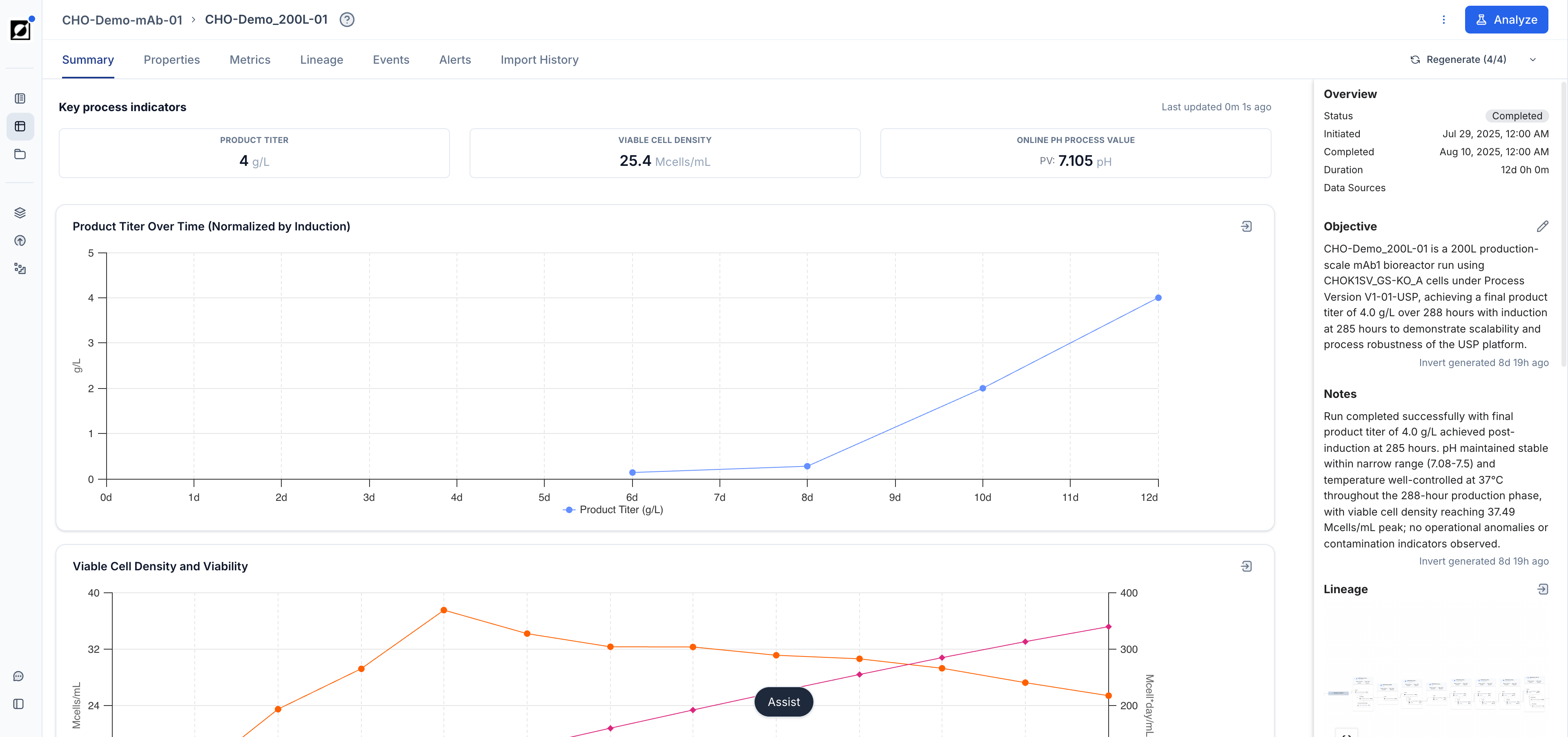
The Summary tab provides an AI-generated overview of the run in a structured dashboard format. It is available for organizations with the AI-generated summaries feature enabled. The dashboard is composed of several sections:
- Key process indicators: A curated set of the most relevant metric aggregations (e.g., final titer, peak biomass, mean pH) displayed as cards for at-a-glance review. When the unit operation type's Context names indicators to show, up to eight cards appear; otherwise, three are shown.
- Graphs: Pre-configured line charts showing key timeseries profiles for the run, such as growth curves, feed profiles, or DO/pH trends.
- Summary table: An optional table of key run values. You control what the dashboard shows through the unit operation type's Context — for example, which graphs to include, or whether to show a summary table.
- Objectives & Notes: A text section capturing the run's objectives and any analytical notes.
- Events: A timeline of annotated events associated with the run.
- Lineage: A visual summary of the run's upstream and downstream material stream relationships.
Hover over a summary-table or key-indicator value to see its referenced metric or property, a link to its Library page, and the statistic used.
The Summary tab respects run-specific configuration when available, otherwise using organization-level defaults. Click 'Analyze' on any graph in the Summary tab to jump directly to the Analysis page with that chart pre-loaded.
Configuring the dashboard
To steer which key indicators, graphs, summary table, objectives, and notes the dashboard shows, set the Context of the run's unit operation type. In the Library, open the Unit Operations tab, click the unit operation type (e.g. "Bioreactor" or "Protein A Chromatography") to open its sidebar panel, and describe the process in the Context field — for example, what the step is for, which metrics matter most, which setpoints to compare against, and what a good outcome looks like. If the context requests a summary table, it is shown instead of the graphs. The context is used every time a Summary dashboard is generated for a run of that unit operation type, so one entry configures the dashboards of all those runs.
Once a run's dashboard has been generated, it is not updated automatically when the context changes. To apply new context to an existing dashboard, click Regenerate on the Summary tab and select the sections to regenerate (Graphs, Summary table, Key indicators, Objectives, Notes). Editing the context and regenerating require edit permissions.
Properties
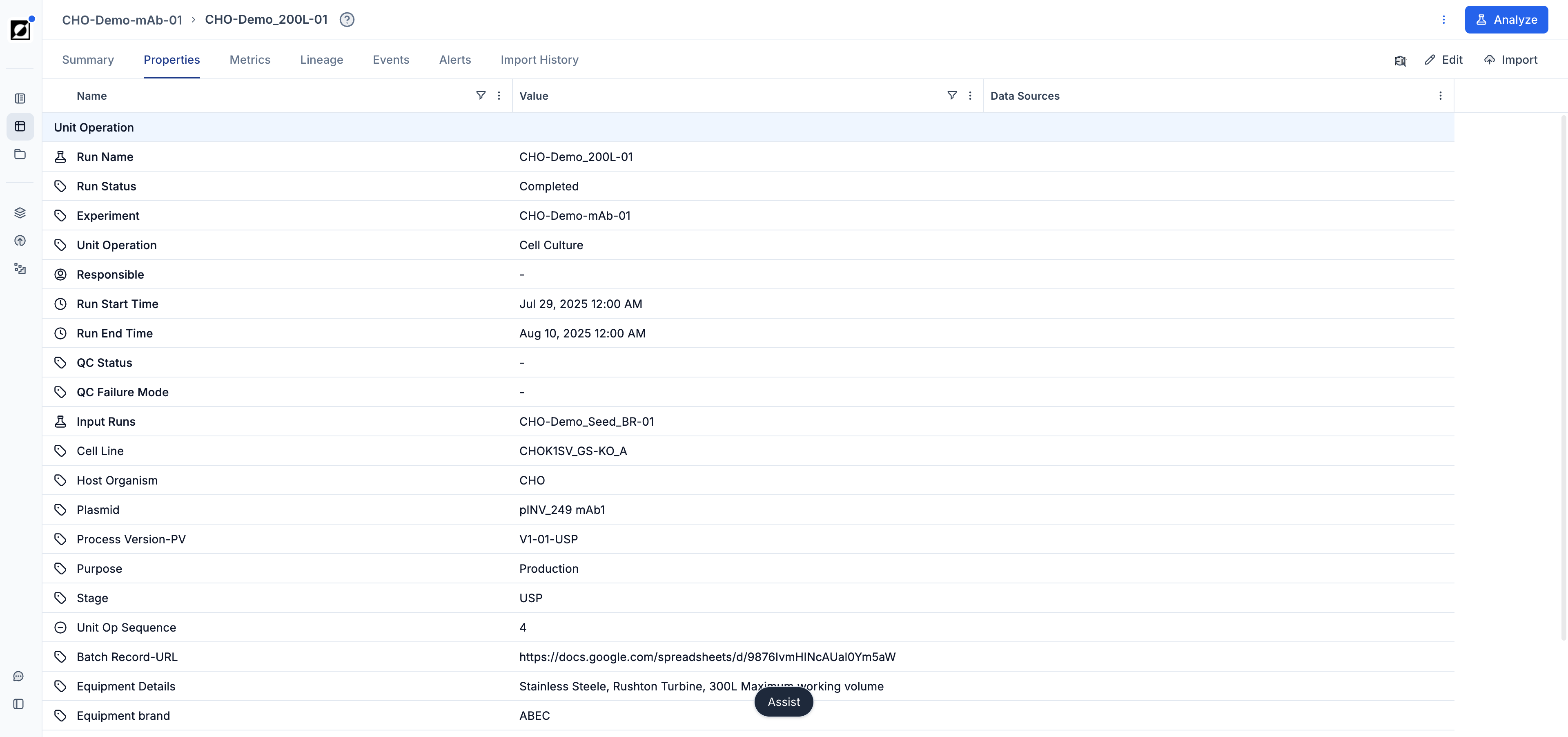
The Properties tab presents a list of the run meta data, including Run Start, Run End, and any other custom property that was previously associated with the run through file import or manual editing. Navigate to the 'Edit' page to switch to the editing view for run archiving and property editing. Data Sources labels provide insights into the origin of a property. Labels are automatically generated upon import.
Metrics
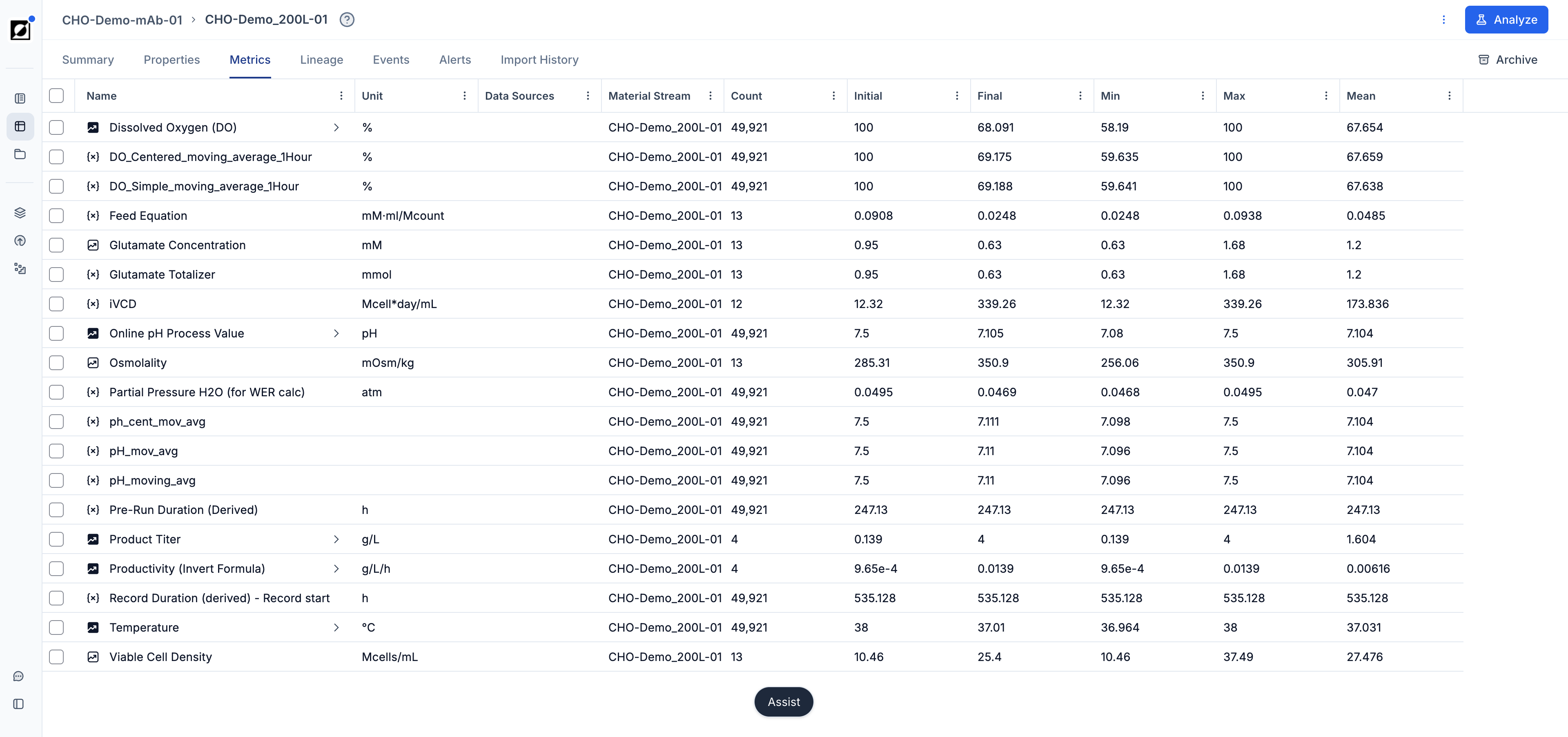
In the Metrics tab, users can access an overview of the time series data associated with a given run. This tab displays a list of time series metrics and formulas, along with useful aggregations and metric units for easy reference. Metrics are categorized into parent and sub-metrics, allowing users to quickly understand the structure and relationships of the data (See 'Library' Article for more details). From this view, users can navigate directly to the metric details page for more information or archive a specific metric from the run without removing it from the overall metric library. This feature provides a centralized place for exploring and managing time series data efficiently. Data Sources labels provide insights into the origin of a metric. Labels are automatically generated upon import.
Lineage
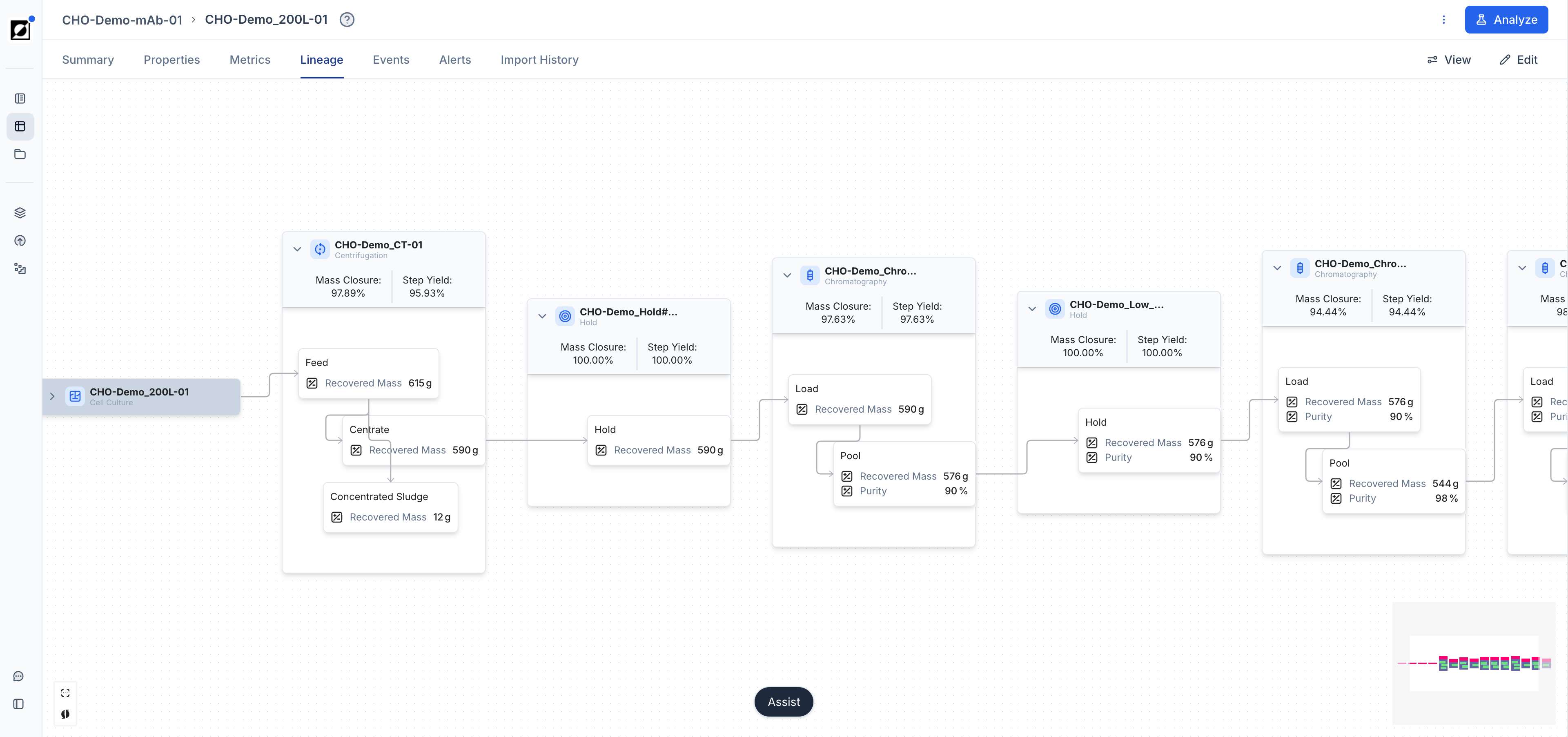
In the Lineage tab, users can access the process flow diagram that tracks the relationships between individual runs. This functionality is particularly useful for understanding the lineage of a run, such as identifying which seed flask was used to inoculate a certain bioreactor or tracing the bioreactor run used for downstream processing testing. Click 'Add property' to provide additional context to the blocks.
A lineage connection links a run to its upstream input run. A run can have more than one input run, for example a bioreactor inoculated from two seed flasks; the Properties tab lists them under Input Runs. There are two ways to create a connection:
- File import — add an Input Run column to a Run Data file, naming the upstream run in each row. See the Import Mapping Guide.
- Lineage tab — click Edit, then drag from one run block to another to connect them.
Removing a connection is only possible on the Lineage tab: click Edit, hover over the connecting line, and click the remove icon that appears on it. Edits stay in draft until you click Save and confirm; Discard throws them away. Blocks left without any connection to the main graph are removed when you save.
Organizations with downstream processing enabled see an enhanced lineage view for unit operations and material streams, where each unit operation block states how many properties and time series it holds; see the Downstream Processing guide.
Events
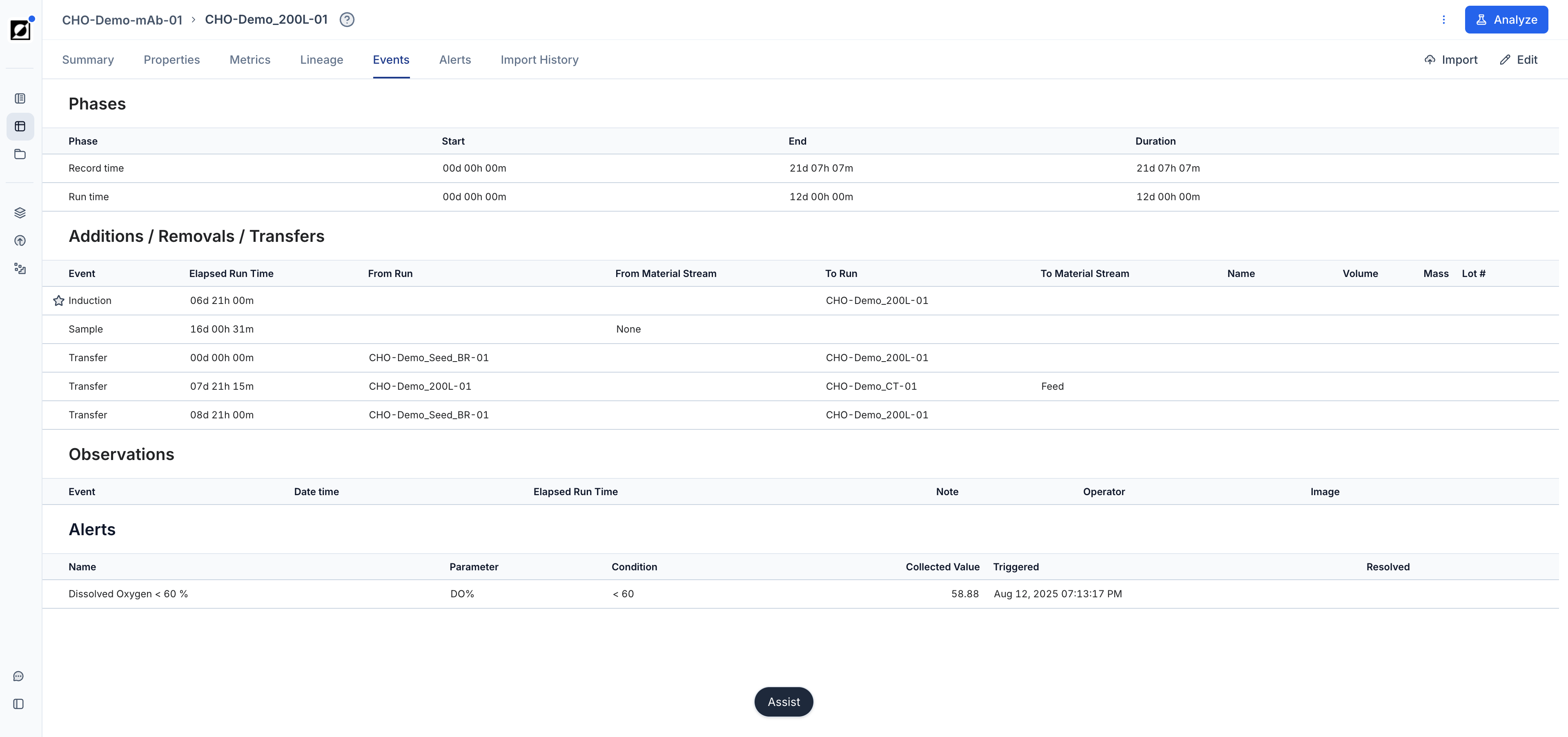
The Events tab facilitates the annotation of timestamped event notes. Users can document important process annotations such as Inoculation, Feed Start, or any other observations or milestones associated with the run. Event notes show in Line Chart enhancing your analysis by providing context to understanding of the bioprocess workflow.
The tab is organized into three sections:
- Phases — the run's phases with their start, end, and duration. The Elapsed run time / Date / time toggle in the section header switches every timestamp on the tab between hours since the run started and absolute date-times.
- Events — one chronological list of all additions, removals, and observations, with critical events (marked with a star) pinned first. Each row shows the event type, its name or note (and image, if attached), and its timestamp. Expand a row with the chevron, or use the Expand all / Collapse all control in the header, to see the event's details — material stream, volume, mass, lot number, and image for additions and removals; note, operator, and image for observations.
- Alerts — the alerts that triggered on this run, with the parameter, condition, collected value, and triggered / resolved times. Manage alerts opens the run's alerts in the Library.
Click Edit to modify the tab: phase and event timestamps become editable in place, Add phase and Add event rows appear at the bottom of their sections (or use Add event in the toolbar), and each row gets a delete control. Cells with a missing timestamp are highlighted, and saving is blocked while two observations share the same timestamp. Save applies all staged changes at once; Cancel discards them. When you ask Assist to archive or rename an event, the link it returns opens this tab with the change staged as a pending edit, which you then save or discard.
To change Run Start or Run End, click Edit and change the start or end timestamp of the Run time row in the Phases section, then click Save. The run start must be before the run end. Data imported with relative time keeps its absolute timestamps, so re-import it after you change the run start.
Technical note: You can also change Run Start and Run End by import. Use the Run Data mapping with a
Runcolumn and aStart time (UTC)and/orEnd time (UTC)column. A blank cell keeps the current time. Assist uses this method when you ask it to change a run's start or end time.
Alerts
Alerts watch a run's metric or property and notify you when its condition is reached (example: Dissolved Oxygen < 60 %). They are most useful for runs with data streaming into the app in real time via hardware integration. When an alert triggers, Invert sends notification emails to the selected recipients — chosen from the users in your workspace — and creates an event on the run. Alert events are listed on the Events tab, and Manage alerts there opens the run's alerts in the Library, where alerts are created and edited — see the Library guide.
Import History
To see the file imports that brought data into a run, choose Show related imports from the actions menu. This opens the Import History page filtered to the run, where each entry links to the import details — mappings used, metrics uploaded, and the original source file.