Creating a New Experiment
To create a new experiment, click the New Experiment button. This action directs you to the 'New experiment' view, where you enter the experiment Name and set Responsible, Scheduled Start Time, and Expected End Time. Click Save to create the experiment; it then appears in the experiment list on the Experiments page.
Runs are added after the experiment exists: open the experiment, go to the Runs tab, and use Add → Add runs.
Experiment list
The List view gives you an overview of all your experiments whether past, ongoing or future, with a column for the experiment, its scheduled start, its scheduled end, and the number of runs it contains. Use Filter... to narrow the view by Start Date or End Date.
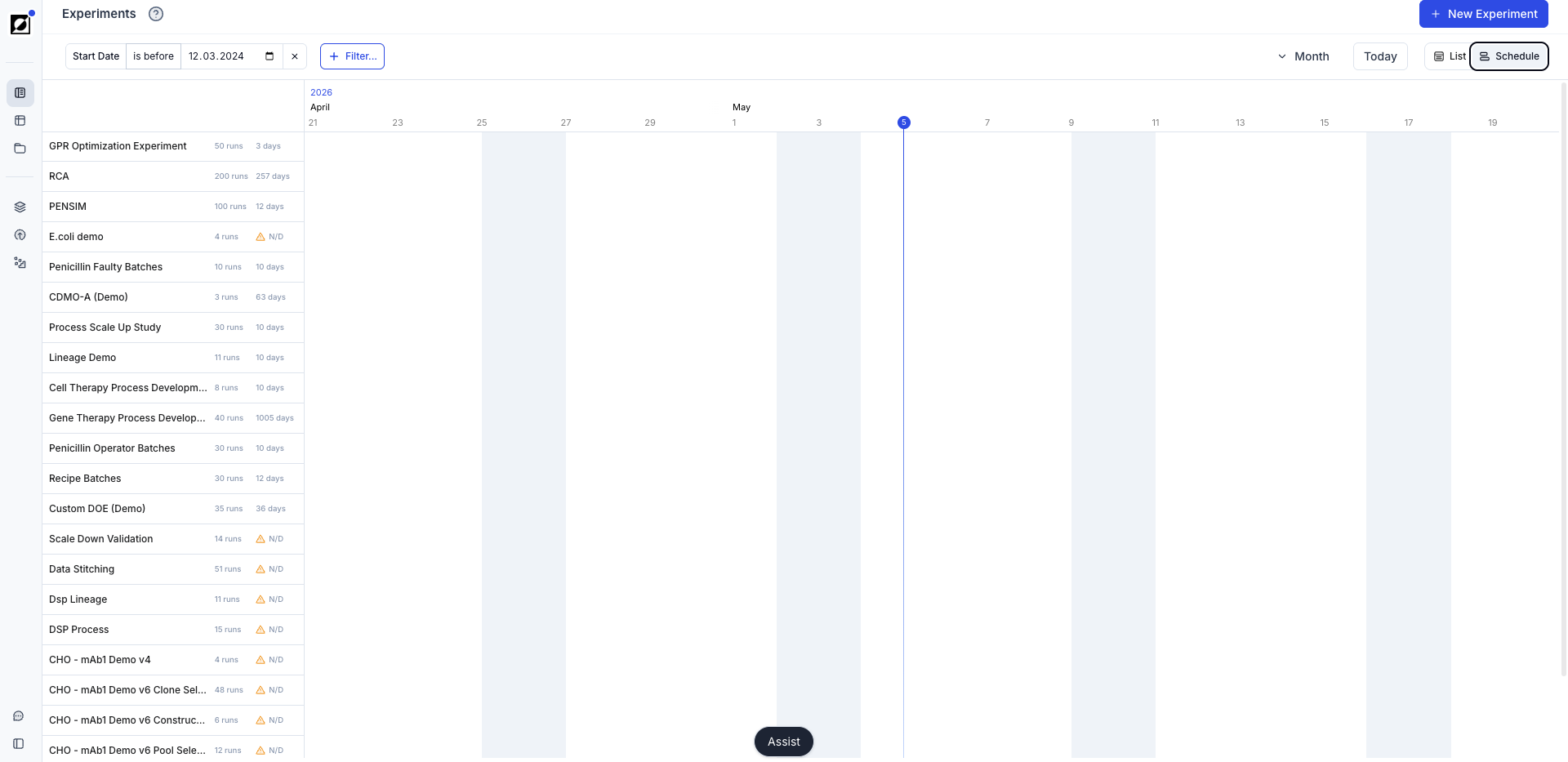
The Schedule view shows the same experiments as bars on a timeline, with the run count and duration next to each name. Choose the time span from the Week, Month, Quarter, or Year dropdown and press Today to bring the timeline back to the current date. An experiment that falls outside the visible dates shows an arrow button on its row; press it to move the timeline to that experiment.
Clicking on an experiment in either view will direct you to the respective experiment page.
The experiment page
The experiment page has a Properties tab with the experiment metadata, and a Runs tab with the runs in the experiment. On the Runs tab, use Edit to change run values directly in the table and Save to commit them, and use the display control to group by a column or change which columns are shown. Use Edit on the Properties tab to change the name, responsible, or scheduled dates. The same edit view holds the rename and Archive actions; archiving an experiment asks whether to archive its sub-runs as well.
Experiment Summary Dashboard
For organizations with Invert Assist enabled, the experiment page opens on a Summary tab. This tab aggregates all runs in the experiment:
- A header with the number of Runs, the run Types, the Duration (days), and Run progress
- Insights — key metric comparisons across the runs
- Run Overview — run status and condition-level groupings at a glance
- Process lineage — how the runs in the experiment connect
- A sidebar with the Experiment objective and an Overview narrative, plus Status, Lead, Initiated, Completed, and Duration
The narrative sections are generated by AI and should be reviewed for accuracy. Press Generate to create the overview for an experiment that has none, the edit icon to change the text by hand, and Regenerate to rebuild selected sections after the underlying run data changes.