What you can do with Invert Assist
- Outlier Detection: Scan all your timeseries data to surface excursions worth investigating further.
- Root Cause Analysis: Identify drivers behind unexpected trends or deviations in your process data.
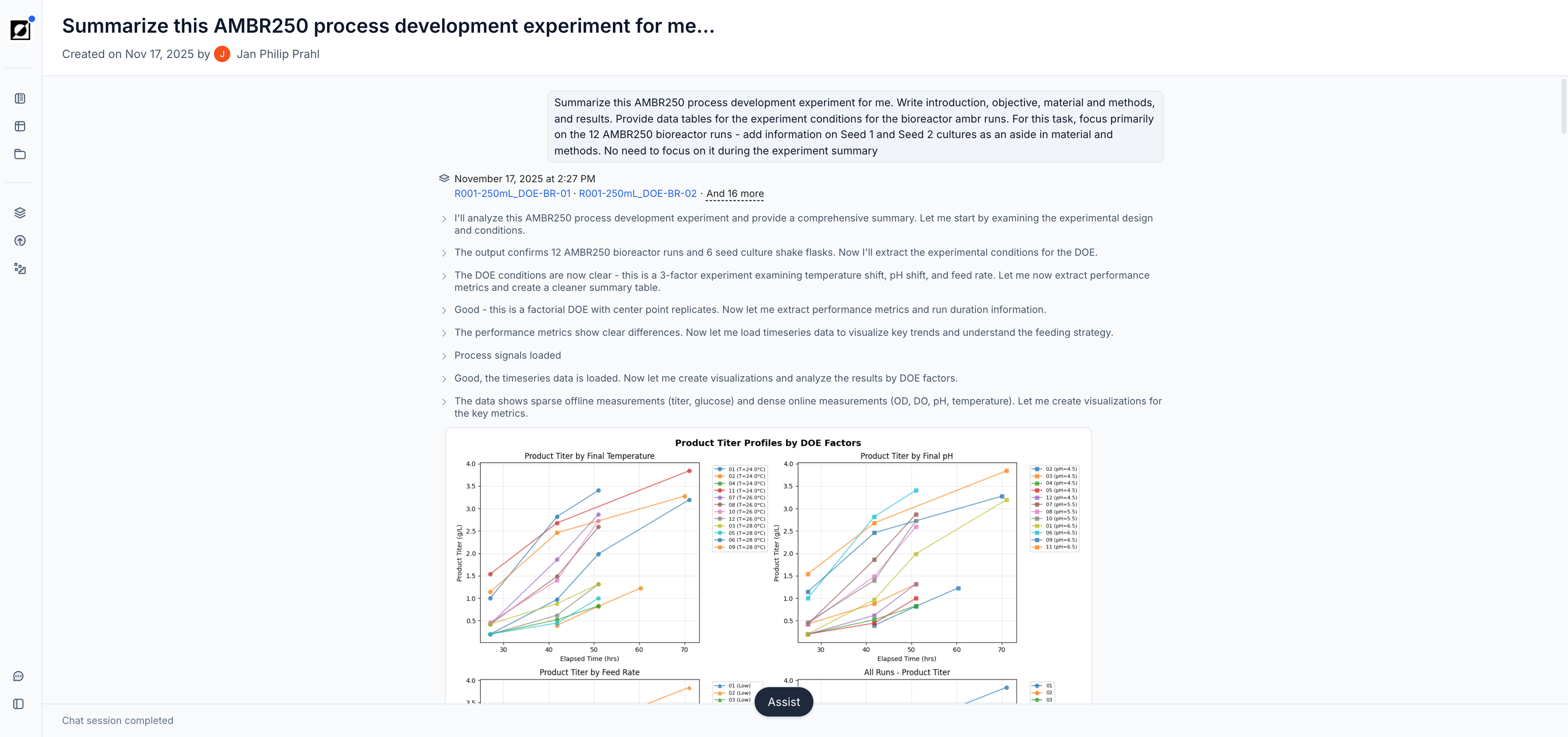
- Experiment Summarization: Generate clear summaries of multi-run experiments, highlighting key similarities and differences.
- Iterative Exploration: Refine questions and follow up to dig deeper — Assist retains context across the full conversation.
- Report Generation: Ask Assist to create comprehensive analysis reports with charts, tables, and summaries — automatically structured and ready for review.
- Interactive Outputs: Assist can render charts and other visual outputs directly in the conversation and in a side drawer for closer inspection. It can generate both Invert native charts and Python-based visualizations, so you can choose the right format for the analysis. Files that Assist produces open in the same drawer — tables (CSV, TSV, JSON), images, PDFs, and videos are previewed inline, and every file can be downloaded.
- Data Import Staging: Ask Assist to prepare data imports — it can stage timeseries datapoints and run events for your review via the standard Import Preview, so nothing is written until you approve.
- Data Management Routines: Assist can carry out data management routines such as archiving or renaming runs, experiments, quantities, events, and reports, removing a lineage connection between runs, merging runs, adding reports to a project, or creating and editing projects and automations. Assist sends you a link with the change staged; you open it and complete the action in the app, so nothing is changed until you confirm it.
- Views and Analyses: Ask Assist to set up a run list view or an analysis — it sends you a link that opens the view or analysis already configured. Review it, then save it (a view via the view menu, an analysis as a template or in a report) or discard it.
- Library Mapping Preparation: Ask Assist to prepare updates to Library items — parent metrics, formulas, and metric or property definitions — from a structured file; the changes appear in the standard Import Preview for review before anything is written.
- Document Data Extraction: Attach a batch record or other PDF and ask Assist to extract structured data from it. Extracted values appear in a review card where you can verify, correct, or discard each value before signing off; signed-off data is staged for import through the standard Import Preview.
- Product Q&A: Ask Assist how Invert features work — it can consult the Invert product documentation to answer questions about the platform.
Generating Reports with Assist
Assist can create complete analysis reports from your bioprocess data. Instead of manually building reports from charts and tables, you can ask Assist to generate one in plain language.
How to Generate a Report
- Select your runs - Choose the runs you want analyzed
- Open Assist - Open Invert Assist from the left navigation sidebar
- Ask for a report - Try prompts like:
- "Generate a process monitoring report for my most recent experiment"
- "Create a comparative analysis of these two runs"
- "Build a summary report highlighting key metrics and trends"
- Review the result - Assist will produce a report with analysis, charts, and data tables
- Refine if needed - Ask Assist to modify specific sections or regenerate with a different prompt
- Save to Reports - Once satisfied, save the report to your Reports library
Tips for Better Reports
- Be specific about what analysis you want (e.g., "Compare yield between these two strains")
- Mention timeframes if relevant (e.g., "Report on the growth phase data")
- Ask follow-ups to refine the analysis (e.g., "Can you add a section on pH impact?")
- Review for accuracy before saving, especially for presentation or publication use
How to use Invert Assist
-
Select your runs. For best performance, starting with a focused set of runs (around 15 or fewer) produces the fastest, most targeted results — you can always load additional runs mid-conversation using Assist's run loading tools.
-
Open Invert Assist from the left navigation sidebar:
-
Type your question—for example:
- “What caused the excursion in Run75?"
- "Is there any effect of pH on titer based on these runs?"
- "What is the next experiment that might be interesting to explore?"
-
Review the answer and trace the reasoning chain alongside the code that was executed for the analysis.
-
Use follow-up questions to refine your results or switch context.
Attaching files
You can attach files directly to an Assist conversation for analysis. Assist accepts any file type, including:
- Images (PNG, JPEG, etc.) — interpreted visually
- PDFs — parsed as documents
- Tabular data — CSV, Excel (.xlsx), and Parquet files are read programmatically (e.g., with pandas) so Assist can summarize columns, compute statistics, or join the data with your bioprocess runs
To attach a file, click the attachment icon in the Assist input bar and select files from your computer, or drag and drop files directly into the chat. There is no restriction on file format — if Assist can read it with Python, it can analyze it.
History and context in Assist
-
Your Assist sessions and outputs are saved at a user-level. Past sessions are listed in the Assist sidebar for easy access.
-
To branch off an existing session, use Fork session from the session menu to copy it into a new session you can continue, or use the fork action on one of your messages to start a new session with everything before that message, so you can edit and resend it. The original session stays unchanged.
-
In addition to Runs, Reports can also be provided as context to Assist. This allows users to leverage existing analysis templates as a reference for Assist to perform calculations. For this, navigate to the relevant report page, open Assist, and add the report as context.
-
Workspace admins can further add context at the organizational level, which will be used in all Assist queries for your team. Use this space to provide terminology, conventions, or guidelines that should inform the assistant's responses. Organization context can be added under Settings > AI context in the left navigation, where admins can also attach files such as SOPs or terminology documents with Add files. Assist sees each file's name and opens it when it is relevant.
Editing Reports with Assist
For organizations with the Assist report editing feature enabled, Assist can also modify existing saved reports — not just generate new ones. Open a report, launch Assist, and ask it to update specific sections, add new plot blocks, or revise text.
When Assist edits a report, it produces a draft — an unsaved, private suggestion you can review before saving. Drafts have these characteristics:
- Unsaved: Drafts are private to you until you explicitly save them
- Editable: You can accept the draft as-is or ask Assist to modify it further before saving
- Stale draft warning: If a draft sits for more than 5 minutes without being reviewed, you'll see a warning (⚠️) indicating the analysis may be outdated
- Accept or reject: You control whether the draft is applied to the saved report or discarded
- Visual diff on review: When you open a draft, modified blocks are marked with a blue stripe and added blocks with a green stripe so you can spot Assist's changes at a glance.
Tips for better results
- Be specific: include timeframes or phases, run names, or metrics in your question.
- Use follow-ups: instead of repeating full queries, build on the last response.
- When Assist suggests follow-ups, they appear as a Next steps card at the end of the chat. Select one or more suggestions, edit them in place if needed, and send them, or dismiss the card.
- While Assist is working, you can type follow-ups; they queue and are sent together as one message when Assist finishes. You can remove a queued item or send the queue right away.
- Long conversations: when a chat approaches its context limit, an indicator appears next to the input bar. Use it to prefill a handoff-summary prompt so you can continue the work in a fresh chat before the current one runs out of space.
FAQs
Will Invert Assist chat change my data?
Assist's analysis tooling is read-only — it queries and visualizes data but never edits it directly. The exceptions are data import staging, library mapping preparation, and data management routines such as archiving or renaming: Assist prepares the change and sends you a link, but nothing is written until you complete the action in the app.
What data can Invert Assist chat access?
It has access to your structured bioprocess data stored in Invert, including runs, metrics, properties, events, lineage, formulas, and reports. Your data is processed within Amazon Bedrock infrastructure and is never used for model training or fine-tuning.
How does Invert ensure reliability?
Invert maintains a suite of automated benchmarking evaluations that run continuously to characterize Assist's analytical capabilities and detect any regressions caused by model or infrastructure changes.
What if the result is incorrect or Assist misunderstands the question?
Try rephrasing with more specific detail — for example, naming the run, metric, or time range you have in mind. You can also submit feedback on a response using the Send feedback button, which helps the team investigate edge cases and improve accuracy over time.
Still need help? Reach out to our support team via Help & support in the app.