Projects list
The project list gives an overview of every project in your organization, grouped by status: Active, Paused, and Completed. Each row shows the project name, number of linked runs and reports, goal progress, target date, members, and last update.
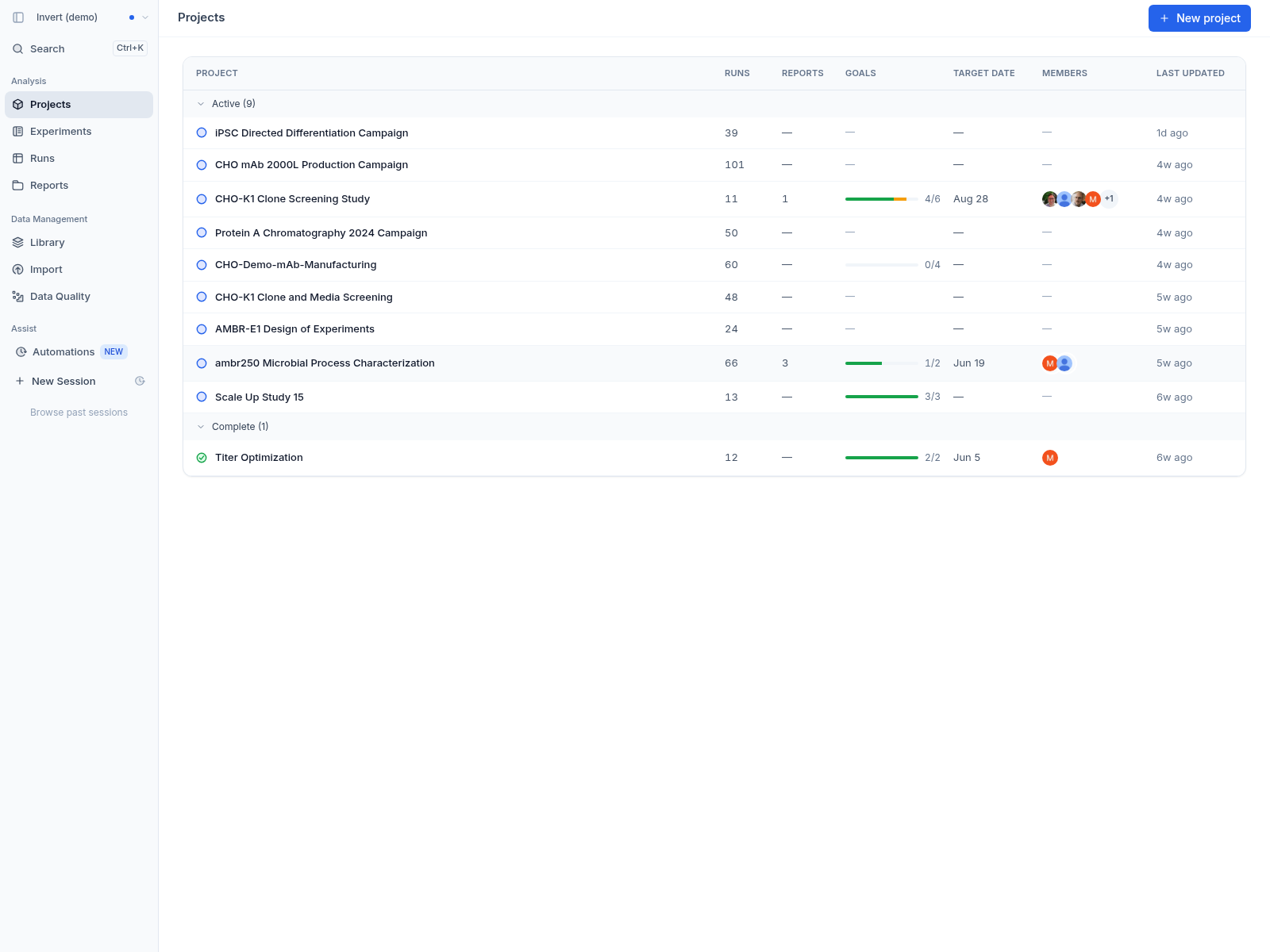
Click any project to open its detail page. Use the New project button to start a new project from scratch. Until the first project exists, the page shows No projects yet with a View runs shortcut to the Runs directory.
Creating a project
New project opens the Start a project dialog. Give the project a name — names must be unique, and a duplicate is rejected — and answer What is your objective?. Assist grounds every conversation in the project in the objective you write, so a clear description improves later analysis. Click Create project to finish.
Project detail page
A project detail page is organized into four tabs: Overview, Runs, Reports, and Activity.
Overview
The Overview tab contains an Objective field, a Goals list, an optional Background field, Attachments, and a right-hand sidebar with properties, progress, data quality, and recent reports.
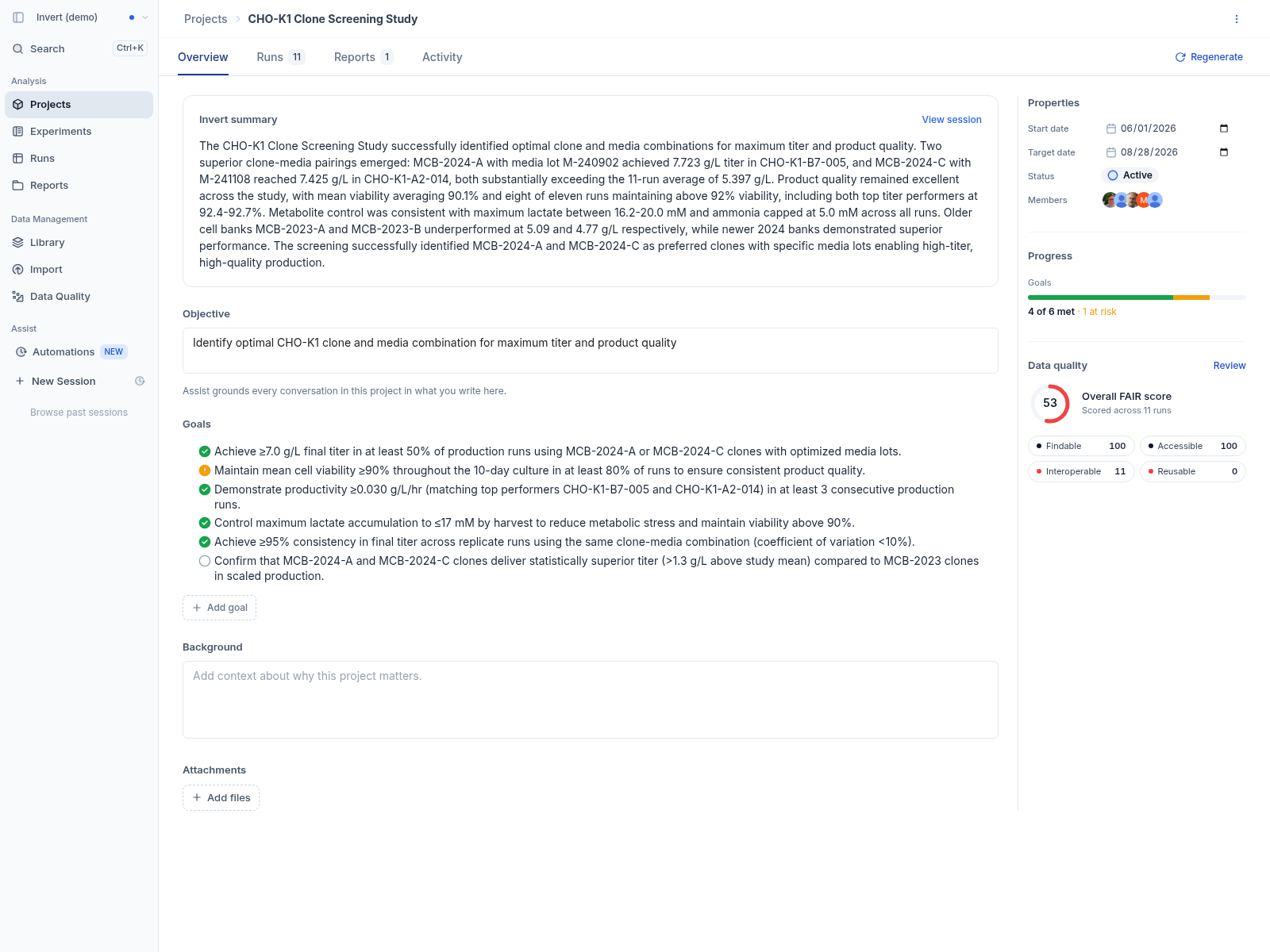
The Objective field describes what the project is trying to achieve. The Background field can hold additional context such as prior results or experimental rationale. Both fields are auto-saved.
The Goals section lists measurable criteria for the project. Click a goal's status icon to cycle it through Met, At risk, and Not met. Each goal also has an edit icon to change its text and a trash icon to remove it. Use Add goal to add a new one. If your organization has AI Assist enabled, goal suggestions from Assist appear under the list, and you accept or dismiss each one individually.
Use the Add files button to attach supporting documents such as protocols, SOPs, or slide decks to the project. Click an attachment to open it, or hover and click the trash icon to remove it.
The right-hand sidebar contains Properties, Progress, Data quality, and Recent reports. Properties lets you set the project's Start date, Target date, Status, and Members. Progress summarizes the goals: how many of the total are met, and how many are at risk. Recent reports lists the most recently updated linked reports; View all opens the Reports tab. Data quality shows a FAIR score scoped to the project's runs, broken down into Findable, Accessible, Interoperable, and Reusable pillars. Click Review to open the Data Quality page filtered to the project's runs.
Runs
The Runs tab lists every run linked to the project. You can filter, search, group, and sort the table the same way as the main Runs directory, and save your current table configuration as a view using the saved-view control next to the filter — reset unsaved changes, save them, or save them as a new view. Use Table to change which columns are shown and how the table is laid out. Select runs and click Analyze to open the selected data in the Analysis page.
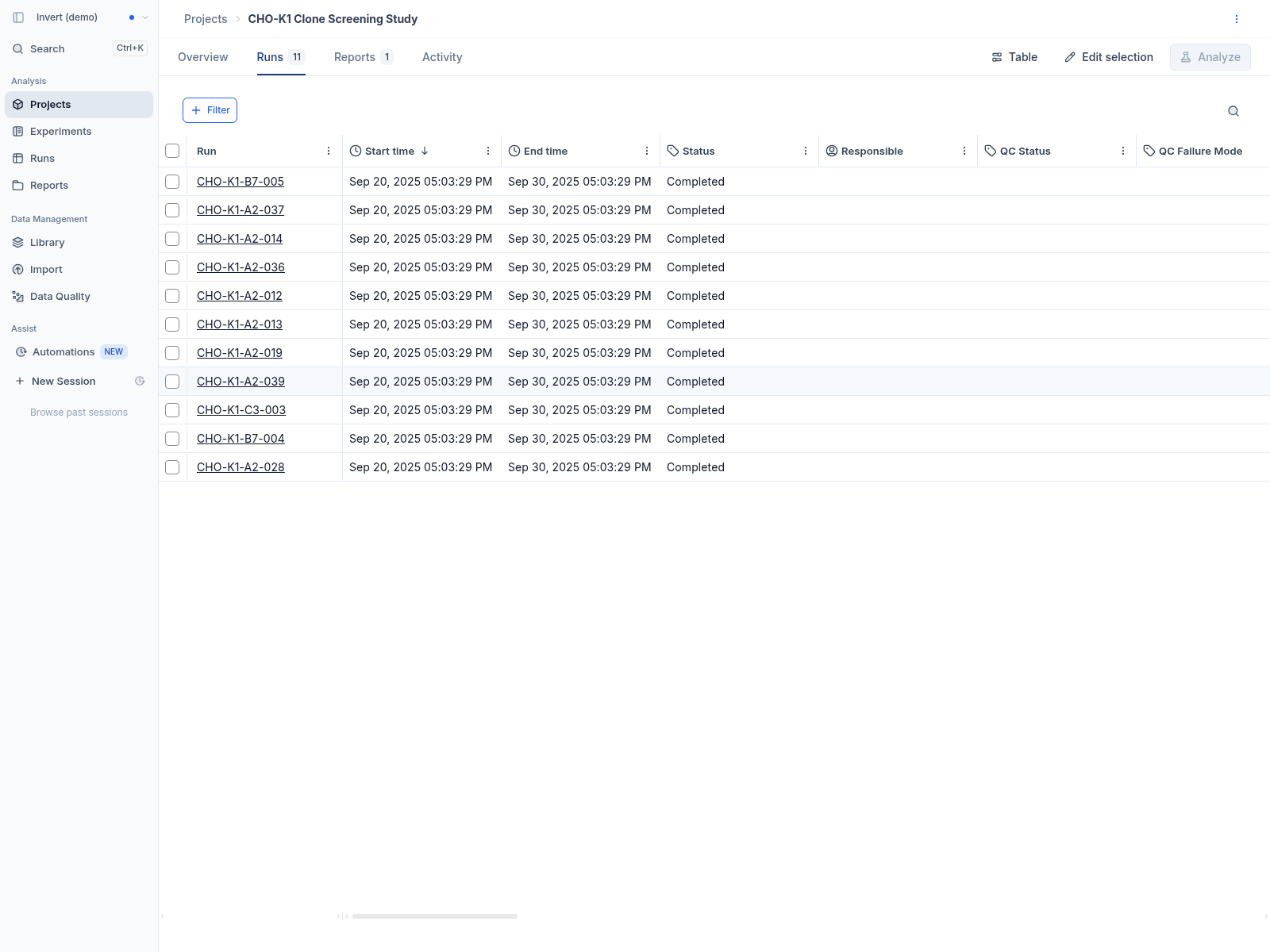
Use Edit selection to add or remove runs from the project. This opens the run selection drawer so you can adjust the project's scope. When assigning runs to a project from the Runs directory, you can also create a new project directly from the project picker.
Reports
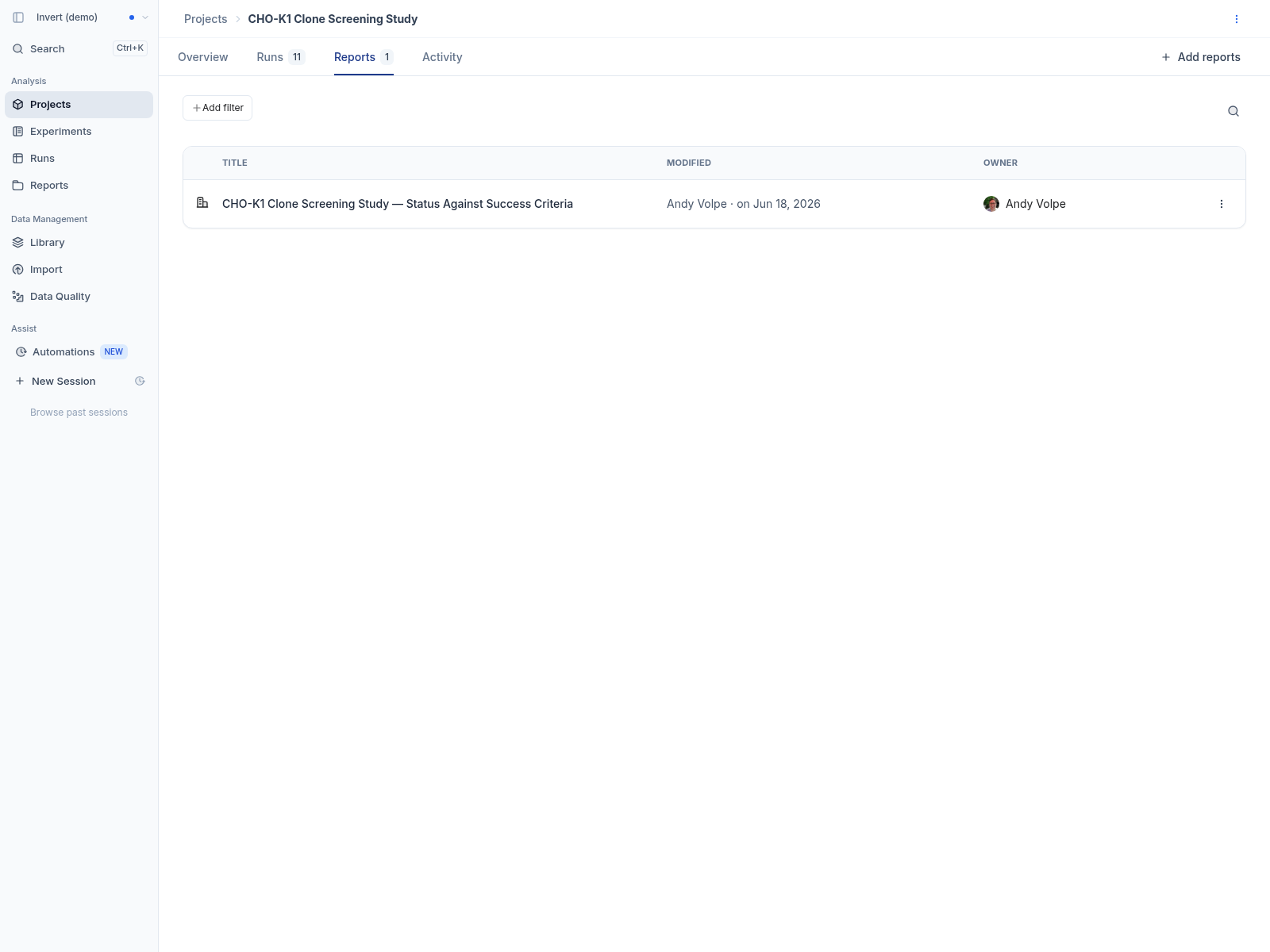
The Reports tab shows reports linked to the project, and can be sorted by title, last modified, or owner. Use Add reports to link an existing report, or click a report row to open it. Open a report's actions menu (⋮) and choose Remove from project to unlink it. A report can also be linked to a project from the actions menu on the report itself. Guest users can open the linked reports, but cannot add or remove them.
Activity
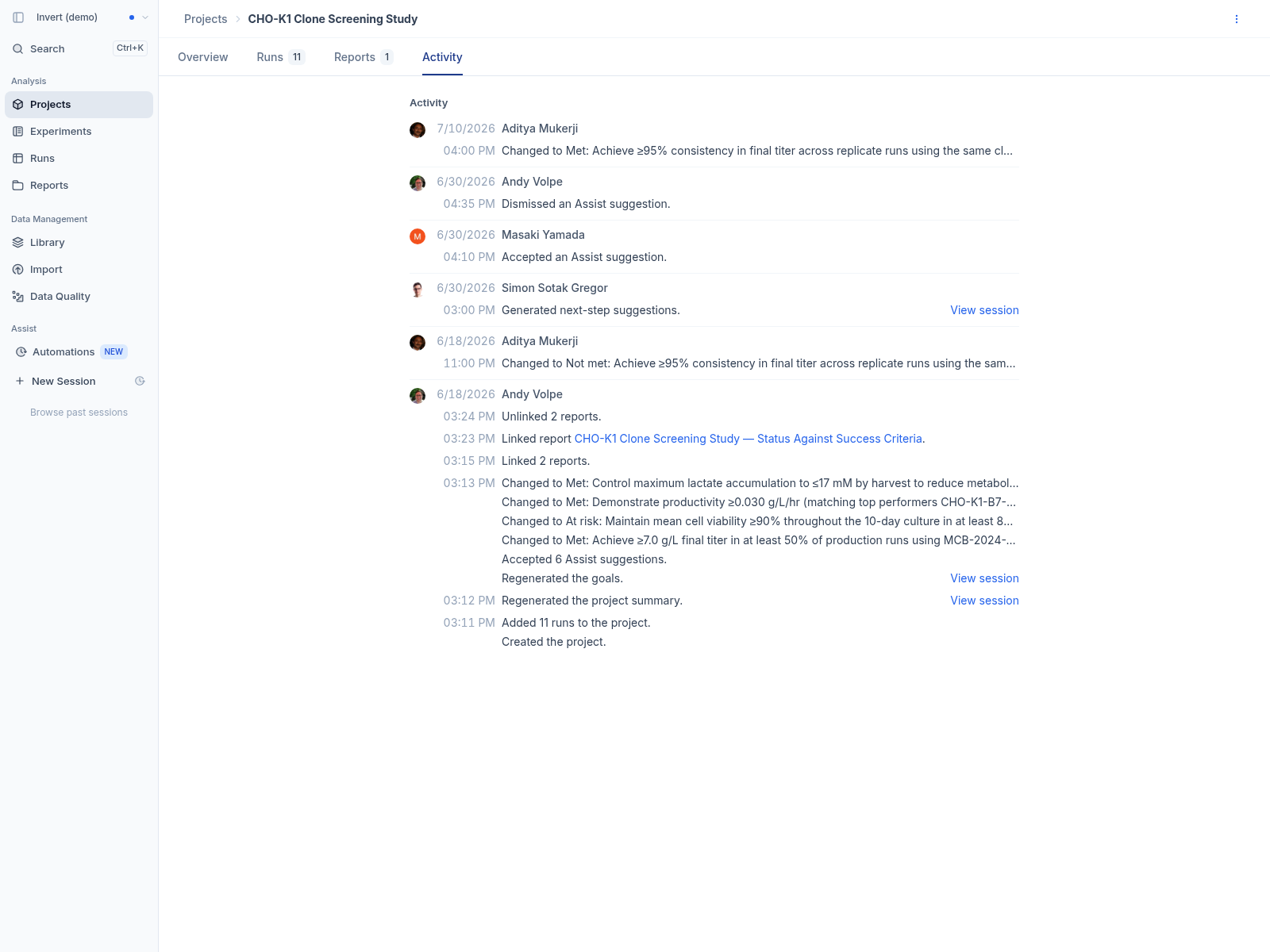
The Activity tab is a reverse-chronological feed of the project's history: creation, objective and status changes, goal status changes, runs added or removed, reports linked or unlinked, attachments added or removed, and Assist activity such as generated summaries and accepted or dismissed suggestions. Each entry shows who made the change and when, and Assist entries link to the session with View session. Use Show more at the end of the feed to load older entries.
AI-generated summaries and goal suggestions
If your organization has AI Assist enabled, the Overview tab starts with an Invert summary written by Assist from the project's runs and goals. View session opens the Assist session behind it. Use the Regenerate menu next to the project tabs to regenerate the Invert summary or the Goal suggestions.
Archiving a project
To archive a project, open the actions menu (⋮) in the project header and choose Archive, then confirm in the Archive project? dialog. An archived project is removed from the Projects page and its detail page is no longer available — opening an old link reports Project not found. The runs and reports that were linked to it are not changed, and remain in the Runs and Reports directories.