Files is in beta. It is available in all workspaces, but some parts are not complete yet (see Work with files in Assist). Features and labels may change before the general release.
Find and open files
Open Files from the sidebar, or go to /files in your workspace. The page brings together files you can access from Assist, Skills, AI context, reports, projects, and runs.
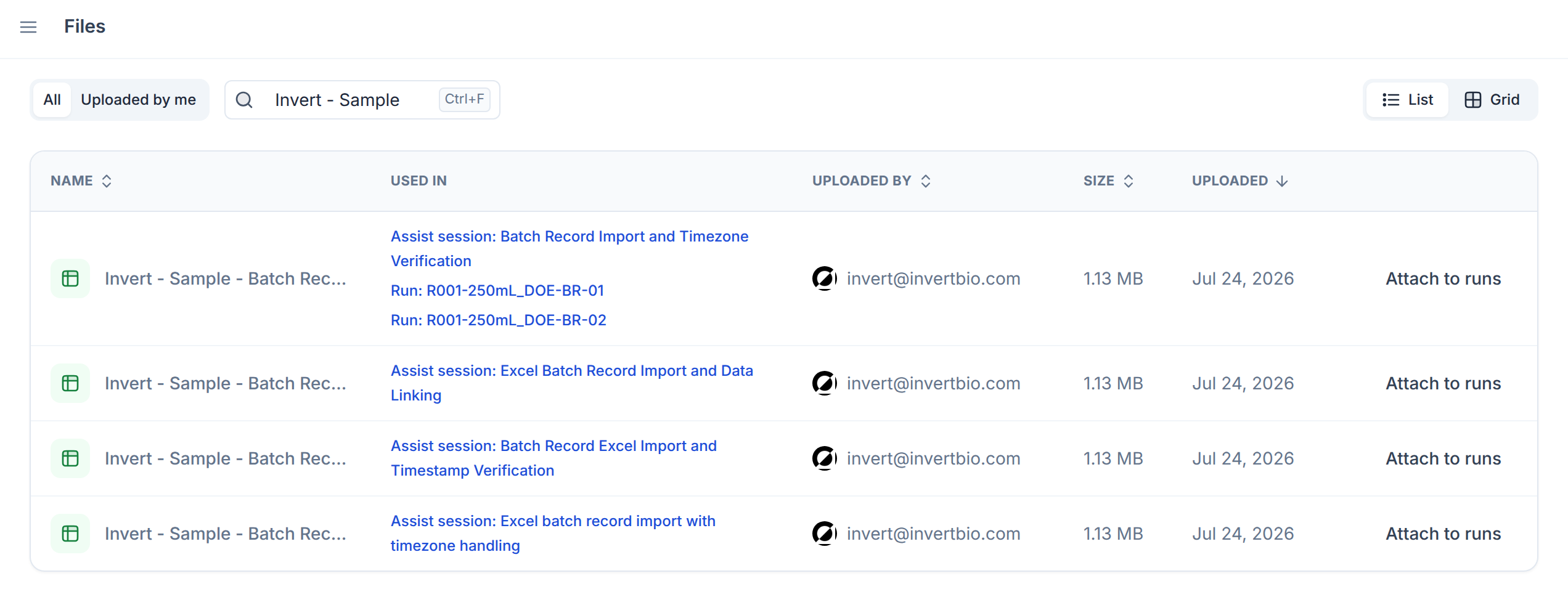
Use All to browse accessible files or Uploaded by me to find your own uploads. Search by filename with Filter in view…, and choose List or Grid. In List, sort by Name, Uploaded by, Size, or Uploaded; in Grid, choose Newest first, Oldest first, Largest first, or Smallest first.
Open a file to view or download it. Used in links to the runs, Assist sessions, Skills, AI context, reports, or projects that use it.
Keep files with runs
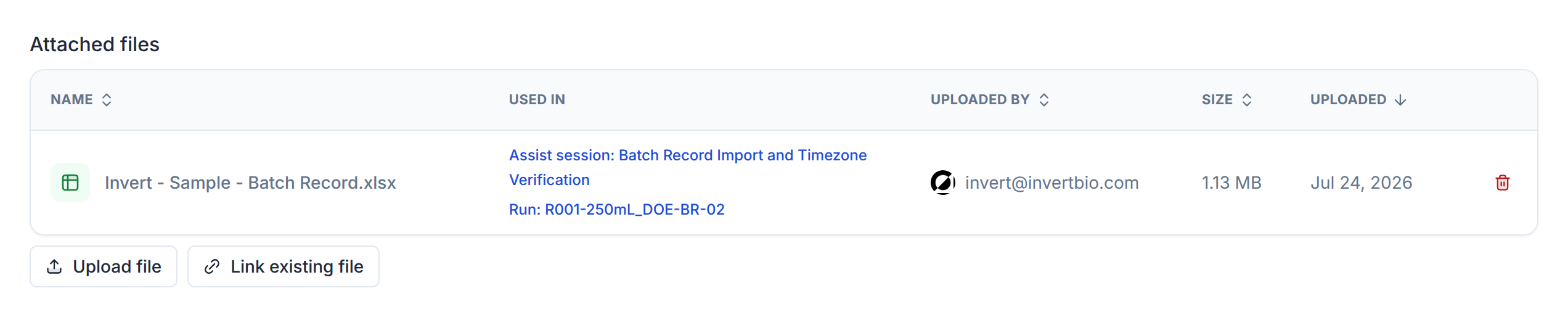
Open a run's Files tab. In Attached files, choose Upload file to add a file or Link existing file to reuse one of your uploads. On the Files page, use Attach to runs to link your file to one or more runs without uploading another copy.
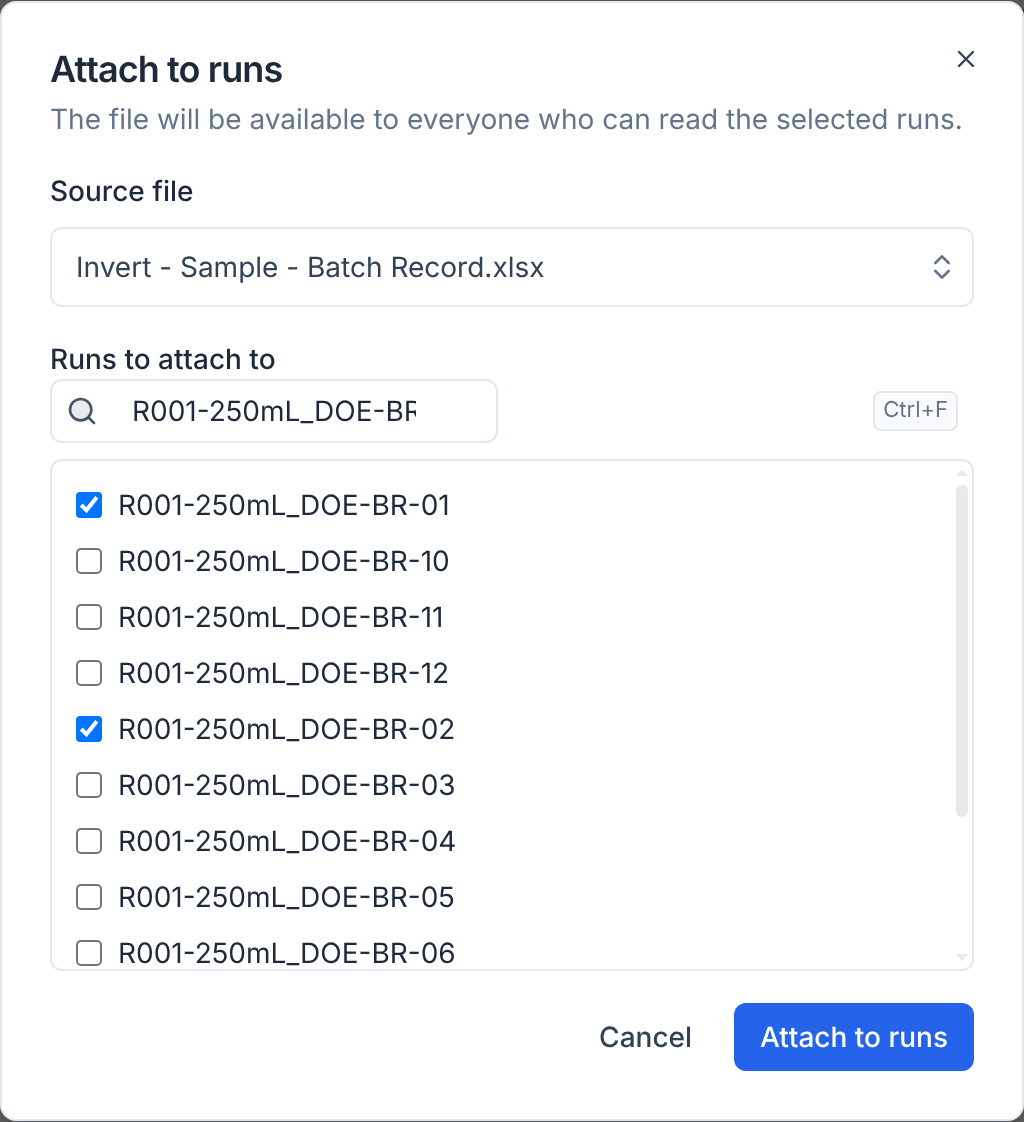
Run association is optional. If you choose runs and confirm Attach to runs, the file is attached to those runs. If you do not choose a run, the file stays on the Files page with no run link. For example, a file you send in Assist shows on the Files page even if you never attach it to a run. To keep a file without a run link, close Attach to runs without confirming.
Sharing and removal
Adding or removing run attachments requires edit access. Only the uploader can link an existing file to more runs. Before you confirm, review the destinations: The file will be available to everyone who can read the selected runs.
Removing an attachment from a run removes that run's link, not the file or its other links.
Imported files
The run's Files tab also has an Imported files section for source files used to import run data. Open a source file to download it, or follow its Import job to review the import. These are separate from supporting documents in Attached files; attaching a file does not import its data.
Work with files in Assist
In Assist, use Add → Files or drag files into the conversation and send your message. Assist can open the files you send, analyze them, and expose files it creates for you to download and reuse from the Files page.
Assist cannot yet use files on the Files page or files attached to runs. To use one of these files in Assist, add it to the conversation again. Files added to Skills and AI context are different: Assist opens them when they are relevant.
For a .zip, ask Assist to unzip it and make the individual files available, or ask it to keep the .zip as it is.
You can also ask Assist to attach files to named runs. Review its proposed file links and explicitly approve them in Attach to runs; Assist does not attach them without your approval. If you do not approve, the files stay on the Files page with no run link.