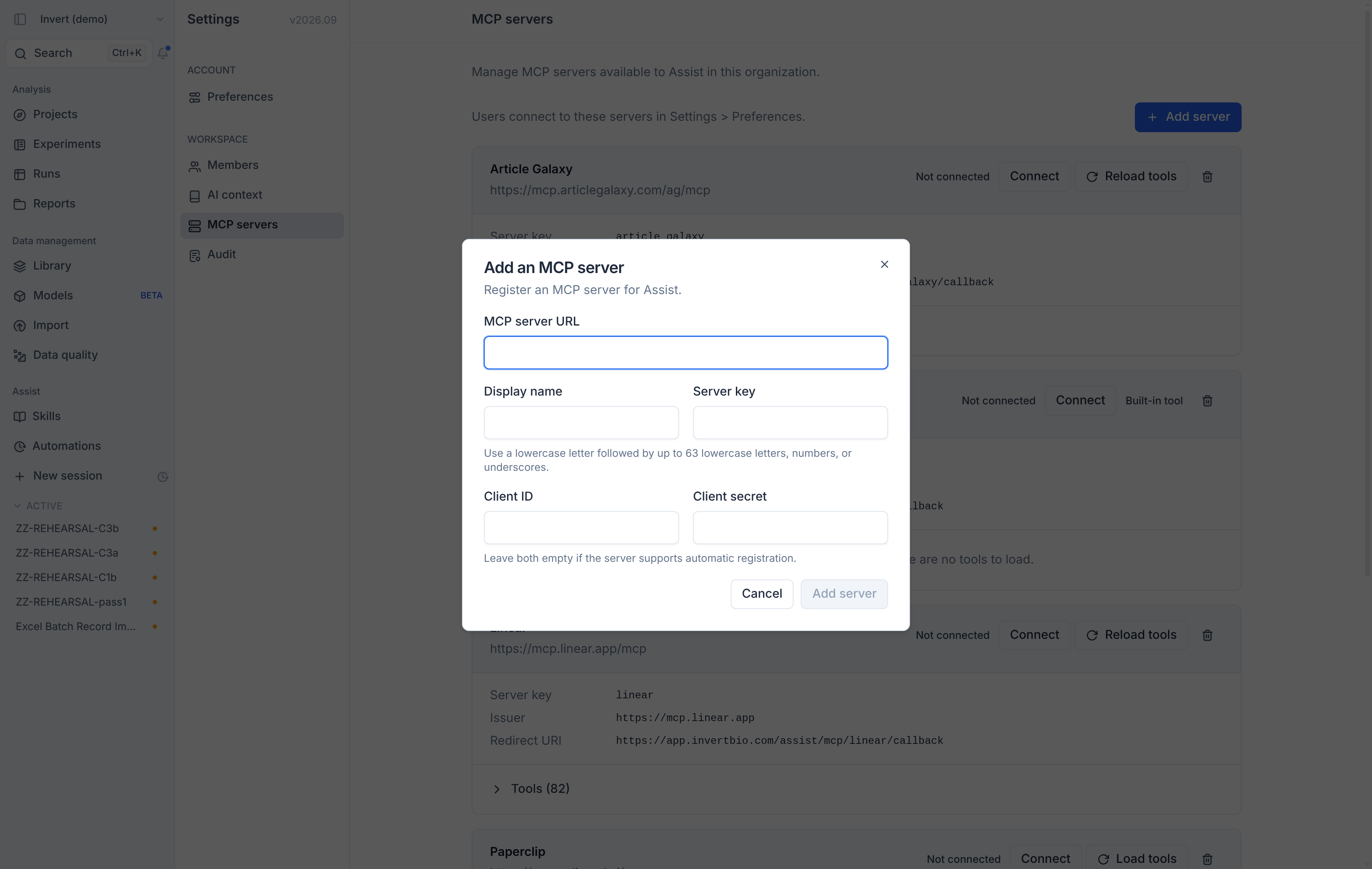
Assist can now use tools from the other products your team works in, such as Benchling, Article Galaxy, and SharePoint and OneDrive. An admin adds the server once for your organization, and each user then connects their own account, so Assist only sees what that user can already see in that product.
What you get
- Self-serve setup for admins. Go to Settings → MCP servers, click
Add serverand sign in. The server's tools load automatically. - SharePoint and OneDrive built in. Pick Microsoft Work IQ in the Add dialog to connect Assist to your files in SharePoint and OneDrive. Your Microsoft admin enables Work IQ once, and the guide walks through it.
- Clear tool approval. Each tool shows whether it is approved or blocked by default, why, and what approving it means for your organization.
- Personal connections. Users connect their accounts under Settings → Preferences → Connected accounts, and Assist can then use the approved tools in their sessions.
See Add an MCP server to Assist for the full steps.