Docs  |  FAQ

FAQ

Quick answers to common questions about mappings, graphing, events, experiments, and more.

Open in full page

A mapping is a feature designed to simplify the file upload process on our platform. Essentially, it's a predefined template that helps link specific data fields seamlessly.

To upload a file using a mapping, head to Import, choose the mapping that matches your file format, and proceed with the upload.

If you are unsure about the mapping format, select the mapping and click Download Template .csv to use a sample format. We offer generic mappings like Timeseries Data (absolute and relative time), Run Events, and Run Data (process metadata). If you require a custom mapping please contact us through Help & Support.

Open in full page

Finding a specific run or set of runs between hundreds is like finding a needle in a haystack 🌾

So we made it easy for you with filters.

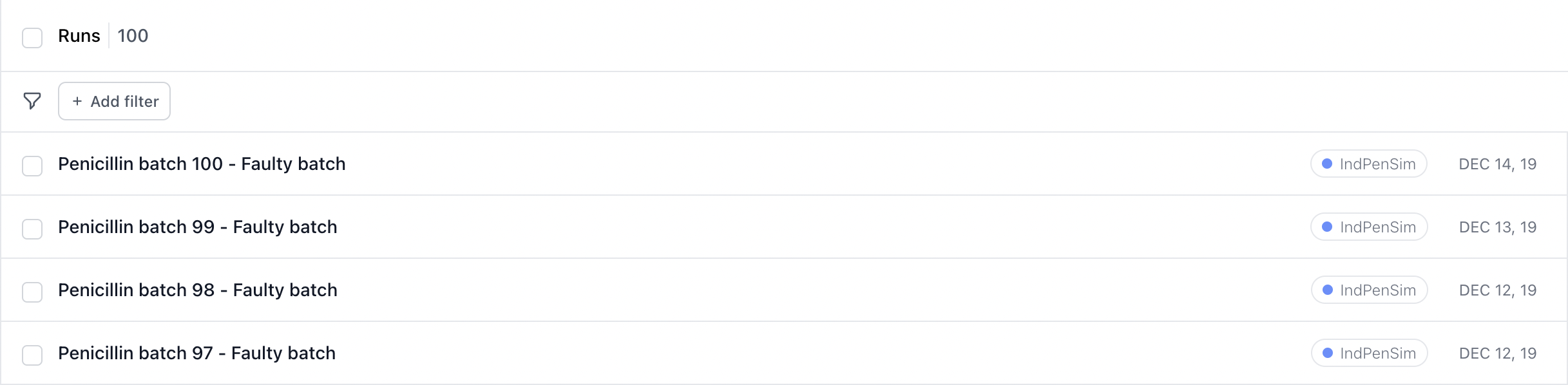
Example run list

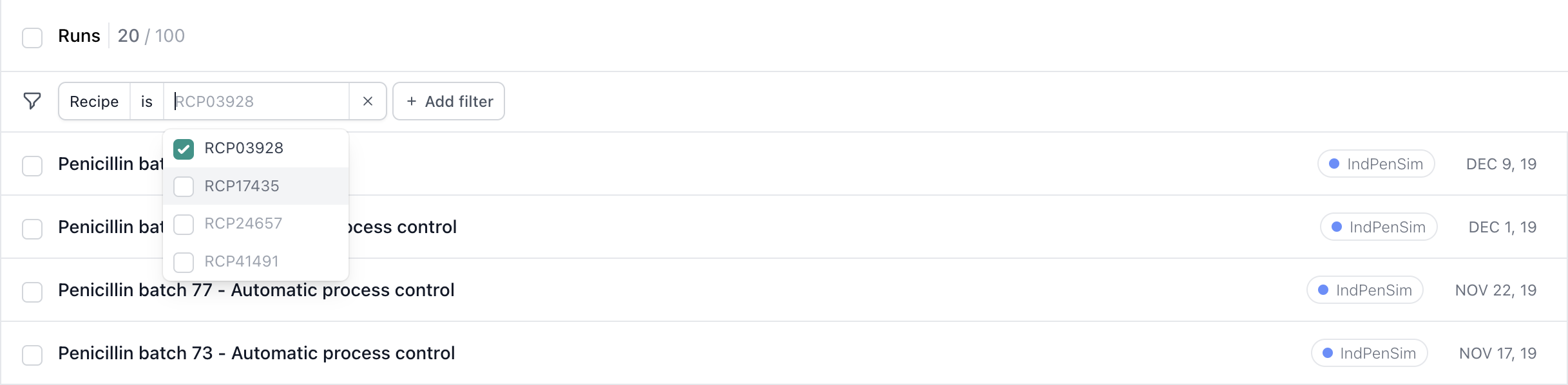
You can filter by any property by clicking Add filter and choosing the run property you would like to filter by. You can include on or more values on each filter.

Open in full page

Analyses have been upgraded to Reports!

  • You can now store several analyses within a single report
  • Share context and conclusions through free text annotations for each plot block

Quick Video Walkthrough

From the Run Table:

  • Use filtering and grouping tools to select runs, then click 'Analyze.'
  • Select graphed metrics, zoom, metadata, and view settings.
  • Click Save Report to store this analysis into a Report to share and annotate findings.

From Reports:

  • Create a new report or open an existing report
  • Add a new plot block
  • Select your runs, run settings, and click Save Report for the new plot block to be added to your Report.

Open in full page

Time-series Charts

Time normalization

  • All time based charts are normalized to the Run Start time which calculates the Elapsed Run Time (ERT).
  • If there is data recorded prior the Run Start time, click View -> Show Pre-run start data to reveal the data prior to t=0.

Zoom

  • For Y-axis zooming, click on the two axis numbers to set the zoom bounds.
  • For X-axis zooming, click and drag within the graph.

Downsampling and Interpolation

  • In order to maintain a snappy interface, we downsample the vast amount of available raw data for the line charts.
  • Data is interpolated between time points to enable the calculations in formulas and grouped time-series statistics for runs that do not have identical data frequencies.
  • Higher resolution raw data will render as you increase the zoom and is also available through the data export.

Chart Splits

  • In the View options you can select to split the data:
    • All-in-one
      • This will show all metrics and runs on a singular graph.
      • Each metric has a unique texture and each run has a unique color.
    • Split metrics
      • This creates a separate chart for each metric.
      • Each run has a unique color which is consistent across each chart.
    • Split Runs
      • This creates a separate chart for each run or run group.
      • Each metric has a unique color which is consistent across each chart.
    • Separate
      • Each metric and run is separated onto their own chart.

Grouping

  • Use the 'Group by' option to categorize runs by metadata and access Invert's inter-run statistical comparison tools.
  • Line chart groups aggregate the run's interpolated data and display a solid line for the 50th percentile (median) values with a shaded range of the 16th to 84th percentiles. This ensures a distribution-agnostic analysis. Unlike mean and standard deviation, these percentiles provide a summary of both central tendency and variability within data. If the data is normally distributed these percentiles will represent 1 standard deviation.

Scatterplot Charts

  • Toggle to scatter charts under the View dropdown menu.

  • The x-axis is set to the run name by default. However, you can select any categorical or time-series aggregated metric available to the selected runs by clicking on the tile next to the X.

  • The y-axis metrics can be any numeric values. This includes time-series aggregations, single-point values (numeric metadata), and calculated metrics.

    • Time-series aggregation options include mean, minimum, maximum, standard deviation, first, last, and count.
Open in full page

What are Experiments?

Experiments, previously "parent runs", are a grouping of runs, typically with overlapping operations timelines used to help manage organizational complexity.

For example - a set of 12 or 24 runs that were performed in the same operational window on a Sartorius Ambr could be batched into a single Experiment. The seed flask and seed train runs can also be included in this experiment if that organizational grouping is helpful.

Note: Run data can still be compared across experiments by simply selecting the runs of interest.

Editing via Uploads

The Run Data mapping allows you to edit the experiment for any run. This is recommended approach for bulk editing any run data, including Experiments.

  1. Creating the file to ingest:
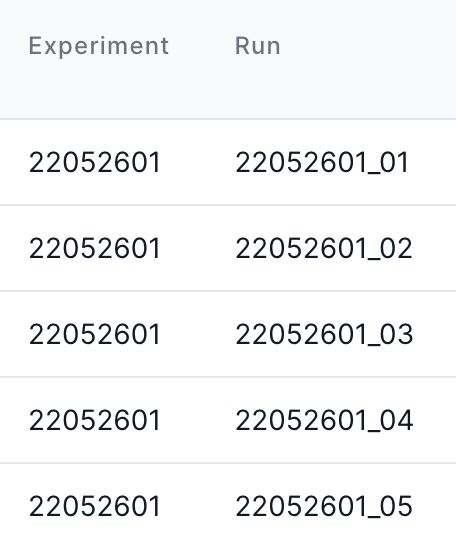
  • Create a csv or excel sheet with headers "Experiment" and "Run"
  • Ensure the Run names match exactly with the runs that exist in your tenant that you would like to edit, otherwise this process may result in creating new runs.
  • The Experiments do not need to exist prior to this upload, they will be created through this process. If your experiments already exist, please ensure you are using the exact name of the Experiment you intend to map the runs with.
  1. Uploading the file for ingestion
  • Navigate to the Import page
  • Select your file to import
  • Select the Run Data mapping
  • Click Start Import

Note: Some custom mappings may already incorporate experiments if the schema has been provided. If you are interested in updating an existing mapping, please reach out through Help & Support.

Editing via the Run Table

If you prefer seeing the edits in a more familiar spreadsheet format you can edit from the main run table.

  • While in the run table interface, select the runs you wish to edit
  • Ensure the Experiment column has been added to the table
  • Click Edit
  • Type in the Experiment Name.
    • If the Experiment does not already exist, it can be created through this link
  • Click Save

Editing via the Run Summary Page

Every Run can be edited individually through its summary page.

  • Click on the run name in the run table to navigate to the summary page
  • Click Edit
  • Select the Experiment name from the dropdown
    • If the Experiment does not already exist, it can be created through this link
  • Click Save

Open in full page

What is an event?

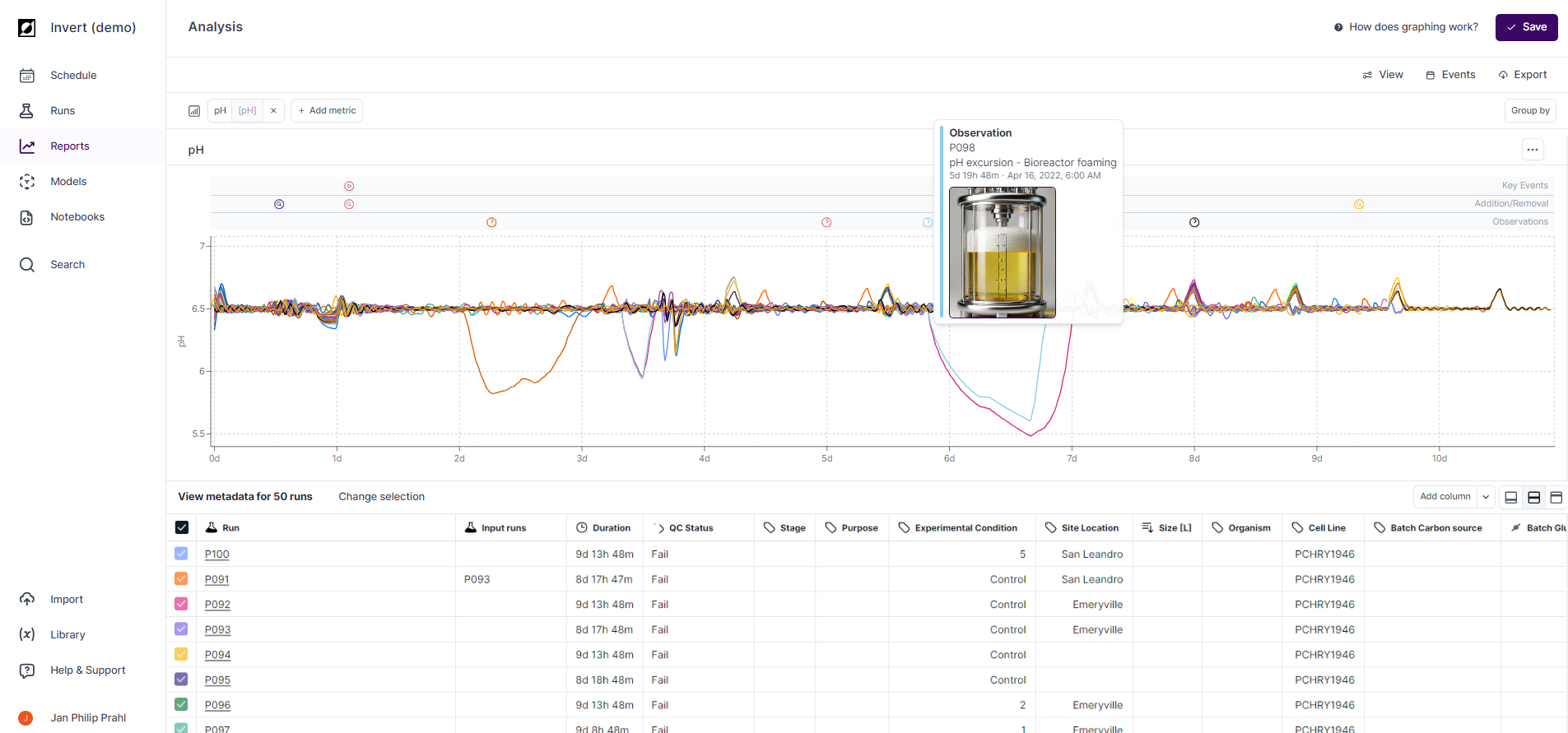
An event is a specific occurrence or milestone within your bioprocess. Users can annotate this data by creating event notes, which are distinct from timeseries data and metadata. Each event note includes details such as event type, timestamp, and optional information like event description, operator, and even image uploads. Event notes are bundled into a single event and displayed on the graph, aligned by its relative timestamp value.

How to create an event on Invert?

You can create an event by navigating to the Event side bar on the Analysis page. Open the Run Events page and select a run ID from the dropdown menu. Press 'Edit' to enable event editing and click 'Add' in the desired event category. Enter in event details for time and event type, save the changes and return to the Analysis page.

Image upload

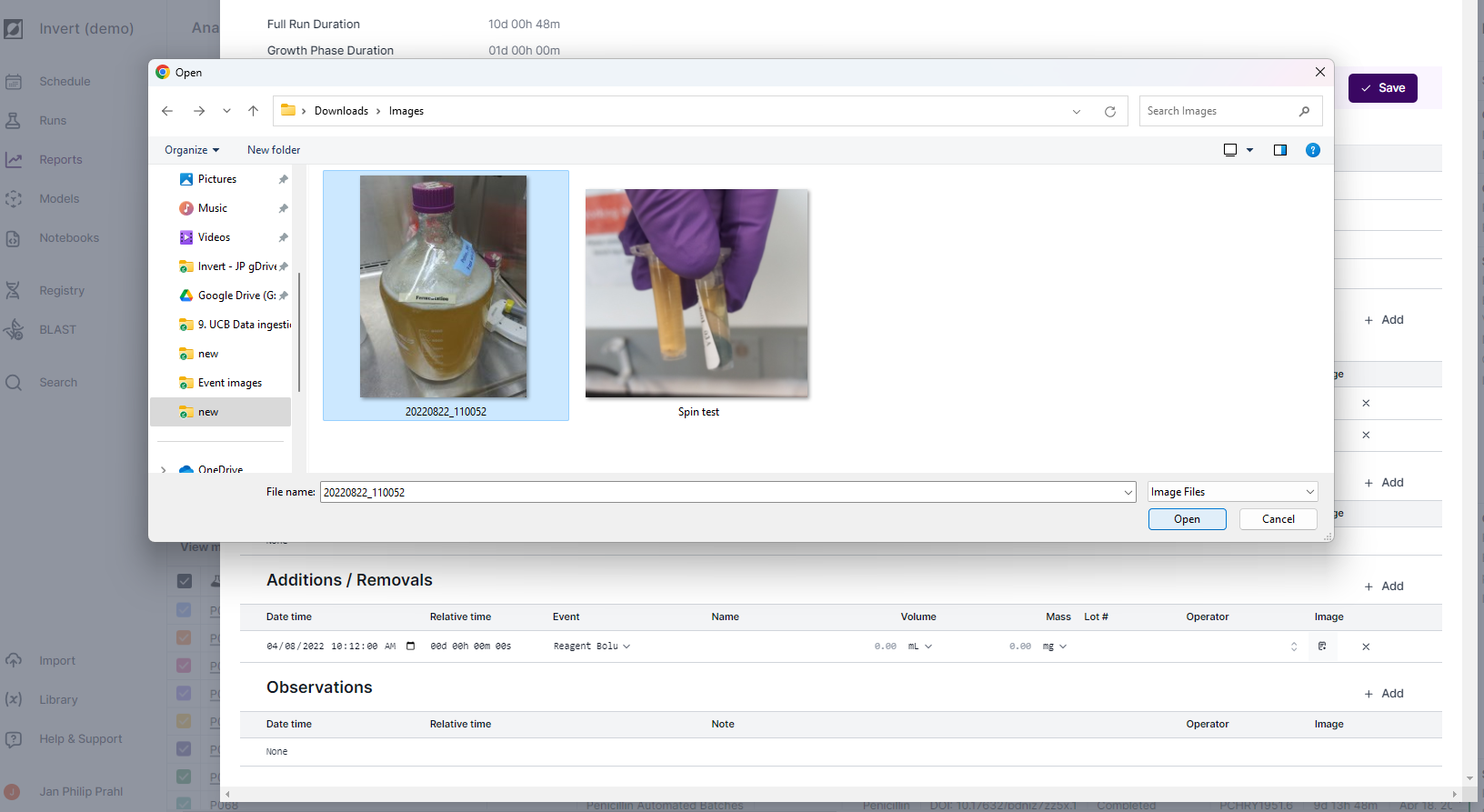
You can upload images to events on the Run Events page! Images show in event tool tips and can be downloaded in the events side bar view.

How can I hide certain events from view?

You can control event visibility through the event filter dropdown menu in the event side bar. Unselect 'All' to hide all events from view. Alternatively, you can choose to show specific events by checking/unchecking any of the event checkbox in the dropdown menu, such as 'Sample' or 'Inoculation'.

Event categories and Event types

Phases

  • Growth (Start/End), Production (Start/End)

Critical Operations

  • Inoculation, Induction, Feed Start, Transfection

Additions / Removals

  • Sample, Drawdown, Foamout, Harvest, Reagent bolus

Observations

  • Observations
Open in full page

Run names tend to be long, uninformative, or overly detailed which can impact the effectiveness of your data presentation. By assigning friendly run names, you can streamline the appearance of charts and legends, enabling you to emphasize run-specific details and present your analysis with greater clarity.

To assign friendly run names using the "Group by" feature, follow these steps:

  1. Create a new property:

    Navigate to the Runs table or Library page to create a new property for your custom run names (e.g. 'Alias').

  2. Change Data Type to 'Text':

    Edit the property and set data type to 'Text'.

  3. Assign Friendly Run Names:

    Enter your desired run names into the custom property field via the Runs table.

  4. Apply 'Group By' in charts:

    On the analysis page, choose the newly custom property from the 'Group By'-dropdown menu.

The custom text values will replace Run IDs in charts and chart legends, making it easier to identify and compare runs during analysis.

Open in full page

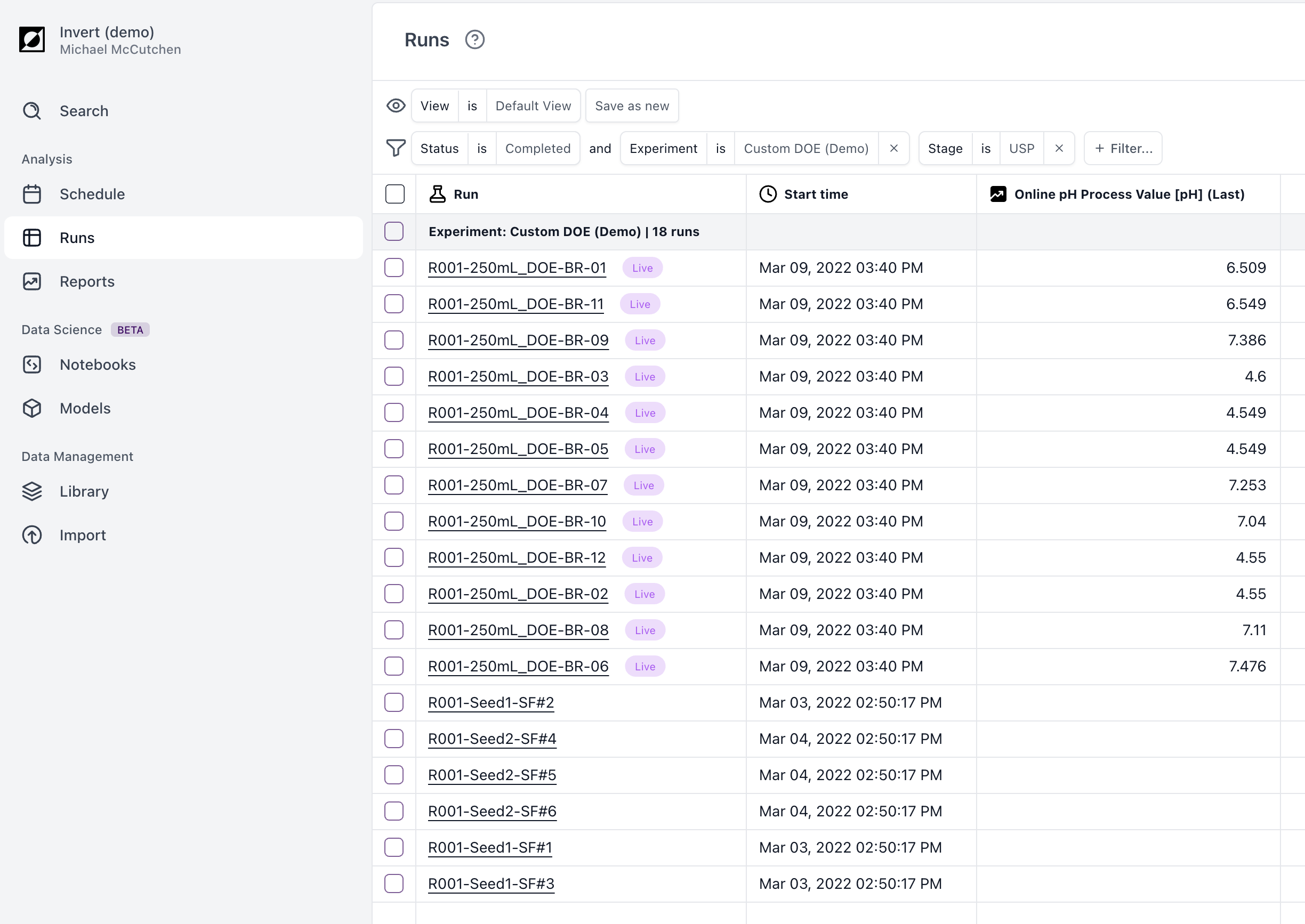
When runs are receiving data right now, Invert will label them with the "Live" indicator. This means that Invert has received data from the last five minutes.

You can use this to quickly find data from live runs and distinguish what's running right now from historical data.

This live indicator is separate from the run status field (Draft, In-Progress, Completed, etc.), which remains the same.

The live status will automatically appear in the run table:

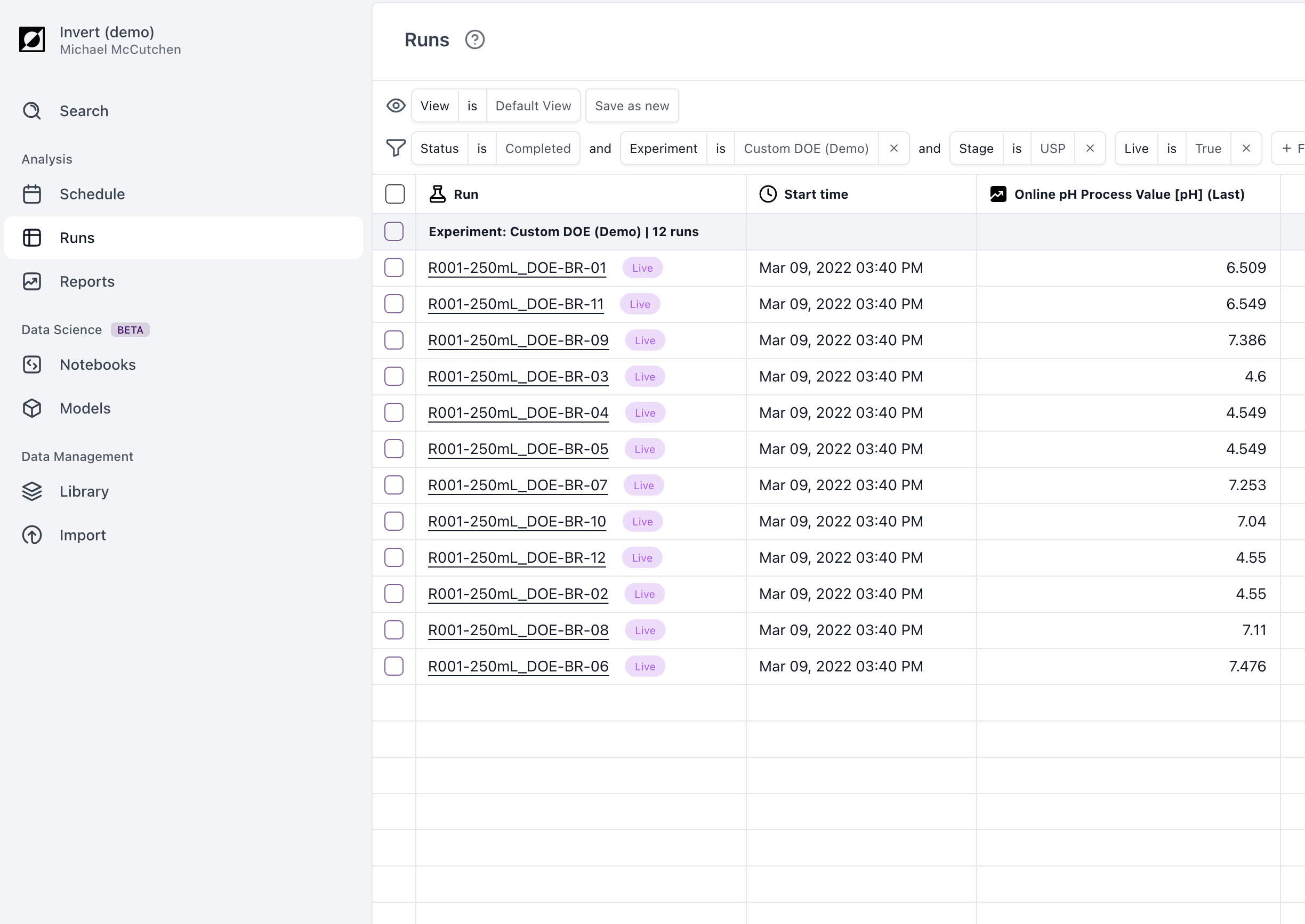
Live status can be applied as a filter, to show only live runs, as shown below:

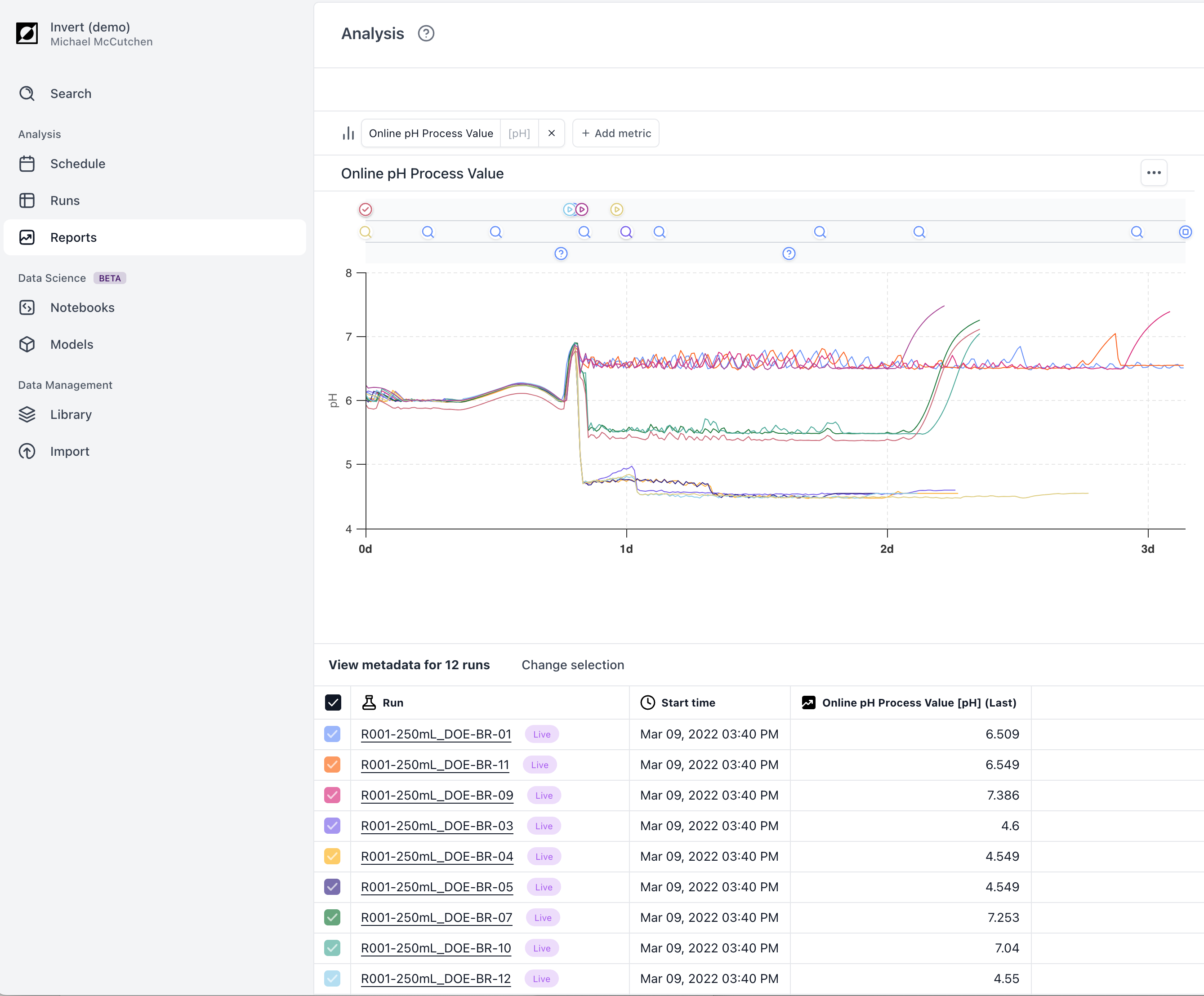
This status is visible in the analysis view as well:

Open in full page

To set up Single Sign-On (SSO) with Microsoft Azure Active Directory (Azure AD), please follow these steps:

Step 1: Register an Application in Azure AD

  1. Log in to your Azure portal.
  2. Go to Azure Active Directory → App registrations → New registration.
  3. Enter a name for the application (e.g., Invert SSO).
  4. Under Redirect URI, add the following value: https://auth.invertbio.com/login/callback
  5. Save the application.

Step 2: Collect and Share Information with Invert

Once the application is created, please provide the following details to your Invert representative so we can complete the setup on our side:

  • Application (Client) ID
  • Client Secret (you will need to generate one in the app’s Certificates & Secrets section)
  • Azure AD Domain Name (found in your Directory overview)
  • Tenant ID (optional but recommended for more reliable configuration)

Once we receive this information, we will finalize the SSO integration. After setup, your users will be able to log in to Invert using their Microsoft Azure AD credentials.